
Home / Blogs & Insights / Odoo HMRC Making Tax Digital: Complete UK VAT Guide

Odoo HMRC Making Tax Digital: Complete UK VAT Guide

Making Tax Digital (MTD) feature image showing digital tax compliance, MTD checklist, and online tax return management.

Table of Contents

Key Takeaways

  • Making Tax Digital (MTD) requires eligible UK businesses to maintain digital VAT records and submit returns using compatible software.
  • Odoo Enterprise supports direct HMRC integration, helping businesses streamline their VAT filing process.
  • Installing the UK localisation modules correctly is essential for accurate VAT reporting and MTD compliance.
  • Review all nine VAT boxes in Odoo before validating and submitting your VAT returns.
i

Understanding Odoo Making Tax Digital (MTD)

Every UK VAT-registered business using Odoo must now comply with Making Tax Digital (MTD) requirements set by HMRC. Businesses that fall within the applicable VAT threshold must maintain digital records and submit VAT returns through compatible software.

This guide explains how to configure Odoo for UK VAT compliance, connect your HMRC account, review the nine VAT return boxes, understand available VAT schemes, and avoid unnecessary penalties caused by missed or incorrect submissions.

Whether you are using Odoo Enterprise with the native HMRC connector or a compatible third-party solution for Odoo Community, the steps outlined below will help you streamline your VAT filing process and maintain confidence in your digital tax obligations.

What Is Making Tax Digital (MTD) and Does It Apply to You?

Making Tax Digital (MTD) is HMRC's initiative to modernise the UK's tax system by requiring businesses to maintain digital records and submit VAT returns using compatible software. The aim is to reduce errors, improve efficiency, and make tax administration more effective.

Under MTD for VAT, businesses can no longer rely solely on manual spreadsheets and traditional filing methods. Instead, they must use software that can create and preserve digital records while supporting electronic submissions to HMRC.

Who does MTD apply to?

MTD for VAT generally applies to VAT-registered businesses in the UK. Businesses above the VAT registration threshold are required to comply, while many businesses below the threshold may choose to adopt MTD voluntarily.

What does MTD require?

Businesses must maintain digital VAT records, preserve relevant tax data electronically, and submit VAT returns to HMRC using MTD-compatible software such as Odoo.

Why this matters

Understanding whether MTD applies to your organisation is the first step toward ensuring VAT compliance. Choosing the right accounting system and establishing the correct processes early can help prevent reporting errors and avoid unnecessary penalties.

Setting up the UK localisation in Odoo
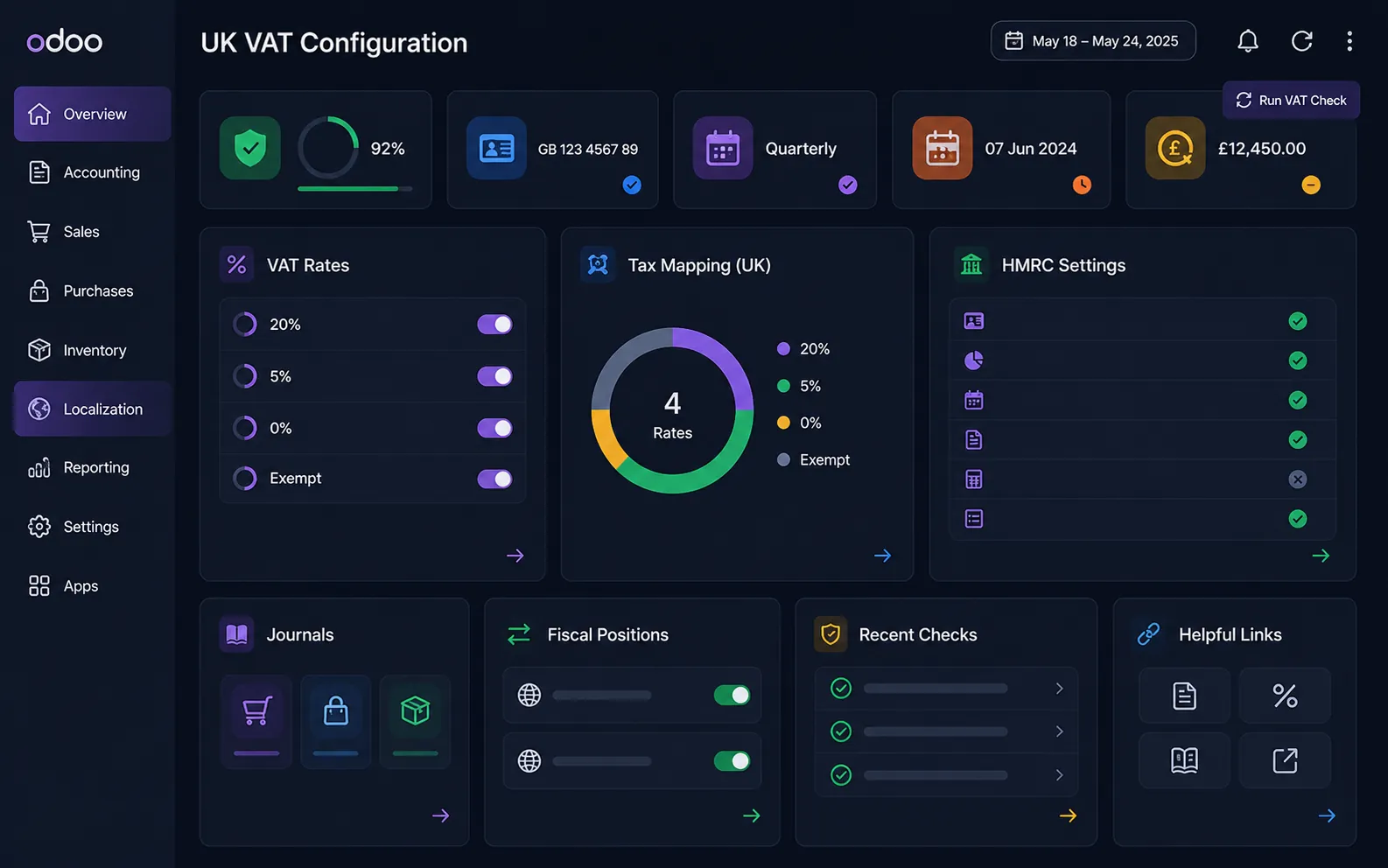
Odoo UK localisation setup showing VAT configuration and HMRC integration for Making Tax Digital compliance

Before you can submit MTD VAT returns from Odoo, your database needs the UK accounting localisation installed. This creates the UK chart of accounts, VAT report structure, tax tags, and HMRC-ready reporting flow.

Go to Settings → Accounting → Fiscal Localisation and select United Kingdom. Odoo will install the relevant UK accounting modules based on your edition and configuration.

l10n_uk
UK chart of accounts Adds the UK accounting structure, standard VAT rates, and base fiscal setup.
l10n_uk_reports
VAT report templates Provides MTD-ready UK VAT report layouts and tax tag mapping.
l10n_uk_hmrc
HMRC connector Enables direct HMRC submission support for Odoo Enterprise users.

Odoo Community vs Enterprise: what changes for MTD?

Odoo Enterprise includes the native HMRC connector, so businesses can connect directly to HMRC from the accounting app. Odoo Community does not include this connector by default, so users typically need a compatible third-party MTD app before submitting VAT returns digitally.

Version differences: Odoo v16 through v19

Odoo VersionWhat changes for MTD
v16 / v17 Uses the Tax Report menu with the standard MTD submission flow and HMRC connection process.
v18 Adds stronger VAT lock date handling, helping prevent back-dated entries from changing closed periods.
v19 Introduces a newer Tax Returns object with cleaner period handling, historical return review, and anomaly detection support.
Odoo Tip

Confirm the UK localisation and VAT tax tags before connecting HMRC. Incorrect tax mapping can cause wrong values in your VAT boxes even if the HMRC connection works correctly.

Connecting Odoo to HMRC first-time setup
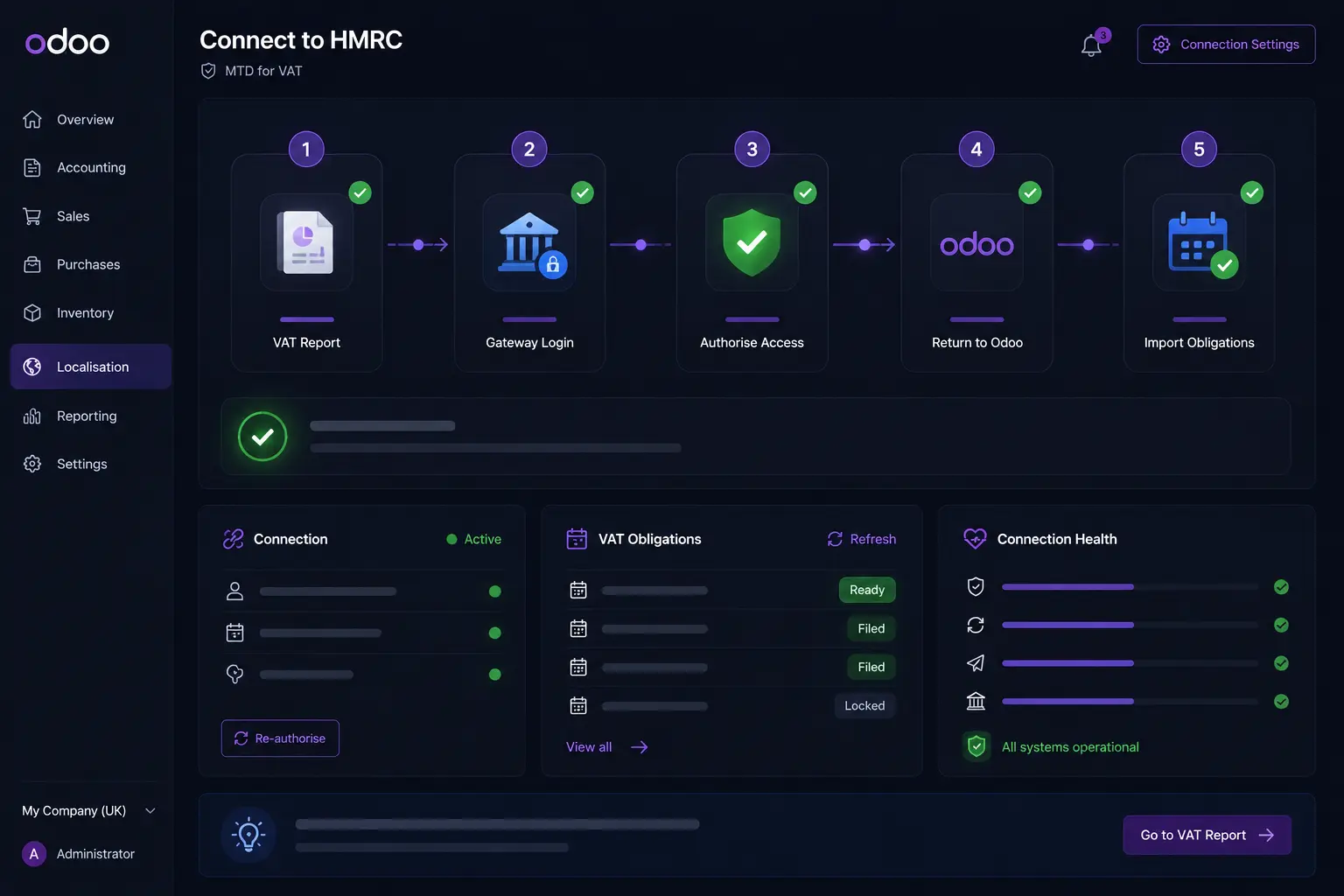
Odoo HMRC integration dashboard showing the Making Tax Digital authorisation process

Before submitting your first VAT return through Making Tax Digital, you need to authorise Odoo to communicate with HMRC on behalf of your business. The setup process uses HMRC's secure OAuth authentication flow, meaning your Government Gateway credentials are never stored inside Odoo.

How to authorise Odoo for HMRC submissions

1

Open the VAT report

Navigate to Accounting → Reporting → Tax Report and click Connect to HMRC.

2

Sign in using Government Gateway

Odoo redirects you to HMRC's authentication portal, where you log in using your Government Gateway credentials.

3

Grant access permissions

Review HMRC's authorisation request and approve Odoo to submit VAT returns on behalf of your organisation.

4

Return to Odoo

After authorisation, HMRC redirects you back to Odoo and stores the secure access token required for future submissions.

5

Import VAT obligations

Refresh the VAT report to fetch open filing periods directly from HMRC, allowing you to prepare your return.

Testing with HMRC sandbox

Use HMRC's sandbox environment to verify your Odoo configuration before sending a live VAT return. This helps validate the connection process without affecting real filing obligations.

Resetting expired authorisations

If the HMRC connection expires or fails, simply reconnect your account by repeating the authorisation process to generate a fresh access token.

Odoo Tip

Complete the HMRC connection setup before your VAT deadline. Waiting until the last day to authorise your account may increase the risk of missed submissions and penalty points.

The nine VAT boxes: what they mean in Odoo

Every VAT return submitted through Making Tax Digital includes nine reporting boxes. Odoo automatically calculates these values using tax tags and the transactions recorded during the reporting period. Reviewing each box before submission helps identify missing invoices, incorrect tax configurations, or posting errors.

BoxDescriptionOdoo Mapping
1VAT due on sales and other outputs.Sales VAT tax tags
2VAT due on acquisitions from EU member states.EC acquisition tax tags
3Total VAT due for the reporting period.Calculated automatically
4VAT reclaimed on purchases and expenses.Purchase VAT tax tags
5Net VAT payable to HMRC or reclaimable.Calculated automatically
6Total value of sales excluding VAT.Sales totals
7Total value of purchases excluding VAT.Purchase totals
8Total value of supplies to EU member states.EC sales reporting tags
9Total value of acquisitions from EU member states.EC acquisition reporting tags

What should you review before submission?

Validate tax mappings

Confirm that the correct VAT rates and tax tags are assigned to transactions recorded during the reporting period.

Drill down into totals

Open the individual transactions behind each VAT box to investigate unusual balances or unexpected amounts.

!
Resolve anomalies

Correct posting mistakes before validation, as changes to locked periods may require additional adjustments.

Penalty Risk

Submitting incorrect VAT figures can lead to additional HMRC scrutiny, amendments, and potential penalties. Always review all nine VAT boxes before validating and sending your return.

Submitting your MTD VAT return in Odoo
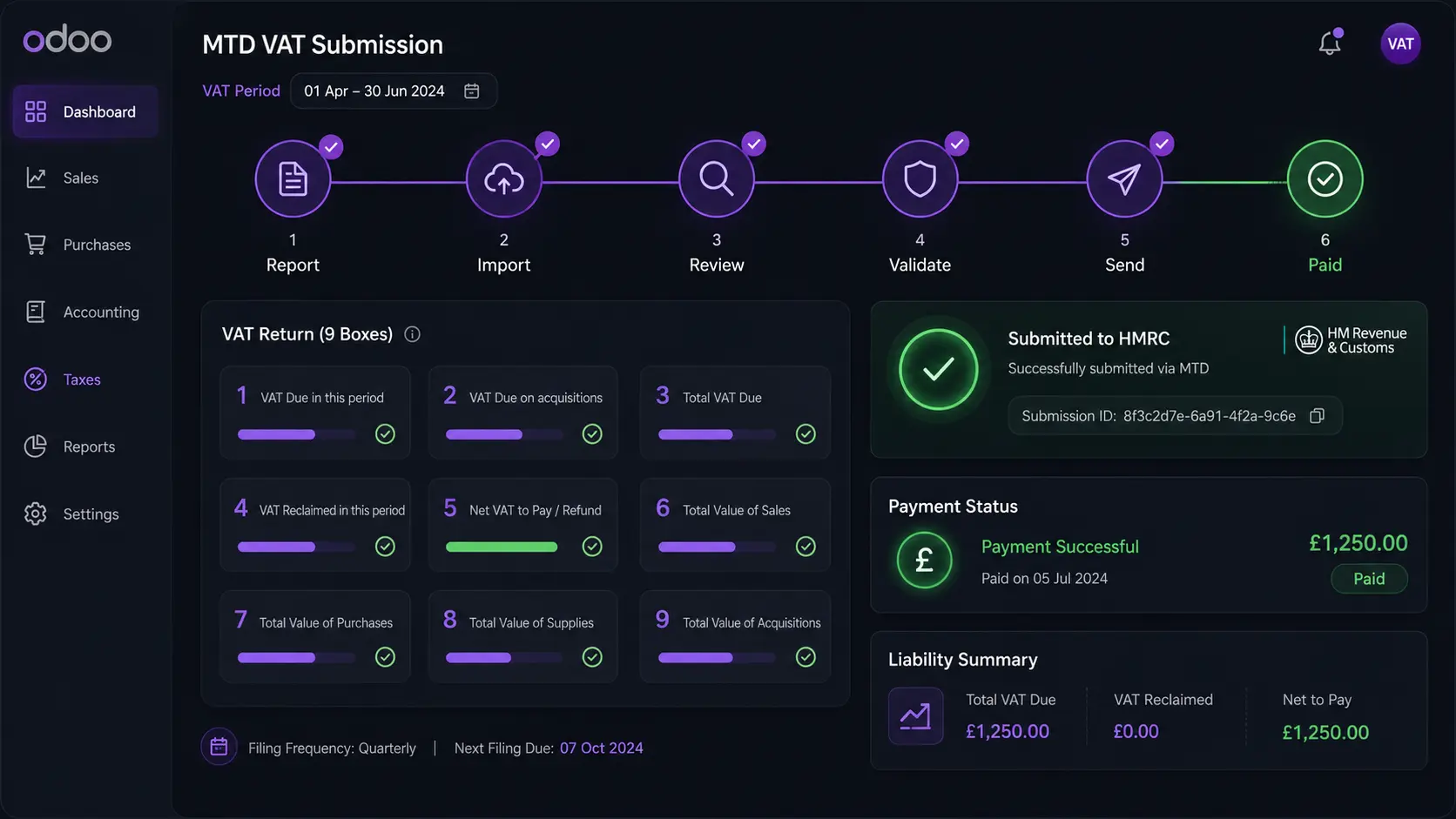
Odoo dashboard showing the Making Tax Digital VAT submission workflow

Once your UK localisation, VAT tax tags, and HMRC connection are ready, you can prepare and submit your MTD VAT return directly from Odoo. The exact menu label may differ slightly by version, but the core process remains the same across Odoo v16, v17, v18, and v19.

1

Open the VAT return area

Go to Accounting → Reporting → Tax Returns in Odoo v19, or open Tax Report in Odoo v16 to v18.

2

Import HMRC obligations

Click Import Obligations so Odoo can fetch your open VAT filing periods directly from HMRC.

3

Review the nine VAT boxes

Check each box total, drill into unusual values, and resolve any anomalies before locking the return.

4

Validate the return

Click Validate to confirm the VAT return values and prevent further changes to that reporting period.

5

Send the return to HMRC

Click Send to HMRC. Odoo will submit the return through the HMRC connection and display a confirmation reference after submission.

6

Mark the VAT return as paid

Once your BACS payment or Direct Debit clears, update the payment status in Odoo to keep your records aligned.

Back-dated entries and VAT lock dates

If you post a bill or invoice dated before the current VAT lock date, Odoo may move the adjustment into the next open period. This helps protect already-submitted returns from being changed after filing.

Quarterly VAT filing

Most UK businesses file VAT quarterly. Odoo imports the relevant open period from HMRC and prepares the return based on that obligation.

Monthly VAT filing

Monthly filing may suit businesses that regularly reclaim VAT or operate with high volumes of zero-rated supplies.

Submission Tip

Always save the HMRC confirmation reference after sending your return. It acts as proof of submission if HMRC later questions the filing status or submission date.

Connecting Odoo to HMRC first-time setup

Odoo HMRC integration dashboard showing the Making Tax Digital authorisation process

Before submitting your first VAT return through Making Tax Digital, you need to authorise Odoo to communicate with HMRC on behalf of your business. The setup process uses HMRC's secure OAuth authentication flow, meaning your Government Gateway credentials are never stored inside Odoo.

How to authorise Odoo for HMRC submissions

1

Open the VAT report

Navigate to Accounting → Reporting → Tax Report and click Connect to HMRC.

2

Sign in using Government Gateway

Odoo redirects you to HMRC's authentication portal, where you log in using your Government Gateway credentials.

3

Grant access permissions

Review HMRC's authorisation request and approve Odoo to submit VAT returns on behalf of your organisation.

4

Return to Odoo

After authorisation, HMRC redirects you back to Odoo and stores the secure access token required for future submissions.

5

Import VAT obligations

Refresh the VAT report to fetch open filing periods directly from HMRC, allowing you to prepare your return.

Testing with HMRC sandbox

Use HMRC's sandbox environment to verify your Odoo configuration before sending a live VAT return. This helps validate the connection process without affecting real filing obligations.

Resetting expired authorisations

If the HMRC connection expires or fails, simply reconnect your account by repeating the authorisation process to generate a fresh access token.

Odoo Tip

Complete the HMRC connection setup before your VAT deadline. Waiting until the last day to authorise your account may increase the risk of missed submissions and penalty points.


Need Odoo MTD Support?

Need help connecting Odoo to HMRC?

Our Odoo specialists can help verify your UK localisation, HMRC connection, VAT box mapping, and first MTD submission flow before your filing deadline.

VAT schemes in Odoo: standard, cash accounting and flat rate

Odoo can support different VAT accounting approaches depending on how your business reports VAT to HMRC. The right setup depends on your cash flow, invoice timing, business size, and whether you are eligible for simplified VAT schemes.

1

Standard VAT Accounting

VAT is recorded based on the invoice date. This is the default VAT method after installing the UK localisation in Odoo.

Default setup
2

Cash Accounting Scheme

VAT is recorded when payment is received or made, instead of when the invoice is issued. This helps businesses with delayed payments.

Payment-based
3

Flat Rate Scheme

Eligible businesses pay a fixed percentage of gross turnover instead of calculating VAT on every purchase and sale separately.

Simplified VAT

Which VAT scheme is right for your business?

Quick comparison for Odoo users Use this as a practical guide before confirming your VAT scheme with your accountant.
Use Standard VAT if... You want the default Odoo VAT setup and your business reports VAT based on invoice dates.
Use Cash Accounting if... Your customers often pay late and you want VAT reporting to follow actual payment dates.
Use Flat Rate if... Your business is eligible and wants a simplified VAT calculation based on turnover.
Best Practice

Configure your VAT scheme before posting live invoices and bills in Odoo. Changing VAT treatment after transactions are created can affect tax reports, VAT box totals, and historical filing accuracy.

MTD penalties – understanding the points-based system

HMRC replaced the previous VAT default surcharge regime with a points-based penalty system. Each missed VAT submission results in a penalty point. Once you reach the threshold for your filing frequency, a financial penalty may apply.

1

Penalty point added for each missed VAT submission.

4

Points threshold for quarterly VAT filers.

£200

Fixed penalty once the threshold is reached.

0

Points can reset after maintaining compliance.

Missed Return
HMRC adds one penalty point when a VAT return is submitted late or not submitted at all.
Threshold Reached
Once you reach the points threshold applicable to your filing frequency, HMRC may impose a financial penalty.
Further Late Filings
Additional missed returns after reaching the threshold may lead to further penalties.
Compliance Period
Penalty points can expire if you submit all returns on time for the required compliance period.
Penalty Prevention Tip

Set up reminders for VAT deadlines and review your Odoo VAT reports before the filing due date. Early validation reduces the risk of errors, late submissions, and avoidable penalty points.

Reviewing historical VAT returns in Odoo

Odoo maintains a complete history of previously submitted VAT returns, helping businesses prepare for audits, reconcile past filings, and investigate differences between reporting periods. Historical records also provide evidence of compliance when HMRC requests supporting documentation.

Track previous submissions

View previously submitted VAT returns along with their reporting periods, validation dates, and filing status.

📄

Access supporting records

Drill down into transactions linked to individual VAT boxes to understand how reported figures were calculated.

How to access historical VAT returns

Open Accounting → Reporting → Tax Returns to review earlier submissions and compare reporting periods.

1
Open Tax Returns Navigate to the Tax Returns area from the Accounting module.
2
Filter by submission status Use filters such as Submitted or Closed to locate previously filed returns.
3
Review VAT box details Open a return and inspect individual VAT box totals and related transactions.
4
Export for audit purposes Generate PDFs or supporting reports to maintain a clear audit trail.
Best Practice

Retain copies of submitted VAT returns, HMRC confirmation references, and supporting reports. Maintaining complete records simplifies future audits and helps resolve discrepancies more efficiently.

Conclusion

Making Tax Digital has changed the way UK businesses manage VAT compliance, making digital record-keeping and software-based submissions essential. With the right Odoo setup, businesses can streamline the entire MTD process from configuring UK localisation and connecting to HMRC to reviewing VAT data and submitting returns accurately. By regularly validating VAT reports, understanding the appropriate VAT scheme, and maintaining complete filing records, organisations can reduce compliance risks and avoid unnecessary penalties. As HMRC continues to expand digital tax requirements, leveraging Odoo effectively can help businesses stay compliant, improve reporting accuracy, and simplify VAT management for the long term.

Need Help with Odoo Making Tax Digital Compliance?

Whether you're setting up UK localisation, connecting Odoo to HMRC, or preparing your first MTD VAT submission, our Odoo experts can help you streamline the entire process and ensure your VAT reporting remains compliant with HMRC requirements.

Frequently asked questions about Odoo and Making Tax Digital

Here are answers to some of the most common questions businesses have when setting up Odoo for HMRC VAT compliance and Making Tax Digital reporting.

Is Odoo recognised by HMRC for Making Tax Digital?

Yes. Odoo Enterprise supports Making Tax Digital for VAT through its HMRC connector and UK localisation modules.

Can Odoo Community submit VAT returns directly to HMRC?

Odoo Community does not include the native HMRC connector. Businesses typically require a compatible third-party MTD solution to submit VAT returns digitally.

How often do I need to submit VAT returns?

Most UK businesses submit VAT returns quarterly. However, monthly filing may apply depending on your circumstances and the VAT scheme you use.

What happens if I miss an MTD VAT deadline?

HMRC may add a penalty point for late submissions. Once the points threshold is reached, financial penalties may apply.

Can I amend a VAT return after submitting it?

Depending on the circumstances, corrections may be made in a future VAT return or through HMRC's amendment process. Always consult your accountant when making adjustments.

Does Odoo maintain a history of previous VAT returns?

Yes. Odoo stores previously submitted VAT returns, enabling businesses to review historical filings, investigate transactions, and support audit requirements.

Need additional guidance?

If your business has complex VAT requirements or needs help configuring Odoo for Making Tax Digital, consider seeking advice from an Odoo expert or qualified tax professional.

ABOUT THE AUTHOR

Selavina Brookvale

Salesforce Consultants

Selavina Brookvale, a Salesforce expert with 12 years’ experience, specializes in Sales, Service, and Marketing Cloud. She helps businesses optimize CRM strategies, delivers impactful solutions, and shares insights to guide the Salesforce community toward innovation and measurable success.
PLAN YOUR SOLUTION

More Insights
You Might Find Useful

Explore expert perspectives, practical strategies, and real-world solutions related to this topic.

"AI customer support comparison"

Agentforce vs Traditional Customer Support

Traditional customer support runs on human agents, queues, scripts, and

Bitcoin casino software support evaluation with SLA incident response wallet monitoring and escalation structure

How to Evaluate Technical Support From Bitcoin Casino Software Providers Before You Sign

Technical support is not a secondary service in a bitcoin

Let’s Talk About Your Product

Get expert guidance on scope, architecture, timelines, and delivery approach so you can move forward with confidence.

What happens next?