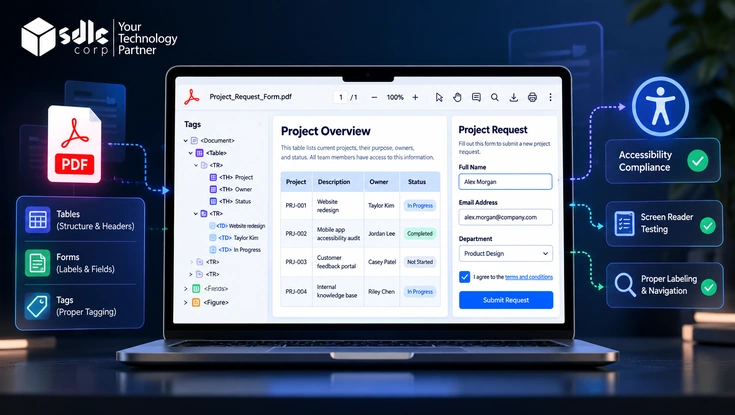
A PDF can look perfectly organised on screen and still fall apart the moment someone opens it with a screen reader. Tables and forms fail first, because both depend on relationships that sighted readers infer from layout alone.
Accessible PDF tables and forms carry those relationships inside the file itself. Tags tell assistive technology which cell is a header, which data sits under it, what each form field asks for and where keyboard focus moves next.
This guide walks through the tagging, labelling and testing work that makes both elements usable. It also covers the Acrobat checker errors teams hit most often and the standards now driving PDF compliance deadlines.
An accessible PDF table uses Table, TR, TH and TD tags, gives every header cell a scope, and keeps a regular grid with no unexplained merged cells.
An accessible PDF form gives every field a tag, a descriptive tooltip, a logical tab order and clear instructions that a screen reader announces before the user types.
Why Tables and Forms Break PDF Accessibility First
A sighted reader scans a table in two directions at once. The eye catches the column heading, the row label and the value together, so meaning arrives without any effort at all.
A screen reader moves through content one item at a time. Without header tags, it reads each cell as an isolated number, and the listener has to memorise the whole grid just to follow along.
Forms fail in a similar way. A printed label beside a field means nothing to assistive technology unless the field carries its own description. Many untagged forms simply announce every input as "edit text".
The difference comes entirely from structure. The visible page stays identical, yet one version gives a listener context while the other forces constant guesswork across every row and field.
Public agencies, universities, insurers and healthcare providers publish thousands of these documents. Application forms, fee schedules and benefits tables are often the only route to a service, which makes their accessibility an access issue, not a cosmetic one.
What Makes a PDF Table Accessible
Accessibility in a PDF table lives in the tag tree, not in the lines and shading you see on the page. Four structural decisions determine whether a screen reader can rebuild the grid for a listener.
- <Table>alternate text holds the summary
- <Caption>Quarterly revenue by region
- <TR>
- <TH Scope="Column">Region
- <TH Scope="Column">Q1
- <TR>
- <TH Scope="Row">West
- <TD>4.1M
Correct Table Tags
Every table needs a Table tag that contains TR tags for rows, with TH tags for header cells and TD tags for data cells. THead, TBody and TFoot are optional, yet they help long tables that run across several pages.
Header Scope
Scope tells assistive technology which direction a header governs. Column headers take a Column scope and row headers take a Row scope. Acrobat leaves new headers with no scope, so someone has to set it deliberately.
Regular Structure
Every row should contain the same number of cells, and every column the same number of rows. Merged cells need RowSpan or ColSpan attributes, otherwise the accessibility checker reports a regularity failure.
Complex Tables and Header IDs
When a table carries two levels of headers, scope alone cannot describe every relationship. Give each header cell an ID, then list the matching IDs in the Headers attribute of each data cell.
In most cases, splitting one complex table into two simple tables serves readers better than elaborate ID mapping. Simpler grids are faster to tag, easier to test and easier for everyone to understand.
Captions and Summaries
A caption names the table for every reader. A summary, added as alternate text on the Table tag, gives screen reader users a one or two sentence orientation before they step into the grid.
The animated diagram below shows how header scope changes what a listener actually hears when focus lands on a single value inside the same table.
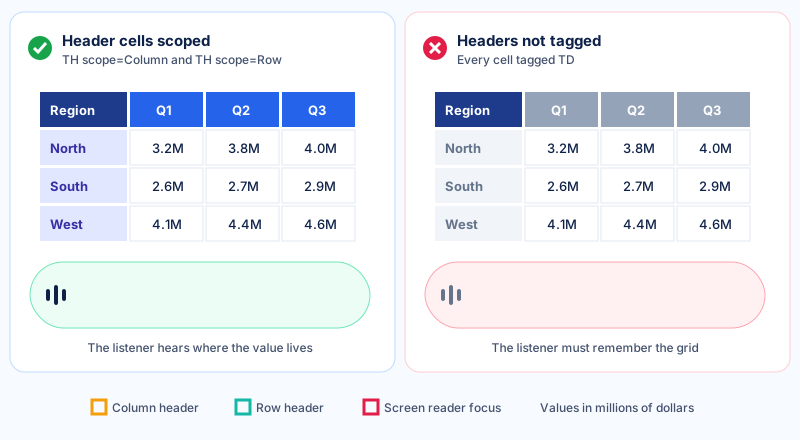
Notice how the announcement grows as headers connect to the focused cell. That extra context is exactly what scope and header IDs supply, and it costs nothing visually on the printed page.
How to Make Tables Accessible in PDF, Step by Step
The cleanest accessible tables start in the source file. Fixing structure in Word or InDesign takes minutes, while repairing the same table inside Acrobat can take an hour for every page.
- Build the grid with a real table toolNever fake columns with tabs, spaces or floating text boxes, because none of them produce table tags when you export the file.
- Mark the header rowIn Word, set the first row to repeat as a header row. Headers then carry across page breaks and export as TH cells.
- Remove blank and merged cellsFill empty cells with a dash or the word "None", and split merged cells unless the merge carries real meaning.
- Export with tags switched onUse Save as Adobe PDF or an export option that creates a tagged PDF. Print to PDF strips the structure entirely.
- Check TH and TD in Acrobat's Table EditorOpen the table in the reading order tool, confirm each header and data cell, and set the scope for every header.
- Add a summary and confirm reading orderWrite a short summary on the Table tag, then check that rows read left to right in the tags panel.
Menu names shift between Acrobat releases, yet the underlying tasks stay the same. Adobe documents the current checks in its guide to creating and verifying PDF accessibility.
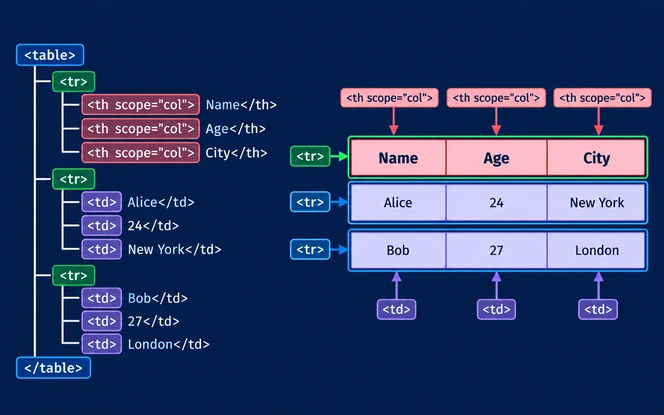
The tag tree on the right is what a screen reader actually reads. If a header cell shows up as TD in that tree, no amount of bold styling on the page will make it behave like a header.
Fixing Common Acrobat Table Checker Failures
Acrobat's Full Check runs five table rules. Each failure points to a specific structural gap, and each one has a predictable fix. The table below maps the messages teams search for most often.
| Checker rule | Status type | What it flags | How to fix it |
|---|---|---|---|
| Rows | Failed | A TR tag sits outside Table, THead, TBody or TFoot | Drag stray TR tags back under the table and delete empty wrapper tags |
| TH and TD | Failed | Header or data cells sit outside a TR | Move each cell into its row, or rebuild the row in Table Editor |
| Headers | Failed | The table contains no TH cells at all | Change the header row or column to TH and set the scope |
| Regularity | Failed | Rows or columns hold unequal cell counts | Add RowSpan or ColSpan values, or split the merged cells |
| Summary | Advisory | The Table tag has no alternate text summary | Add a short summary in the Table tag properties |
Treat a passing check as a starting point. The checker confirms that tags exist, but it cannot judge whether a TH cell holds a real header or whether its scope points in the right direction.
A table can pass every rule and still read nonsensically if a designer tagged a decorative banner row as the header. That judgment still needs a trained person reviewing the tag tree.
What Makes a PDF Form Accessible
An accessible PDF form lets someone find, understand, complete and submit every field using only a keyboard and a screen reader. Five properties make that possible, and missing any one of them breaks the experience.
Tagged Form Fields
Each interactive field needs a Form tag in the tag tree, placed in reading order right after its visible label. Untagged fields may still work with a mouse, yet screen readers can skip them entirely.
Descriptive Tooltips
The tooltip, stored in the file as the TU entry, becomes the field's accessible name. Write it as the full question, such as "Date of birth, MM/DD/YYYY", never as an internal name like "Text7".
Logical Tab Order
Set each page's tab order to follow document structure, then confirm that focus moves through fields in the order people fill them. Radio buttons in one group should share a name and act as one stop.
Instructions, Required Fields and Errors
Place instructions before the fields they describe. Mark required fields in the tooltip as well as visually, and if the form validates input, write error messages that name the field and the expected format.
Name, Role and Value
Assistive technology needs to know what each control is and what state it is in. Acrobat's standard field types expose role and state correctly, which is one more reason to avoid drawn boxes and custom widgets.
Screen readers do not all treat a missing tooltip the same way. The diagram below traces where the spoken name comes from, and what a listener hears when the tooltip field is left empty.
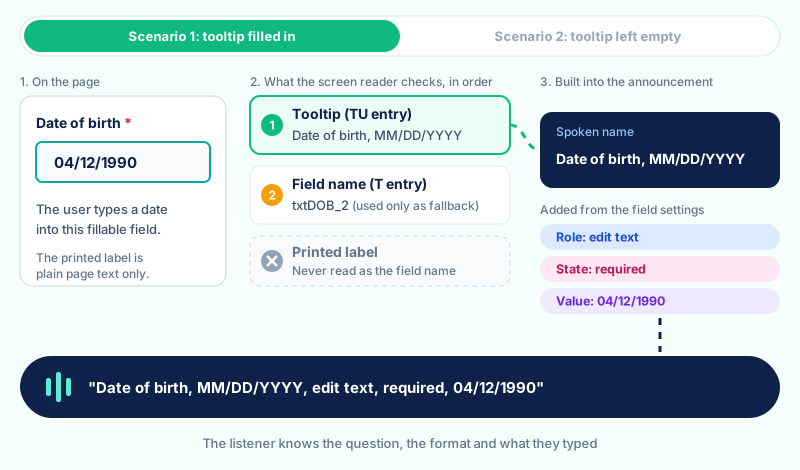
The fallback case is the one that trips teams up. A field named "txtDOB_2" by a developer years ago will announce exactly that to every applicant until someone writes a proper tooltip.
How to Build Accessible Fillable PDF Forms
Acrobat's Prepare Form tool detects many fields automatically. Detection saves time, but it guesses field types and names from nearby text, so every detected field still needs a careful human review.
The quickest review works field type by field type. Each type has its own tooltip pattern and its own classic mistake, which the table below lays out side by side.
| Field type | Tooltip example | Common mistake |
|---|---|---|
| Text field | Business name | Tooltip left as the default "Text1" |
| Date field | Start date, MM/DD/YYYY | Format shown only as faint placeholder text |
| Checkbox | I agree to the terms of service | Label sits in a separate text box with no link to the box |
| Radio group | Preferred contact method, email | Each button named differently, so they act as unrelated fields |
| Dropdown | State of residence | First option left blank with no prompt text |
| Signature | Applicant signature | Field cannot be reached with the Tab key |
| Button | Submit application | Button still labelled "Button3" |
Open each field's properties and fill the tooltip before you do anything else. Then set required status, format and validation, because those settings feed directly into what assistive technology announces.
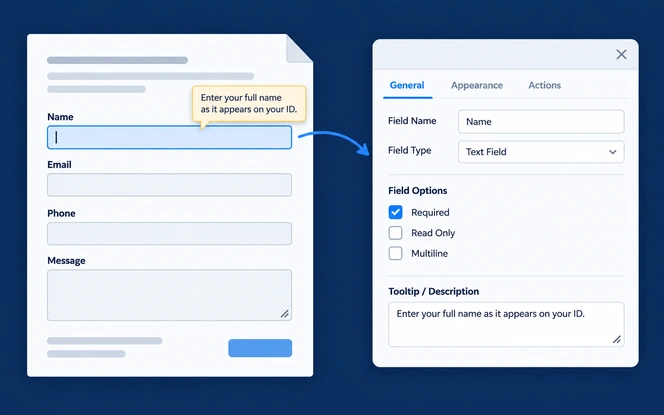
Before you publish any fillable PDF form, work through a short final pass. Each item below takes seconds to confirm and catches the problems applicants report most often.
- Every field has a Form tag in reading order
- Every tooltip reads as a clear question
- Required fields say so in the tooltip
- Date and number formats appear in the tooltip
- Radio buttons share one group name
- The form submits using the keyboard alone
Forms Inside Tables: The Hardest Case
Timesheets, budget worksheets and inspection checklists often place form fields inside table cells. This combination doubles the work, because the file must express table relationships and field labels at the same time.
Acrobat does not automatically nest fields inside the right cell tags. Screen reader users then hear a string of unlabelled inputs with no clue which row or column each one belongs to.
Tag the Grid First, Then the Fields
Build and verify the table structure before you touch any form field. Then move each Form tag inside its TD, so the field sits in the same cell that visually contains it on the page.
Write Tooltips That Carry Both Headers
A tooltip such as "Monday, hours worked" combines the row header and the column header. This gives the field a complete name even when the listener jumps straight to it with the Tab key.
Match Tab Order to the Task
People complete a timesheet one day at a time, so focus should move across each row before dropping to the next. A column-first order breaks that natural rhythm, as the animation below shows.
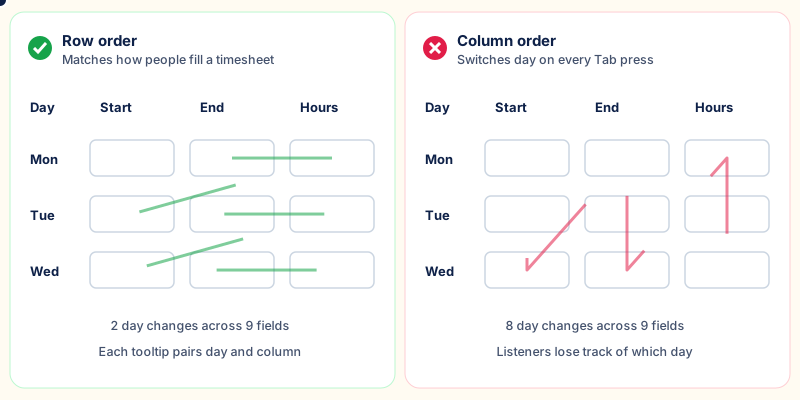
Sometimes a grid form resists every fix. At that point, the honest question is whether the grid needs to exist at all, and the comparison below helps teams make that call quickly.
Users genuinely compare values across rows, such as weekly hours or line item budgets, and the table stays under roughly six columns.
The grid exists only for print layout, cells hold long answers, or headers span several levels. One labelled question per line is faster to tag.
Standards and Deadlines That Apply
Several standards and laws govern accessible PDF tables and forms. They overlap heavily, and most of them point back to the same technical requirements set out in WCAG 2.1 Level AA.
- June 28, 2025European Accessibility Act applies to covered products and services
- April 20, 2026DOJ interim final rule pushes the ADA Title II dates back a year
- April 26, 2027ADA Title II deadline for public entities serving 50,000 or more people
- May 11, 2027HHS Section 504 deadline for recipients with 15 or more employees
- April 26, 2028ADA Title II deadline for smaller entities and special district governments
- May 10, 2028HHS Section 504 deadline for recipients with fewer than 15 employees
In April 2026, the Department of Justice extended the ADA Title II compliance dates by one year. The ADA.gov guidance for state and local governments now lists April 26, 2027 and April 26, 2028 as the two dates.
HHS followed in May 2026 for organizations that receive its funding. The HHS interim final rule extending the Section 504 compliance dates moved them to May 11, 2027 and May 10, 2028.
The extensions move the dates, not the obligation. Covered organizations still owe effective communication today, and every PDF published now will still need to meet WCAG 2.1 AA when its deadline arrives.
WCAG Criteria That Tables and Forms Touch Most
- 1.3.1Info and Relationships covers table headers, field labels and groupings in the tag tree
- 1.3.2Meaningful Sequence covers the reading order through rows and fields
- 2.4.3Focus Order covers a tab order that follows the task
- 3.3.2Labels or Instructions covers visible labels and format hints
- 4.1.2Name, Role, Value covers tooltips and native field types
W3C publishes PDF-specific techniques for each criterion, including using table elements for table markup and providing name, role and value for form fields.
PDF/UA
PDF/UA, published as ISO 14289, defines the technical rules for a universally accessible PDF. PDF/UA-1 remains the common benchmark in procurement, while PDF/UA-2 aligns with the newer PDF 2.0 format.
The two standards test different things, so a table can pass one and fail the other. Our guide to PDF/UA vs WCAG 2.1 AA explains where they overlap and how to test for both.
Testing Accessible PDF Tables and Forms
No single tool proves a PDF is accessible. Reliable testing pairs an automated pass that catches structural errors with manual checks that confirm the experience actually makes sense to a person.
- Acrobat Full Check for tags, tables and form fields
- PAC for PDF/UA and WCAG machine checks
- Scripted scans for default field names
- Screen reader walkthrough with NVDA or JAWS
- Complete and submit using the keyboard alone
- Zoom to 200 percent and check readability
The free PDF Accessibility Checker (PAC) tests against PDF/UA, and NVDA from NV Access gives any team a no-cost screen reader for manual review.
Use the interactive checklist below during your next review. It tracks progress as you tick items off, which helps when several people split one document between them.
0 of 8 checks complete
Teams that test hundreds of files often script the first pass. For a developer's starting point, the SDLC Corp article How can I work with PDF files in Python? covers the libraries involved.
Automated scripts flag missing tags and default names at scale, which leaves specialists free for judgment calls. Our software testing and QA services combine both layers inside release pipelines.
Scaling Table and Form Accessibility Across a Document Library
Fixing one PDF by hand is manageable. Fixing ten thousand is a different problem entirely, especially when forms change every quarter and new data reports appear every single week.
Most organisations get further by fixing templates and pipelines than by remediating finished files. An accessible source template produces accessible exports for every document created from it afterwards.
SDLC Corp approaches this at the system level. Limina scans sites and PDFs, ranks fixes by root cause and keeps evidence for each WCAG criterion, so teams fix patterns instead of chasing single errors.
When an organisation needs tooling built around its own content, our document remediation software development services add AI-assisted tagging and compliance checks for PDFs and Office files to existing workflows.
Form design matters as much as tagging. Our UI/UX design company team reworks long, confusing forms into shorter flows before anyone tags a single field.
Extraction and tagging share a lot of groundwork, too. Mastering PDF Text Extraction: Tips and Tools explains how structure is read out of a file, which is the same structure accessibility depends on.
Frequently Asked Questions About Accessible PDF Tables and Forms
An accessible PDF table uses Table, TR, TH and TD tags, sets a Column or Row scope on every header cell, and keeps an equal number of cells in each row. A short caption or summary helps listeners orient themselves.
No. Adding fillable fields does not make a form accessible. Each field still needs a Form tag, a descriptive tooltip and a logical tab order before screen reader and keyboard users can complete it.
The regularity error means rows or columns hold unequal cell counts. Add RowSpan or ColSpan attributes to merged cells in Table Editor, or split the merged cells so every row has the same number of cells.
The tooltip should state the full question a sighted user sees, plus any format or requirement. "Date of birth, MM/DD/YYYY, required" works well, while internal names such as "Text7" leave listeners guessing.
Acrobat treats a table summary as advisory rather than mandatory. A one or two sentence summary still helps screen reader users understand a large or complex table before they move into its cells.
Rebuild the form when its grid exists only for print layout, when headers span several levels, or when repairs keep failing tests. A linear form with one labelled question per line is usually faster to fix.
After the April 2026 extension, state and local governments serving 50,000 or more people must comply by April 26, 2027. Smaller public entities and special district governments have until April 26, 2028.