PDF accessibility tagging is the process of adding a structural layer to a PDF so assistive technology can understand it. The page you see stays exactly the same. What changes is the information underneath it.
Tags tell a screen reader which text is a heading, which lines form a list and what an image shows. Without them, a PDF is a flat arrangement of characters with no meaning attached.
Correct tags give every heading, list, table and figure a clear role and a place in the reading order. The result can then be checked against PDF/UA and WCAG.
What Is PDF Accessibility Tagging?
A PDF stores content as drawing instructions: place these glyphs here, draw this line there, paint this image at these coordinates. That model is perfect for print fidelity and nearly useless to anyone who cannot see the page.
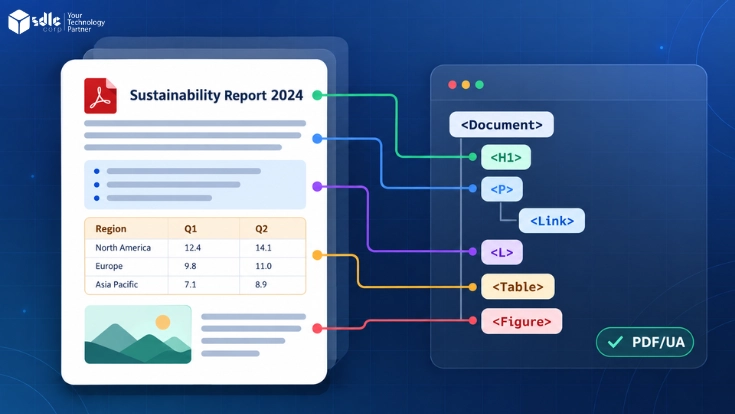
PDF accessibility tagging adds a logical structure tree alongside those instructions. It links each piece of real content to a structure element, such as a heading, paragraph, list item or figure. Those elements follow the order a reader needs.
How PDF Accessibility Tags Work With Screen Readers
A PDF viewer passes the tag tree to assistive technology. The screen reader then announces each element with its role. A user hears heading level two, list with five items or table with four columns.
Users rarely read from top to bottom. They jump between headings, skip from table to table and pull up a list of links. Every one of those shortcuts depends on accurate PDF accessibility tagging.
Tagged PDF vs Accessible PDF
Many PDFs carry tags only because an export tool or auto tagger added them without anyone reviewing the result. Tables arrive as stacks of paragraphs, footers repeat on every page and two columns merge into one confusing stream.
A PDF is accessible only when its tags are present, correct and complete. The rest of the document has to work too, from a meaningful title to real text instead of images of text.
Think of tagging as necessary but not sufficient. An untagged PDF cannot be accessible, but a tagged PDF still has to earn that label through review and testing.
PDF Tagging Structure Explained
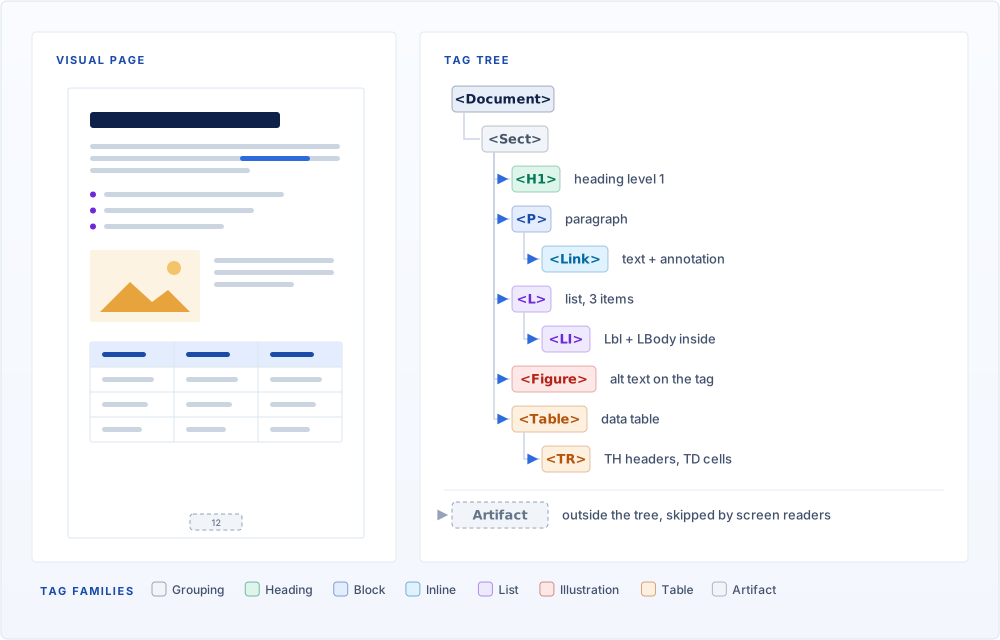
Every tagged document has one structure tree with a single root, normally the Document element. Everything else sits beneath it in parent and child relationships that mirror how the author organized the content.
Grouping elements such as Sect and Div collect related content. Block elements such as headings and paragraphs hold the text. Inline elements such as Link sit inside blocks, while lists and tables follow strict nesting rules.
Role Mapping and Custom Tags
Authoring tools often create custom tag names from paragraph styles, such as Title_Big. PDF allows this only when each custom name is role mapped to a standard type. Otherwise, assistive technology treats the content as generic text.
Essential PDF Accessibility Tags
Most documents rely on a small, predictable set of PDF tags. Almost every remediation job comes down to the same eight tags, each with a defined role and expected contents.
| Tag | Used for | Expected contents |
|---|---|---|
Document | Root of the structure tree | Every other tag, directly or through grouping tags |
Sect, Div | Grouping related content such as chapters or callouts | Headings, paragraphs, lists, tables and figures |
H1 to H6 | Headings that form the document outline | Heading text only |
P | Body text paragraphs | Text, plus inline Span or Link tags |
L, LI, Lbl, LBody | Lists and list items | LI inside L, with Lbl and LBody inside each LI |
Table, TR, TH, TD | Data tables | TR inside Table, with TH and TD cells inside each TR |
Figure | Meaningful images, charts and diagrams | The image, with alternative text on the tag |
Link | Hyperlinks | Link text plus the link annotation |
Section508.gov's Common PDF Tags and Their Usage reference shows where each tag belongs in the tree, including character level tags.
Before Tagging: Start With the Source Document
Good tagging starts before the PDF exists. Use built in heading styles, list tools and real table features in Word or InDesign. Then add alternative text to images and set the document language.
Then export with tagging enabled. In Word, save as PDF with document structure tags for accessibility turned on; printing to PDF discards the structure entirely.
In InDesign, turn on tagged PDF in the export settings. Use the Articles panel to control reading order before the file ever reaches Acrobat.
Export behavior varies by tool and setting. Check every exported PDF, including downloads from Google Docs, to confirm that the export kept its document structure and accessibility information.
How to Tag a PDF for Accessibility
Adobe Acrobat Pro is the most common tool for learning how to tag a PDF for accessibility. Menu names follow the current Acrobat interface; older versions use slightly different labels.
Check Whether the PDF Is Already Tagged
Open Document Properties and look for Tagged PDF on the Description tab. If you cannot select text with the cursor, the file is a scan and needs a text layer before anything else.
Run Automatic Tagging
Select All tools, then Prepare for accessibility, then Automatically tag PDF. It replaces any existing structure, so use it only on untagged or poorly tagged files, then check the Add Tags Report.
Review and Correct the Tag Tree
Open the Accessibility Tags panel and compare the tree against the page. The Fix reading order tool lets you draw around content and assign it a type such as heading, text, table, figure or background.
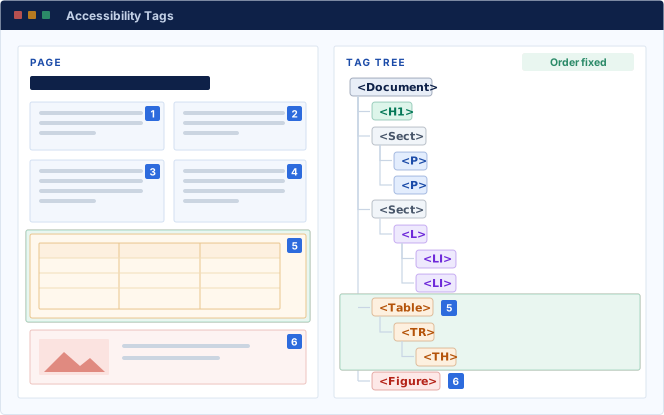
Finish with Check for accessibility and an independent PDF/UA validator. When the job is hundreds of files rather than one, Limina can report which ones lack tags or fail PDF/UA checks.
Reading Order in PDF Accessibility Tagging
Reading order is where tagging most often goes wrong, because a PDF holds more than one order. The visual order is what a sighted reader follows. The tag order is the sequence in the structure tree.
Acrobat's Order panel shows a third one, the content order, which is the sequence in which the file draws items onto the page. It often differs from both of the others.
Screen readers follow the tag order, so that one must be logical. Drag tags into sequence in the Accessibility Tags panel, finishing each column before the next and placing callouts after the paragraph they support.
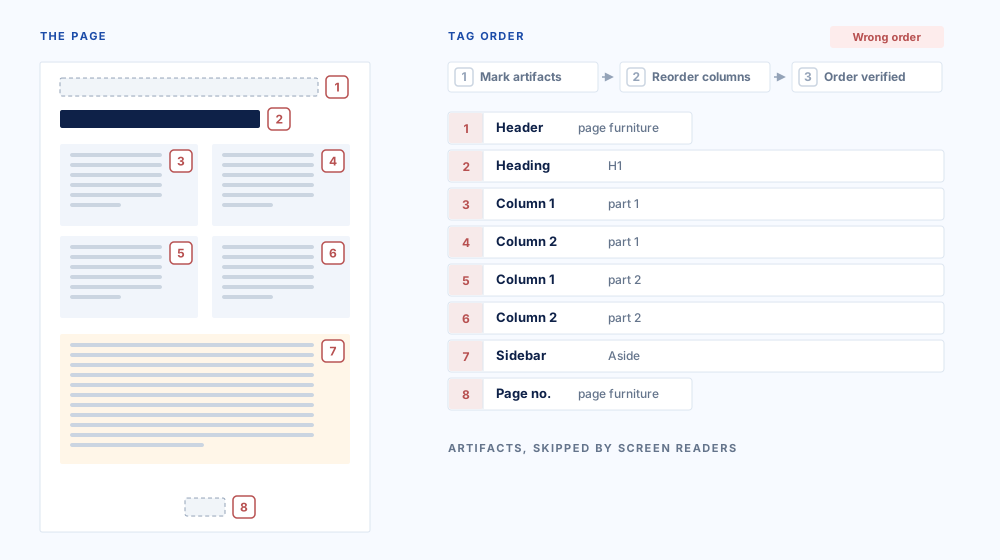
Forms add one more sequence. In Page Properties, set each page's tab order to Use Document Structure so keyboard focus follows the tag tree.
PDF Tagging for Each Content Type
Each kind of content has its own tagging rules. Together, they decide whether PDF accessibility tagging actually works for a screen reader user.
Headings and Paragraphs
Tag every visual heading H1 to H6. PDF/UA-1 needs sequential levels, while PDF/UA-2 allows more flexible structures that still reflect the document's organization. Merge lines that auto tagging split into single P tags.
Lists
Each list is an L tag containing LI tags. Inside each LI, the bullet or number belongs in Lbl and the item text in LBody. A nested list sits inside the LBody of its parent item.
Images and Artifacts
Every meaningful image needs a Figure tag with alternative text, and a chart's text should state its finding. Mark decorative content, running headers and page numbers as artifacts so assistive technology skips them.
Tables
A data table needs a Table tag, with rows in TR and cells in TH or TD. Set each TH scope to Column or Row, and use IDs with the Headers attribute when cells merge. For complex examples, see Accessible PDF Tables and Forms .
Links and Form Fields
Link text and its annotation must sit together inside one Link tag. Each form field needs a Form tag containing its widget annotation. It also needs a tooltip that matches the visible label and a logical tab order.
Scanned Pages
A scanned page is a picture of text, so there is nothing to tag until character recognition creates a real text layer. After that, tagging follows the same steps as any other file.
| Content type | Required tagging | Key accessibility check |
|---|---|---|
| Headings and paragraphs | H1–H6 and P | Heading levels reflect the document structure and paragraph text is not split into meaningless fragments. |
| Lists | L, LI, Lbl, LBody | Items and nested lists follow the correct parent-child structure. |
| Images | Figure or artifact | Meaningful figures have useful alternative text; decorative content is artifacted. |
| Tables | Table, TR, TH, TD | Headers use scope or IDs/Headers so data cells retain their relationships. |
| Links and forms | Link and Form | Annotations sit inside the correct tags, controls have labels or tooltips, and tab order is logical. |
| Scanned pages | OCR text layer, then normal structure tags | Text is selectable and accurate before structural tagging begins. |
Limits of Automatic PDF Tagging
Auto tagging infers structure from visual cues, and visual cues are often ambiguous. A large bold line might be a heading or a pull quote, and a grid of text might be data or layout.
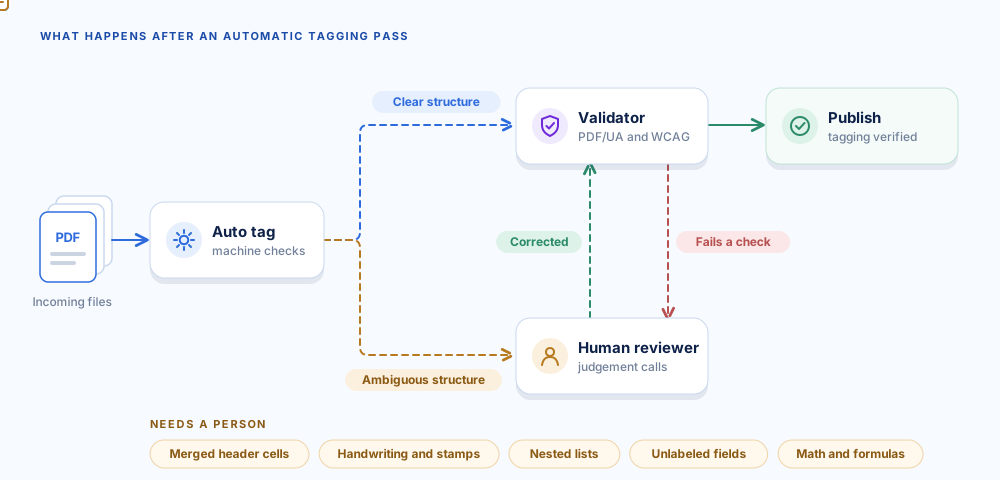
Adobe's documentation says automatic tagging handles most standard layouts. It can still misread closely spaced columns, irregular alignment, non fillable form fields and tables without borders.
Treat any automatic tagging pass as a draft and inspect those areas first. The Matterhorn Protocol breaks PDF/UA-1 into 31 checkpoints and 136 possible failure conditions, including checks that require human judgment. That scale is why auto tagging cannot prove conformance on its own. Limina follows the same model, routing uncertain files to human review rather than marking them compliant.
Standards That Define Correct PDF Tagging
Several standards govern PDF accessibility tagging. PDF/UA (ISO 14289) is written specifically for PDF files. It sets the technical rules for how tags, artifacts and role maps must be used.
PDF/UA complements the Web Content Accessibility Guidelines (WCAG) 2.2 by defining how accessible semantics and structure should be represented inside PDF files. W3C's PDF Techniques for WCAG 2.2 map individual criteria to specific tags.
WCAG still covers outcomes that PDF/UA leaves to content, such as color contrast and clear language. A technically valid file can therefore still fail a WCAG review. Our PDF/UA vs WCAG comparison explains where the two standards overlap and where each catches issues the other does not.
These standards now carry deadlines. US state and local governments face ADA Title II compliance dates of April 26, 2027 and April 26, 2028.
The dates come from the April 2026 interim final rule, Extension of Compliance Dates for Nondiscrimination on the Basis of Disability .
PDF/UA-1 vs PDF/UA-2
PDF/UA now has two generations, and the one a file must meet depends on its PDF version. Most documents in circulation are PDF 1.x files, so auditors still measure them against PDF/UA-1.
| Aspect | PDF/UA-1 | PDF/UA-2 |
|---|---|---|
| Standard | ISO 14289-1, first published 2012, revised 2014 | ISO 14289-2:2024 |
| Built on | PDF 1.7 (ISO 32000-1) | PDF 2.0 (ISO 32000-2) |
| Tag set | Standard structure types from PDF 1.7 | Adds types such as Title, Aside, FENote, DocumentFragment and an Artifact tag |
| Mathematics | Alternative text on Formula tags | Semantic MathML through namespaces |
| Annotations | Core requirements | Comprehensive requirements for annotations and attributes |
The PDF Association's ISO 14289-2 (PDF/UA-2): The Gold Standard for Accessibility in PDF 2.0 Has Arrived summarizes what changed. Keep validating existing PDF 1.x files against PDF/UA-1, and plan new templates around PDF 2.0 once your tools fully support it.
How to Validate PDF Accessibility Tagging
Testing is where PDF accessibility tagging proves itself. Start with Acrobat's Check for accessibility, which is a useful first pass but not a full PDF/UA validator.
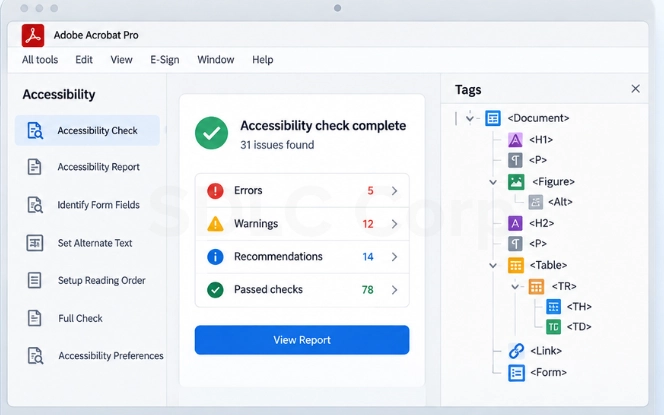
For PDF/UA validation, use the free PDF Accessibility Checker (PAC) or the open-source veraPDF validator. PAC supports PDF/UA and WCAG checks, while veraPDF validates machine-verifiable requirements for PDF/UA-1 and PDF/UA-2.
For PDF/UA-1, the Matterhorn Protocol separates machine-checkable failures from checks that need human judgment. Whether a line really is a heading, for example, cannot be decided reliably by a validator alone.
Finally, listen to the file with NVDA, JAWS or VoiceOver and navigate it by keyboard. If these checks belong in a wider release process, our Software Testing and QA Services team can fold them into existing test cycles.
Common PDF Tagging Errors and Fixes
The same tagging errors appear in audit after audit. Describing each one by what a screen reader user actually experiences makes the priority clear to a document owner.
| Error | What the user experiences | Fix |
|---|---|---|
| Untagged document | One long stream of text with no structure | Tag at the source, or auto tag and then review |
| Visual headings without heading tags | No way to jump between sections | Retag as H1 to H6 |
| Wrong reading order | Columns interleaved and sidebars read mid sentence | Reorder tags in the Accessibility Tags panel |
| Typed bullets tagged as P | List length and structure never announced | Rebuild as L, LI, Lbl and LBody |
| Missing TH cells or scope | Data cells read without their headers | Tag headers as TH with scope, or use IDs and Headers |
| Figures without alternative text | Images announced as graphic or skipped silently | Add alternative text, or artifact decoration |
| Decoration tagged as content | Borders and page numbers read on every page | Mark them as artifacts |
| Unmapped custom tags | Content treated as generic text | Role map custom tags to standard types |
Most of these errors trace back to the source file. Fixing a template once removes the same error from every document produced from it.
Building PDF Accessibility Tagging Into Templates
When the same report, statement or notice ships every month, the lasting fix is to tag the template rather than each output. Fix heading styles, list styles and table header rows in the master file.
Enable tagged export in the tool that generates the files and check a sample after every template change. Keep complex tables, forms and charts in a manual review step, since templates rarely tag them perfectly.
Limina , our document accessibility remediation software, supports this, with template based remediation for recurring output and human review for the exceptions.
If you need tagging built into your own systems instead, see our document accessibility remediation software development services .
PDF Accessibility Tagging Checklist
A PDF is ready to publish when it passes every one of these checks.
- The file has a tag tree with a single Document root.
- All text is real, selectable text, and the document shows its title instead of the file name.
- The file declares its primary language, and tags mark passages in other languages.
- Heading tags accurately represent the document hierarchy and meet the requirements of the PDF/UA version you are targeting.
- The tag order follows a logical sequence across columns and sidebars.
- Lists use L, LI, Lbl and LBody, including nested lists.
- Every meaningful figure has alternative text, and all decoration is an artifact.
- Data tables have TH cells with scope, or IDs and Headers for complex tables.
- Links and form fields sit in the right tags, and tab order follows the document structure.
- The file passes a PDF/UA validator and a screen reader walkthrough.
Final Thoughts
PDF accessibility tagging works best when it stops being a clean up project. Accessible templates, tagged exports and a validation step before publishing turn it into routine work.
Start with the tag tree on your most important documents. Once the structure is right there, every later check becomes faster and more reliable.
Get Your PDFs Tagged Correctly
Talk to our team about tagging, remediation and PDF/UA validation for your documents. We cover everything from a single report to the templates behind every monthly release.
Frequently Asked Questions
Why Does PDF Accessibility Tagging Matter?
Tags are how screen readers, braille displays and reflow views understand a PDF. Without them, users cannot jump between headings, hear table headers or skip decorative content. The file also cannot pass PDF/UA.
What Is the Difference Between a Tagged PDF and a Regular PDF?
A regular PDF contains only the visual page content. A tagged PDF also contains a structure tree that identifies headings, lists, tables, figures and reading order. Assistive technology needs that tree to present the document correctly.
Is a Tagged PDF Automatically Accessible?
No. The tags must also be correct and complete. Auto generated tags often mistag tables, merge columns or read decorative content aloud. A tagged PDF still needs review before anyone can call it accessible.
How Do You Check If a PDF Has Accessibility Tags?
In Acrobat, open Document Properties and look for Tagged PDF on the Description tab, or open the Accessibility Tags panel. PAC and veraPDF also report whether a file has tags and whether they conform to PDF/UA.
Should I Use PDF/UA-1 or PDF/UA-2?
Use PDF/UA-1 for PDF 1.x files, which covers most existing documents. Use PDF/UA-2 for PDF 2.0 files, and prefer it for math heavy material because it supports MathML. Tool support for PDF/UA-2 is still growing.
Does PDF Accessibility Tagging Change How a PDF Looks?
No. Tags live in a separate structure layer, so the visual page stays exactly the same. They only change how assistive technology, reflow views and text extraction interpret the content.