

Odoo User Management and Access Rights
Use this guide to review existing accounts, adjust permissions and manage access when someone’s role changes or they leave. For initial account creation and invitations, follow the guide to creating an Odoo user.
The screenshots and video below illustrate the users list and account form. Labels and available controls depend on your Odoo version, applications and administrator permissions.
Review an Odoo User Account
1. Find the existing account
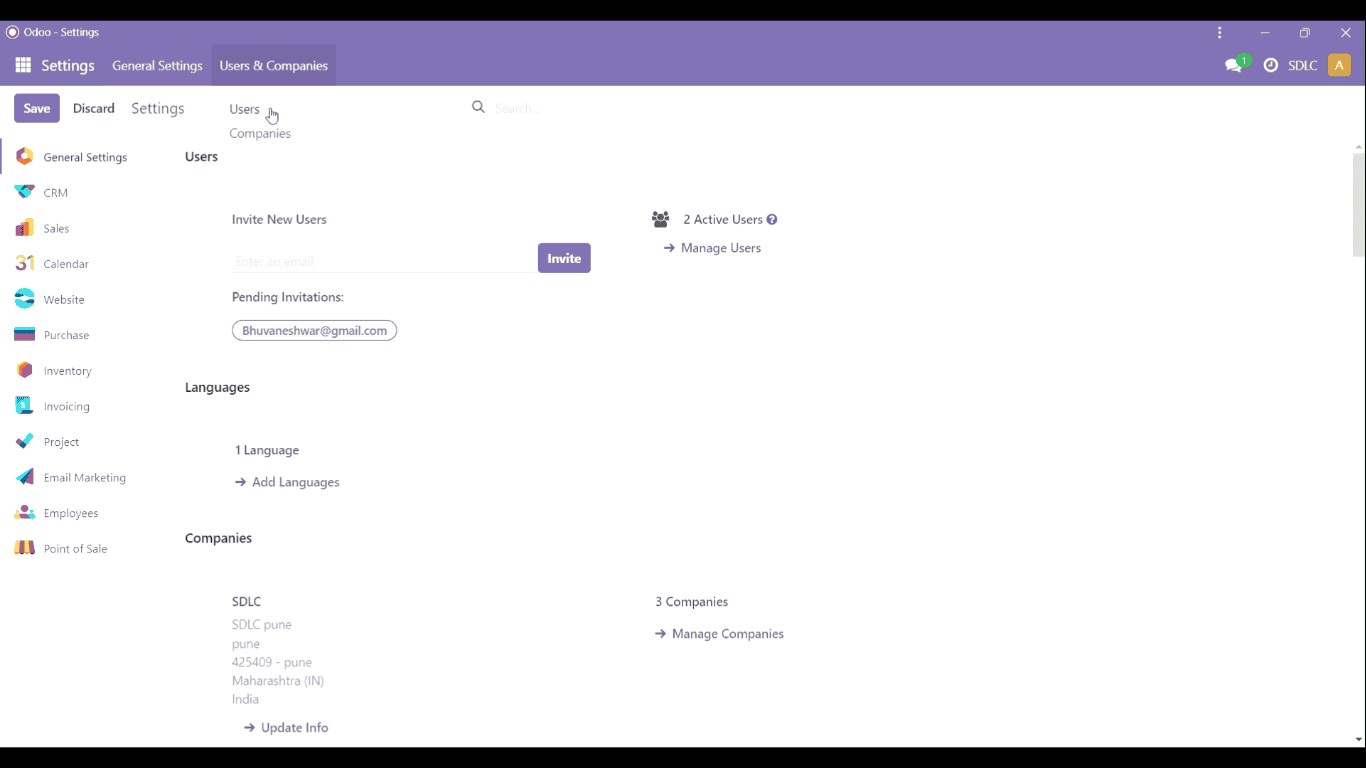
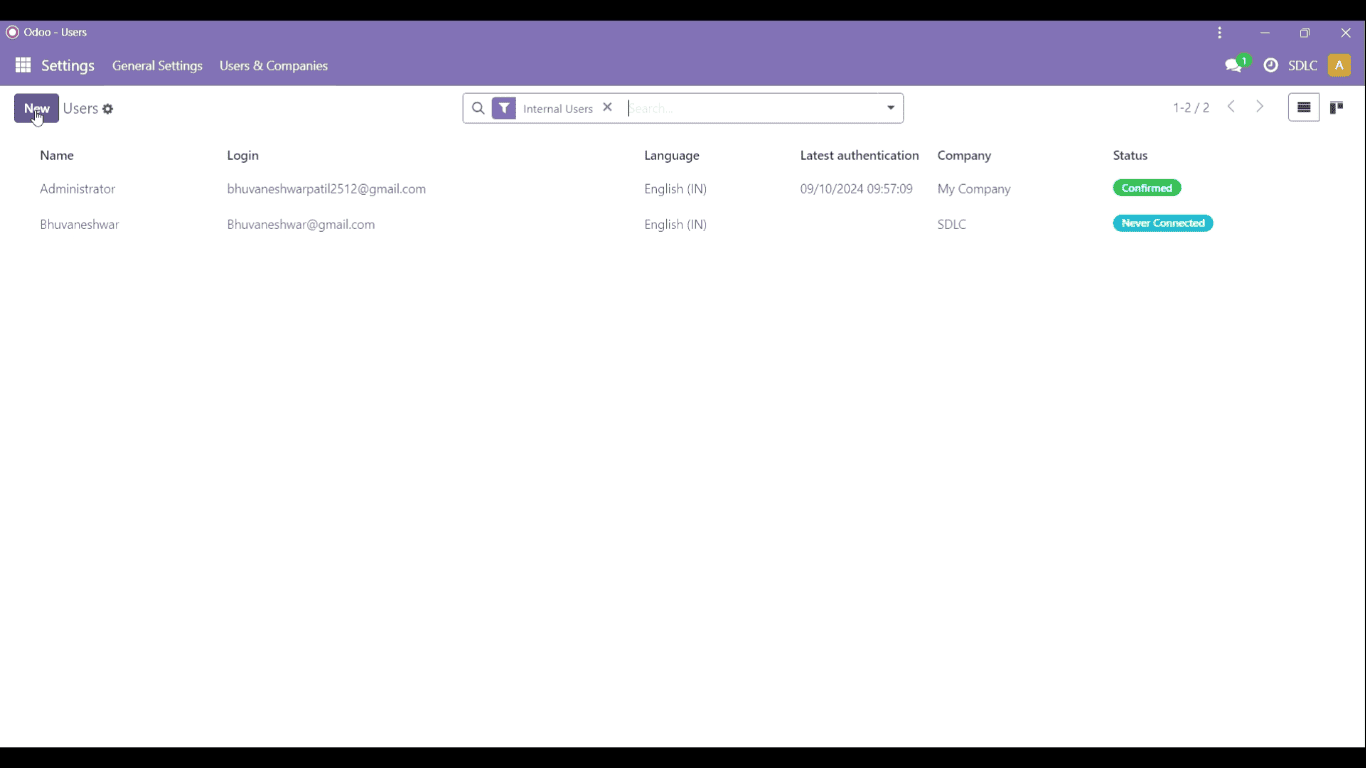
Open Settings and the users list. Search by name or email and open the matching record. Check for an existing or archived account before adding another user for the same person.
2. Confirm the account details
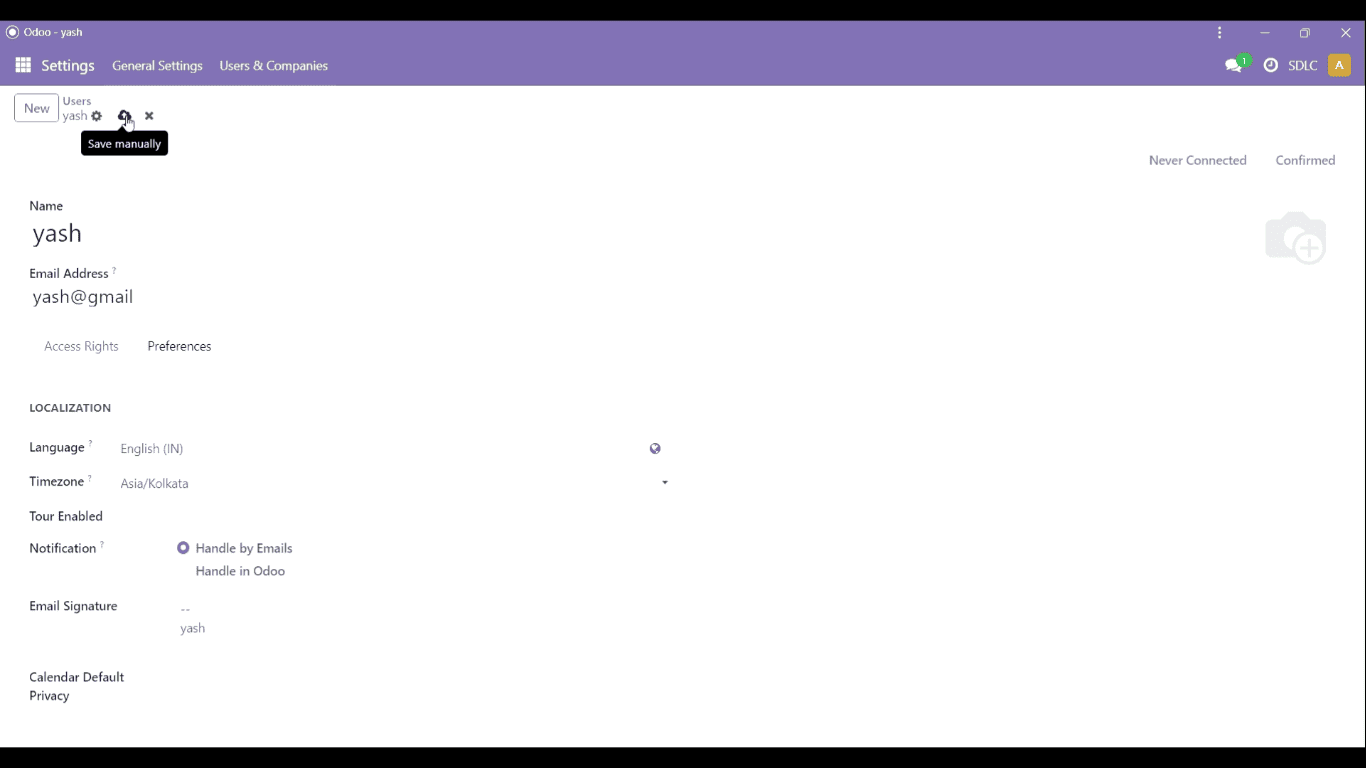
Review the user’s identity, email and responsibilities with the relevant team owner. A role change should trigger a review of access already granted, not just the addition of new permissions.
3. Review application permissions
Check the Access Rights tab and the available role options for each application. Choose access that matches the tasks the user needs to perform. Save the change, then test a representative workflow using an appropriate test account.
Manage Permissions When Responsibilities Change
For each role, record the work the person must perform and the information they should see. Review application permissions and company access against that requirement. Remove access that is no longer needed, with approval from the person responsible for the process.
Check an access problem before expanding permissions
Record the missing menu or failed action, the affected record and the company in use. Compare the account with the intended role. A missing record can involve record rules or company restrictions as well as application permissions. Ask an administrator to investigate rather than granting broad access as a workaround.
Review Inactive Accounts and Offboarding
When access should end, have an administrator archive the user and confirm they can no longer sign in. Agree who will take over open tasks, approvals and record ownership. Review connected integrations and credentials separately so automated processes are not overlooked.
Odoo User Access Review Checklist
- Account owner and business role are confirmed.
- Application and company access match current responsibilities.
- Unneeded permissions have been reviewed.
- Relevant workflows have been tested after changes.
- Inactive accounts and ongoing responsibilities have named owners.
For the available permission controls, see Odoo’s access rights documentation.
Need Help Setting This Up in Odoo?
If you want this configured for your team or adapted to the way you work, our Odoo consultants can set it up, train your users and support you after go-live.