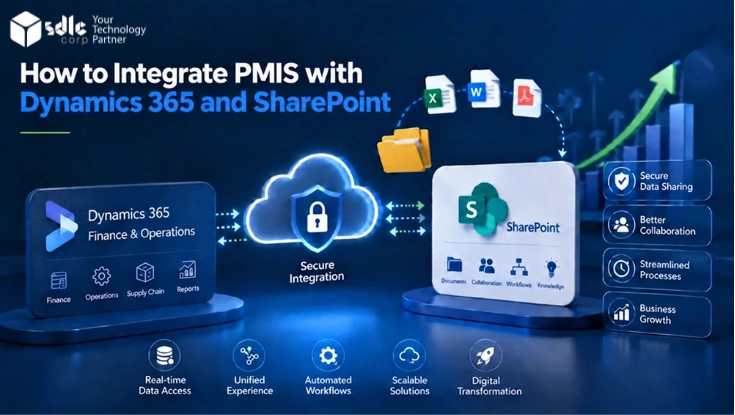
A Project Management Information System (PMIS) keeps project data such as schedules, risks, approvals, RFIs, and change requests in one place. Microsoft Dynamics implementation and support services manage business and financial records, while SharePoint handles project documents and collaboration.
When these systems work separately, teams repeat tasks and lose time checking data. Integrating PMIS with Dynamics 365 and SharePoint creates a connected flow where each platform manages the information it handles best.
The integration flow
- Business eventTRIGGERA real project event such as an approval, milestone, or change request.
- OwnershipDECIDEOne system of record owns the value; the others receive it.
- Integration layerROUTEValidate, transform, and route each event to the correct destination.
- Records and filesSTOREStructured data in Dataverse or Dynamics, documents in SharePoint.
- ReconciliationVERIFYScheduled checks that flag missing or inconsistent transactions.
Business event to ownership, routing, storage, and reconciliation.
Key Takeaways
A workable PMIS integration should:
- Decide which system owns each type of data before building APIs or workflows.
- Use one stable project ID across PMIS, Dynamics 365, SharePoint, and reporting.
- Keep business data and project documents in the systems best suited to manage them.
- Choose APIs, Power Automate, Azure Logic Apps, or custom services based on workflow complexity and volume.
- Plan SharePoint permissions separately from Dynamics 365 access.
- Add monitoring, retries, duplicate protection, and recovery checks before go-live.
These decisions matter more than the number of connectors used, because they determine where data is corrected when something goes wrong.
What Does PMIS Integration with Dynamics 365 and SharePoint Mean?
PMIS integration connects project delivery information with the business, financial, and document systems that support a project.
The goal is not to copy every record into three platforms. Instead, each system keeps responsibility for the information it handles best, while approved data moves between them when another process needs it.
| Platform | Typical responsibility |
|---|---|
| PMIS | Schedules, risks, RFIs, submittals, approvals, milestones, and project controls |
| Microsoft Dynamics 365 | Customers, contracts, resources, commercial records, and business processes |
| Microsoft Dataverse | Structured application data used by Dataverse-based Dynamics 365 apps |
| SharePoint | Project files, drawings, reports, contracts, and document collaboration |
| Power Automate | Business workflows and event-based automation |
| Azure Logic Apps | Developer-led and more complex system integrations |
| Microsoft Graph | Programmatic access to SharePoint and Microsoft 365 files |
| Power BI | Combined reporting and project dashboards |
Microsoft supports server-based SharePoint document management for supported Dataverse-based model-driven and customer engagement applications. This allows users to work with SharePoint documents from the context of Dynamics records.
That native connection helps with document management, but an external PMIS still needs its own data mappings, workflows, security rules, and integration logic.
What You Need Before Integrating PMIS with Dynamics 365 and SharePoint
Do not start development until the basic business and technical requirements are clear. Prepare the following before any workflow is built:
- PMIS API, webhook, connector, or supported export access
- Access to the required Dynamics 365 environment
- SharePoint site and document libraries
- Power Platform development environment
- Microsoft Entra application or approved service identity where required
- One agreed project identifier, with initial field and status mappings
- Named data owners and sample project records
- Security roles, access requirements, and test users with different permissions
- Non-production PMIS access where available
- Expected transaction and document volumes
Also confirm which Dynamics 365 product is in use. Native SharePoint document-management guidance commonly applies to Dataverse-based model-driven and customer engagement applications such as Dynamics 365 Sales, Customer Service, and Field Service. Other Dynamics products may use different integration approaches.
Questions to Answer Before Development
Your project team should agree on these points before the architecture is finalized:
- Which system creates the project, and which system owns the project number?
- Where is the approved contract value maintained?
- Which system approves project changes?
- Where will the controlled project documents live?
- Which updates must move immediately, and which can run on a schedule?
- Who can access confidential files?
- What happens when one platform is unavailable?
- Who supports the integration after launch?
Clear answers reduce redesign later, because each of these questions becomes a rule inside the integration layer.
Recommended PMIS, Dynamics 365 and SharePoint Architecture
A practical architecture separates business systems from the logic that connects them.
| Layer | Purpose | Typical technology |
|---|---|---|
| Source systems | Create and manage project and business records | PMIS, Dynamics 365 |
| Integration layer | Validate, transform, and route information | Power Automate, Logic Apps, APIs, Azure Functions |
| Data and document layer | Store structured records and files | Dataverse, SharePoint |
| Reporting layer | Combine approved information | Power BI or enterprise reporting platform |
The PMIS may send information through a REST API, webhook, supported connector, queue, or scheduled interface. The integration layer then routes each event to the correct destination.
A milestone may update a Dynamics project record. A document approval may update SharePoint. A reporting service may read approved data from both platforms without becoming the owner of that data.
Dataverse provides triggers and actions for creating, updating, retrieving, deleting, listing, and relating records. SharePoint connectors and Microsoft Graph can handle files and metadata.
For projects connecting several business platforms, software integration services can help define the API boundaries, integration patterns, and system responsibilities before development starts.
Decide Which System Owns Each Type of Data
Data ownership should be agreed before field mapping starts. If Dynamics 365 owns the approved contract value, users should not independently change that value in the PMIS. The PMIS may display it, but Dynamics remains the source of record.
If the PMIS owns the project schedule, Dynamics may receive selected milestones without becoming the place where planners update the schedule.
| Information | System of record | Other system's role |
|---|---|---|
| Customer or account | Dynamics 365 | PMIS reads reference data |
| Project ID | Enterprise project master or Dynamics 365 | Used across connected systems |
| Project schedule | PMIS | Dynamics receives selected milestones |
| Contract value | Dynamics 365 | PMIS receives approved value |
| Actual costs | Finance system or Dynamics 365 | PMIS receives reporting values |
| Change workflow | PMIS | Approved result moves to Dynamics |
| Project documents | SharePoint, where agreed | PMIS and Dynamics store references |
| Project risks | PMIS | Selected risks move to reporting |
| Employee or resource data | Dynamics 365 or HR system | PMIS receives assignments |
The ownership matrix becomes a useful control when teams request new integrations later. Before adding another field, decide who owns it.
The same approach is useful during ERP consulting and system integration, where finance, CRM, project, and document platforms often share related information.
How to Integrate PMIS with Microsoft Dynamics 365 and SharePoint
The specific endpoints depend on the PMIS, but the overall process remains similar across platforms.
Step 1: Map Business Events Before Mapping Tables
Start with real project events instead of database tables.
Common events include a project being created, a project manager being assigned, a baseline being approved, a change request being submitted, an invoice being approved, an RFI being closed, a document being approved, and a project being completed or archived.
For each event, define the trigger that starts the workflow, the system that controls the decision, the information that needs to move, the destination platform, whether the update must happen immediately, and what should happen if the destination is unavailable.
This approach keeps the integration tied to useful business activity instead of copying fields that nobody uses.
Step 2: Create One Project Identifier Across All Systems
Do not depend on project names to match records. Names may change, and similar projects may have almost identical names.
Use a stable project ID such as PRJ-2026-00482 and store it in the PMIS project record, Dynamics 365 or Dataverse, SharePoint metadata, integration logs, and reporting tables.
Also retain each platform's internal record ID where possible. A stable project ID gives every workflow a reliable way to locate the correct project without guessing from names or folder paths.
Step 3: Build the Data Mapping Before Writing a Flow
Create a field mapping that both business and technical teams can review.
| PMIS field | Dynamics 365 field | Direction | Rule |
|---|---|---|---|
| PMIS Project ID | External Project ID | PMIS to Dynamics | Must be unique |
| Project Name | Project Name | Controlled | Define one owner |
| Project Status | Project Status | PMIS to Dynamics | Translate approved statuses |
| Contract Value | Contract Value | Dynamics to PMIS | Dynamics owns final value |
| Approved Change Value | Change Order Amount | PMIS to Dynamics | Send after final approval |
| Start Date | Start Date | Controlled | Validate format and owner |
| Completion Date | End Date | Controlled | Use approved date |
| Project Manager ID | Project Manager | Dynamics to PMIS | Match by stable employee ID |
| SharePoint File ID | Document Reference | SharePoint to systems | Store reference instead of duplicate file |
Status values need particular attention. A PMIS may use Draft, Submitted, Under Review, Approved, and Rejected while Dynamics 365 uses different values. Define the translation rather than assuming similar names have the same meaning.
Step 4: Decide What Runs in Real Time and What Runs on a Schedule
Not every update needs an immediate API call.
| Requirement | Typical pattern |
|---|---|
| Approved business event needs an immediate update | Webhook or API |
| User-driven workflow | Power Automate |
| Complex system-to-system process | Azure Logic Apps |
| Nightly financial data | Scheduled integration |
| Historical data migration | Batch process or data pipeline |
| Complex transformation | Azure Function or custom service |
| Dynamics or Dataverse business data | Dataverse connector or Web API |
| SharePoint files | SharePoint connector or Microsoft Graph |
Use real-time integration when a delay would block another process. Use scheduled integration for reporting, bulk changes, or data that can safely arrive later.
For new Power Platform workflows, use the Microsoft Dataverse connector rather than the older Dynamics 365 connector, which Microsoft has deprecated.
Step 5: Configure Dynamics 365 and SharePoint Document Management
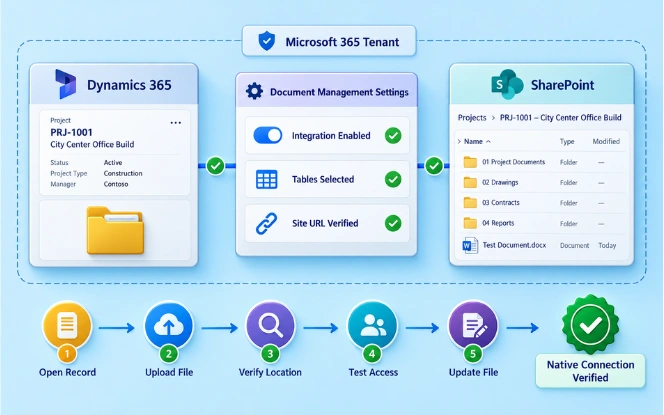
For supported Dataverse-based Dynamics applications, set up the native SharePoint connection before creating PMIS document automation. A typical configuration process runs as follows.
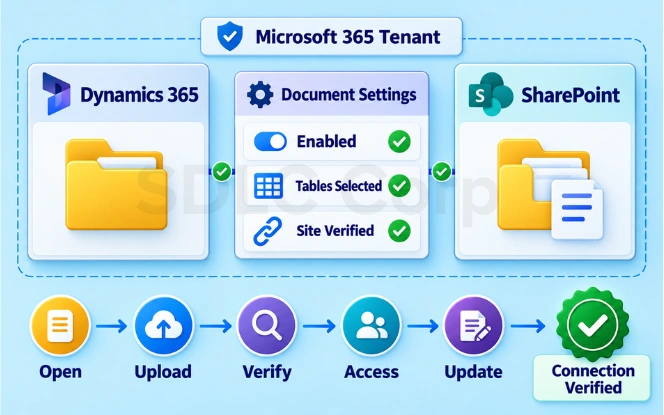
- Sign in to the Power Platform admin center.
- Select Manage.
- Open Environments.
- Choose the required environment.
- Select Settings.
- Open Integration.
- Select Document management settings.
- Enable or confirm SharePoint integration.
- Select the required tables or entities.
- Enter the SharePoint site URL.
- Complete the configuration and verify access.
For supported SharePoint Online and customer engagement scenarios, the SharePoint site and Dynamics environment should be within the same Microsoft 365 tenant.
Practical Configuration Check
Before connecting the PMIS, confirm the native behaviour works on its own:
- Open an enabled Dynamics record and confirm the Documents area appears
- Upload a test file and check that it reaches the expected SharePoint location
- Verify the related document location
- Test access with a normal project user
- Rename or update a file and check that the reference still works
Testing the native connection first helps separate SharePoint configuration problems from PMIS integration problems, which saves considerable time during troubleshooting.
Connect PMIS Project Data, Documents, and Workflows
Step 6: Connect PMIS Project Data to Dynamics 365
Once the mappings are approved, connect the project events to Dynamics 365. A PMIS may send the project ID, source record ID, status, approved value, date, owner, and a supporting document reference.
The integration validates the project, looks for the source record ID, and then creates or updates the Dynamics record. Checking for the source ID before creating a record helps prevent duplicates if the same message arrives again.
For PMIS platforms that provide REST, SOAP, GraphQL, or vendor-specific interfaces, API development and integration services can support integrations that standard connectors cannot handle.
Step 7: Connect PMIS Documents to SharePoint
Structured data and documents should not be treated the same way. If SharePoint is the agreed document system of record, keep the controlled file there rather than copying it into every connected platform.
A typical document process runs in this order:
- A PMIS document reaches an approved state
- The integration identifies the project
- It finds the correct SharePoint library
- It creates or updates the file and applies project metadata
- It stores the SharePoint file reference in PMIS or Dynamics
- It records the transaction result
Useful metadata might include project ID, document type, revision, status, vendor, approval date, and PMIS record ID.
Microsoft Graph exposes SharePoint document-library files as driveItem resources, and a stable file ID is usually safer for integration than depending only on filenames or folder paths.
Step 8: Automate Cross-System Project Workflows
After the basic integrations are stable, connect the wider project lifecycle. For a new project, Dynamics creates the approved project record, the PMIS project is created, the SharePoint location is prepared, and system IDs are stored.
For a document approval, the PMIS approves the file, SharePoint receives the approved copy and metadata, and Dynamics stores the reference.
At closeout, the PMIS closes the project, open transactions are checked, final documents are confirmed, and the project moves into the agreed archive or retention process.
Only automate changes that matter to another business process.
Example Scenario: An Approved $75,000 Change Request
A project team submits a $75,000 change request in the PMIS. While the request is under review, the PMIS owns the workflow and Dynamics 365 does not receive a final commercial value yet.
Once approved, the PMIS sends the project ID, change ID, approved amount, approval date, and document reference.
The integration validates the project, checks whether the change ID already exists, creates or updates the Dynamics record, links the supporting document in SharePoint, stores the required references, and records the transaction status.
Why the sequence matters
If part of the process fails, the transaction is logged for retry or review instead of being treated as complete.
This keeps temporary project activity out of downstream financial processes until a real business decision has been made.
Design SharePoint for Metadata, Not Just Folders
Folders are useful, but they should not carry the full document structure. Project metadata can make files easier to filter, search, report on, and route through workflows.
Useful fields include:
If a file moves from one folder to another, a workflow that depends only on the original path may fail.
Stable IDs and metadata make the integration less dependent on folder names, which matters most in long-running projects where document structures change.
Secure PMIS, Dynamics 365 and SharePoint Access
Security must be designed across all platforms. Dynamics 365 and Dataverse use their own roles and privileges, while SharePoint has separate site, library, folder, and document permissions.
A user who can view a Dynamics record should not automatically be assumed to have the right SharePoint access.
- Microsoft Entra groups
- Dynamics security roles
- Project team membership
- Dedicated integration identities
- SharePoint groups
- Inherited library or folder permissions
- Least-privilege API permissions
- Separate testing for document access
Avoid Excessive Unique Permissions
Avoid breaking permission inheritance for every file unless the project requires it. Microsoft supports large numbers of unique permission scopes in SharePoint libraries but recommends keeping the number lower for better performance.
Where practical, control access through project libraries, folders, or groups rather than individual files.
Review Current Dataverse-to-SharePoint Authentication
Custom integrations that access SharePoint document information outside the standard Dynamics Documents grid may require an Azure application, SharePoint permissions, Power Platform managed identities, and federated credentials.
A managed identity gives an application a controlled identity without depending on an employee's login. This is particularly important when reviewing older integrations built before Microsoft's newer SharePoint access requirements.
Make the PMIS Integration Production-Ready
An integration that succeeds during a demo still needs controls for production. Plan for unavailable APIs, expired credentials, duplicate messages, missing projects, permission problems, and service limits.
Handle Failed Transactions
Record enough information to trace each important event. Useful log fields include the transaction ID, project ID, source system, source record ID, target system, start time, result, error message, retry count, and final status.
Retry temporary failures such as short outages. Send permanent validation problems, such as an invalid project ID, to an exception process instead of retrying them endlessly.
Prevent Integration Loops
Two-way integrations can create loops when one system sends an update back to the platform that originally created it. Prevent this through ownership rules, source markers, integration flags, and change filters.
Compare the old and new values before triggering another update.
Prevent Duplicate Records
A network timeout does not always mean the destination failed. The destination may have processed the request before the sender lost the connection. Use stable external IDs and check whether the record already exists before creating another one.
This is the practical purpose of idempotency: repeating the same business request should not create duplicate results.
Check for Missed Transactions
Real-time flows can still miss events. A webhook may fail or someone may disable a connection. For important project and financial records, add a scheduled reconciliation check that compares systems and flags anything missing or inconsistent.
Reconciliation in practice
If the PMIS shows 27 approved records for the day and Dynamics shows 26, the integration should identify the missing item.
Plan for Connector Limits
Large document workflows require capacity planning. Microsoft currently documents limits on SharePoint connector calls. Do not push large file migrations through a single flow without checking call limits, file sizes, concurrency, batching, and retry behavior.
For larger Azure-based workloads, cloud application development services may be useful when the design requires custom APIs, functions, queues, or monitoring.
Separate Development, Test, and Production
Do not build directly against production unless there is no safe alternative. A common environment flow runs from development to test or SIT, then UAT, then production.
Keep environment-specific configuration separate from the workflow where possible. This includes PMIS API URLs, SharePoint sites, connection references, environment IDs, queue names, and notification settings.
Choose Between Native, Custom, and Workflow Tools
Native Dynamics 365 and SharePoint integration may be enough when the main requirement is document management around supported Dynamics records. A wider PMIS integration is needed when project data or custom business processes must also move between platforms.
Compare the options
Scope: Native or custom
| Requirement | Native D365 and SharePoint | Custom PMIS integration |
|---|---|---|
| Store Dynamics documents in SharePoint | Good fit | Usually unnecessary |
| View SharePoint documents from Dynamics | Good fit | Usually unnecessary |
| Sync PMIS project records | Not covered | Required |
| Map PMIS statuses | Not covered | Required |
| Transfer approved project data | Not covered | Required |
| Apply PMIS business rules | Limited | Often required |
| Custom monitoring | Limited | Stronger control |
| PMIS API connection | Not covered | Required |
| Cross-system reconciliation | Not covered | Required |
| Complex metadata mapping | May need extension | Stronger control |
Tooling: Power Automate or Logic Apps
| Requirement | Power Automate | Azure Logic Apps |
|---|---|---|
| Business-led workflow | Typical fit | Possible |
| Microsoft 365 automation | Typical fit | Good fit |
| Approval workflow | Typical fit | Possible |
| Dataverse event workflow | Typical fit | Good fit |
| Complex API sequence | Possible | Often a better fit |
| Developer-led integration | Possible | Typical fit |
| Azure-native monitoring | More limited | Typical fit |
| Custom transformation | May need extra services | Strong with Azure services |
| Simple user automation | Often simpler | May add complexity |
Use native features where they solve the requirement, and add custom integration only where the business process needs it.
Neither Power Automate nor Logic Apps is automatically the better choice, so use the one that fits the workflow, support model, and technical complexity.
Many enterprises use both. Power Automate may handle user-facing workflows, while Logic Apps handles system-level API processing. Avoid splitting one transaction across several technologies unless there is a clear reason.
What to Test Before Go-Live
Testing should cover failures as well as successful transactions.
| Test area | What to verify |
|---|---|
| Project creation | Correct records are connected |
| Project ID mapping | Same project resolves across all systems |
| Field mapping | Values reach the correct fields |
| Status mapping | Values translate correctly |
| Duplicate request | Repeated event does not create another record |
| Document routing | File reaches the correct SharePoint location |
| File rename | Integration still resolves the document |
| Permissions | Users see only approved content |
| Missing project | Transaction stops safely |
| PMIS or API outage | Retry or exception logic works |
| High volume | Integration handles expected load |
| Reconciliation | Missing transactions are identified |
| User departure | Automation does not depend on one employee |
| Deployment | Workflow works after environment promotion |
| Audit trail | Support can trace an event end to end |
Include project managers, finance users, document controllers, administrators, and security teams in acceptance testing. Technical success does not guarantee that the workflow works well for users.
Common PMIS Integration Mistakes
| Mistake | Better approach |
|---|---|
| Synchronizing every field | Move only useful business data |
| Starting with APIs | Map workflows first |
| Matching projects by name | Use a stable project ID |
| Two systems owning one value | Assign one system of record |
| Copying every document | Keep one controlled copy where appropriate |
| Using folder names as permanent IDs | Use stable references |
| Ignoring SharePoint permissions | Test document access separately |
| Using personal accounts | Use approved service identities |
| Creating records after every retry | Check external IDs first |
| Relying only on real-time flows | Add reconciliation where needed |
| No error log | Track results and failures |
| Testing only happy paths | Test outages and invalid data |
| Building directly in production | Use controlled environments |
| No support owner | Assign operational responsibility |
PMIS Integration Implementation Roadmap
A phased rollout usually works better than integrating every process at once.
- DiscoveryMap the current systems, users, workflows, and pain points. Choose one high-value use case for the first release.
- Ownership and mappingDefine the system of record, project ID, field mappings, status mappings, document rules, security roles, and failure handling. Approve these decisions before development.
- Technical foundationConfigure the non-production environments, API connections, Dynamics and SharePoint integration, application identities, configuration settings, and logging.
- Build the first workflowImplement one complete business process: an approved PMIS event, a Dynamics update, a SharePoint document reference, and a transaction log. Keep the scope small enough to test properly.
- Test failure scenariosTest missing projects, duplicate requests, bad permissions, API downtime, document problems, and higher transaction volumes. Resolve these issues before expanding.
- Pilot with real projectsRun the integration with a limited set of projects and users. Track failures, manual corrections, support requests, and processing times.
- Expand in stagesExtend the proven pattern to project creation, resource assignments, contract updates, milestones, invoices, RFIs, document approvals, and closeout.
This gives the team a proven integration model instead of several unfinished workflows.
Build the Integration Around Clear Ownership
Successful PMIS integration depends more on clear decisions than on the number of APIs used. Define who owns each type of data, which events need to move, how documents are controlled, who has access, and how failures are handled.
Once those rules are clear, PMIS, Dynamics 365, SharePoint, Power Automate, Logic Apps, and APIs can work together without creating another layer of duplicate data and manual checking.
Conclusion
Integrating PMIS with Microsoft Dynamics 365 and SharePoint creates a more connected way to manage project data, business records, and documents.
Clear data ownership and a shared project ID help prevent duplicate or inconsistent information, while the right use of APIs, Power Automate, Logic Apps, and SharePoint workflows can reduce manual work across teams.
Security, monitoring, retries, and reconciliation should be planned before go-live. With a well-designed integration, teams can improve collaboration, data accuracy, and overall project visibility.
If your PMIS, Dynamics 365, and SharePoint environment still relies on manual updates, spreadsheets, or emailed document links, define the integration scope before adding more automation.
SDLC Corp's custom software development services support broader integration projects, while its API and Microsoft Dynamics services can support the individual layers described in this guide.
Frequently Asked Questions
PMIS integration connects project information with business and financial records in Dynamics 365. It helps teams share approved updates without entering the same data twice. The exact flow depends on which system owns each business process.
Yes. Supported Dynamics 365 applications can use SharePoint for document management. Users can access files related to Dynamics records while SharePoint stores and manages those documents.
Yes. If the PMIS provides an API, webhook, or supported connector, Power Automate can trigger workflows and move approved data into Dynamics 365 or Dataverse.
SharePoint is a strong option when teams need secure project documents, collaboration, metadata, and document control. The final decision should follow your security, retention, compliance, and PMIS requirements.
Only when the workflow genuinely needs updates in both directions. In many cases, one system should own a field while the other system receives the approved value. This reduces conflicts and unnecessary updates.
Use a stable PMIS project, change, or record ID. Check whether that ID already exists before creating another Dynamics record. If it exists, update the current record.
Logic Apps is often suitable for developer-led integrations involving several APIs, Azure services, or complex system workflows. Power Automate usually fits user workflows and Microsoft 365 automation well.
Use project roles, SharePoint groups, and inherited permissions where practical. Give users only the access they need and avoid creating separate permissions on every file without a clear requirement.
Move information required by another business process. This may include project IDs, milestones, approved changes, status, resource references, contract values, and selected financial data.
Use PMIS for project operations, Dynamics 365 for the business records it owns, and SharePoint for controlled documents where appropriate. Connect them through Power Automate, Logic Apps, APIs, or custom services based on the workflow and transaction volume.