Introduction
Adding a countdown timer to your WordPress page is an effective way to create urgency and engage visitors. Whether you’re launching a product, running a sale, or promoting an event, a countdown timer can capture attention and encourage immediate action. In this guide, we’ll show you simple methods to integrate a countdown timer using plugins or custom code, making it easy to enhance your site’s functionality and user experience.
Expert WordPress Development Solutions
Elevate your website with our expertise.

Steps to Add a Countdown Timer to a WordPress Page
1. Click on the Page Button
Navigate to the WordPress dashboard and select the “Pages” option.
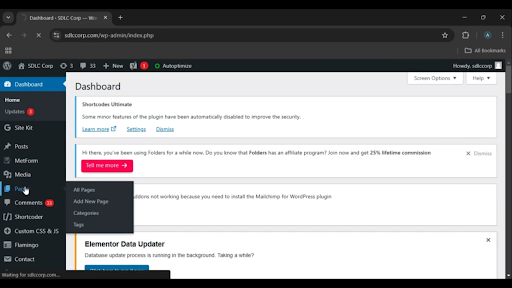
Get a closer look – Here’s the feature at work.
2. Click on the Add New Button
Click on the “Add New” button to create a new page.
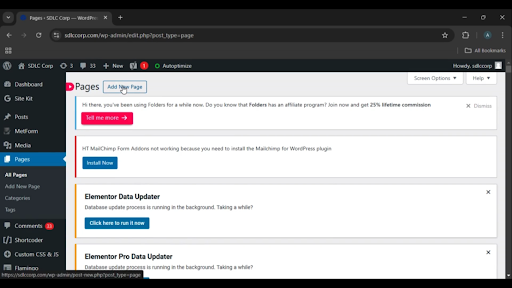
Get a closer look – Here’s the feature at work.
3. Click on the Title Button
Enter a title for your page to identify its purpose, such as “Countdown Timer.”
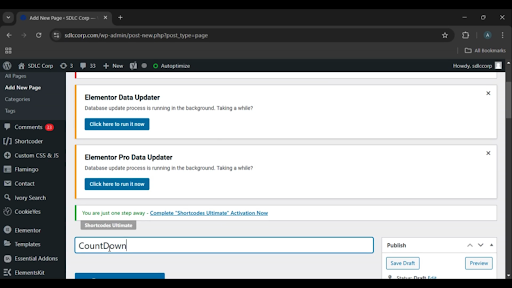
Get a closer look – Here’s the feature at work.
Custom WordPress Development Services
Tailored solutions for your business needs.

4. Click on Edit with Elementor Button
After saving or creating the page, click on the “Edit with Elementor” button to access the Elementor page builder.
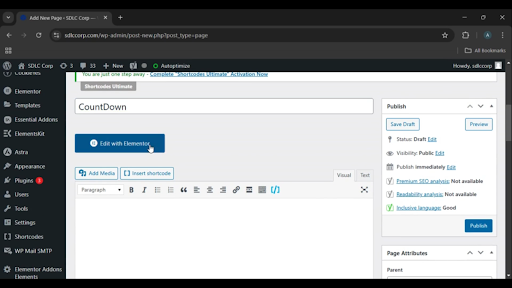
Get a closer look – Here’s the feature at work.
5. Click on the Elementor Button
Locate the Elementor panel, where you can find various design elements and widgets.
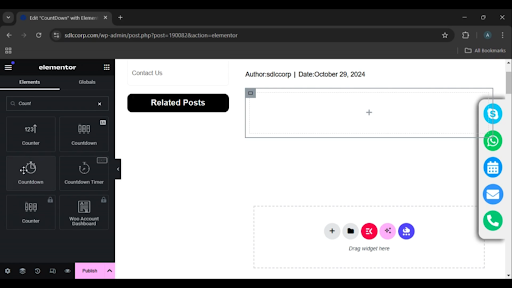
Get a closer look – Here’s the feature at work.
6. Click on the Edit Countdown Button
Drag and drop the “Countdown Timer” widget into your page layout, then customize the timer’s settings, such as duration, style, and actions.
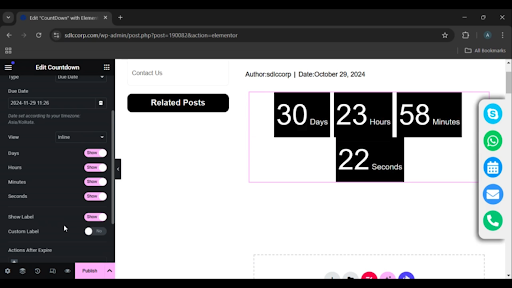
Get a closer look – Here’s the feature at work.
7. Click on the Publish Button
After finalizing the countdown timer and ensuring it looks and functions as desired, click on the “Publish” button to make the page live.
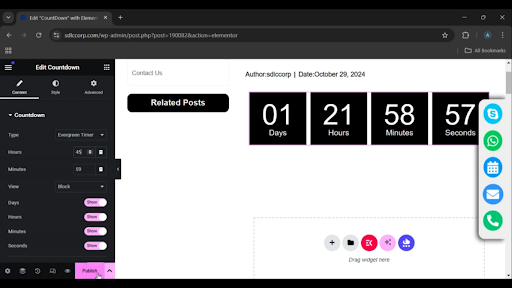
Get a closer look – Here’s the feature at work.

Conclusion
Adding a countdown timer to your WordPress page using Elementor is a simple yet effective way to create urgency or excitement for an event or promotion. By leveraging the easy drag-and-drop functionality and customization options in Elementor, you can design a timer that fits your website’s aesthetic and purpose. Once published, the timer is ready to engage and inform your audience dynamically.