Rename an Elementor Container in Structure
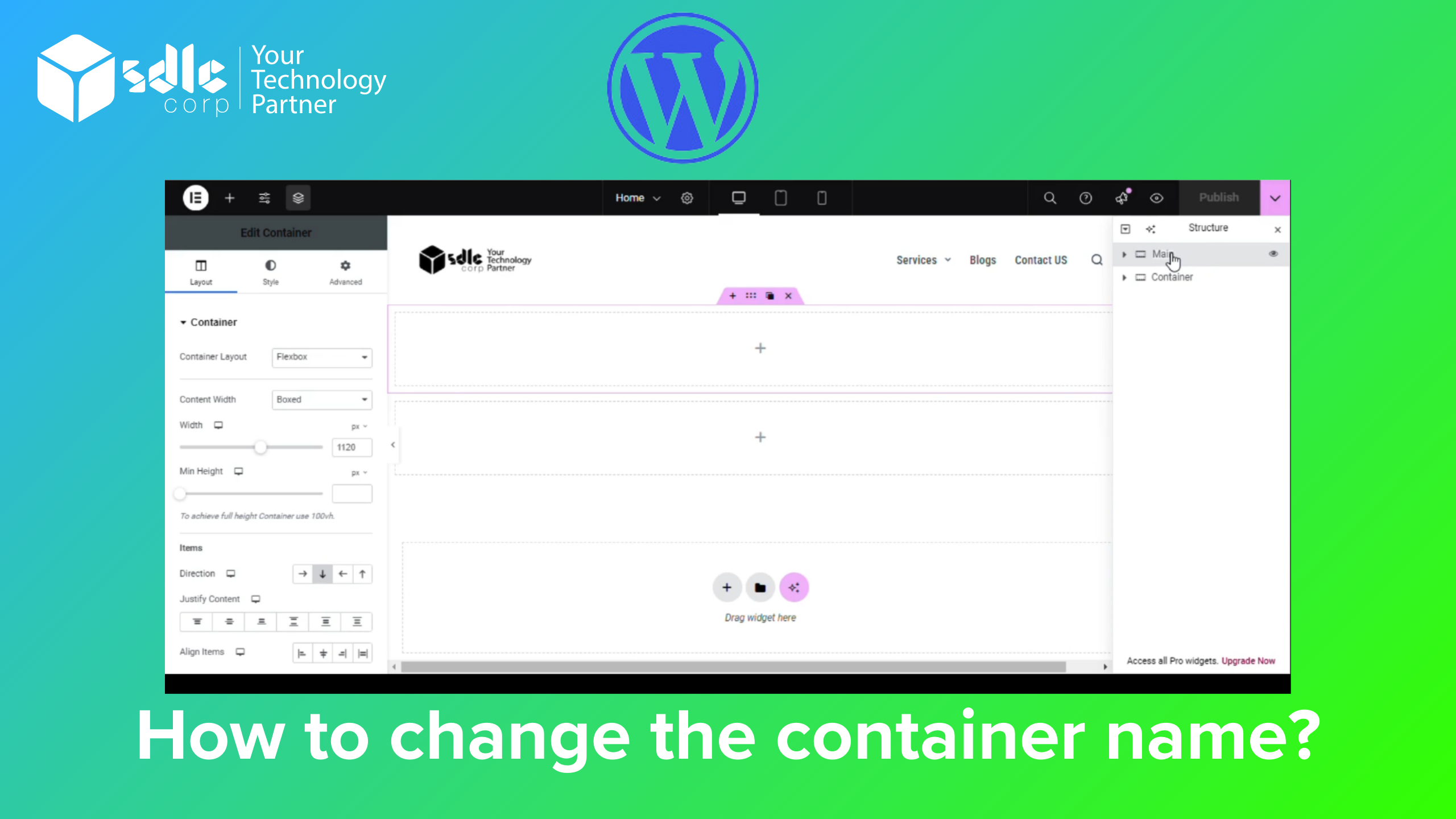
Use descriptive names in Elementor’s Structure panel to find sections while editing a page. This guide covers an editor label, not Docker or Proxmox containers. The label does not replace a CSS ID or class used by links, styles or scripts.
How to Change a Container Name in Elementor
1. Open the Structure panel
Open the page in Elementor and display the Structure panel. You can also right-click an element and choose Structure. Older versions may call this panel Navigator.
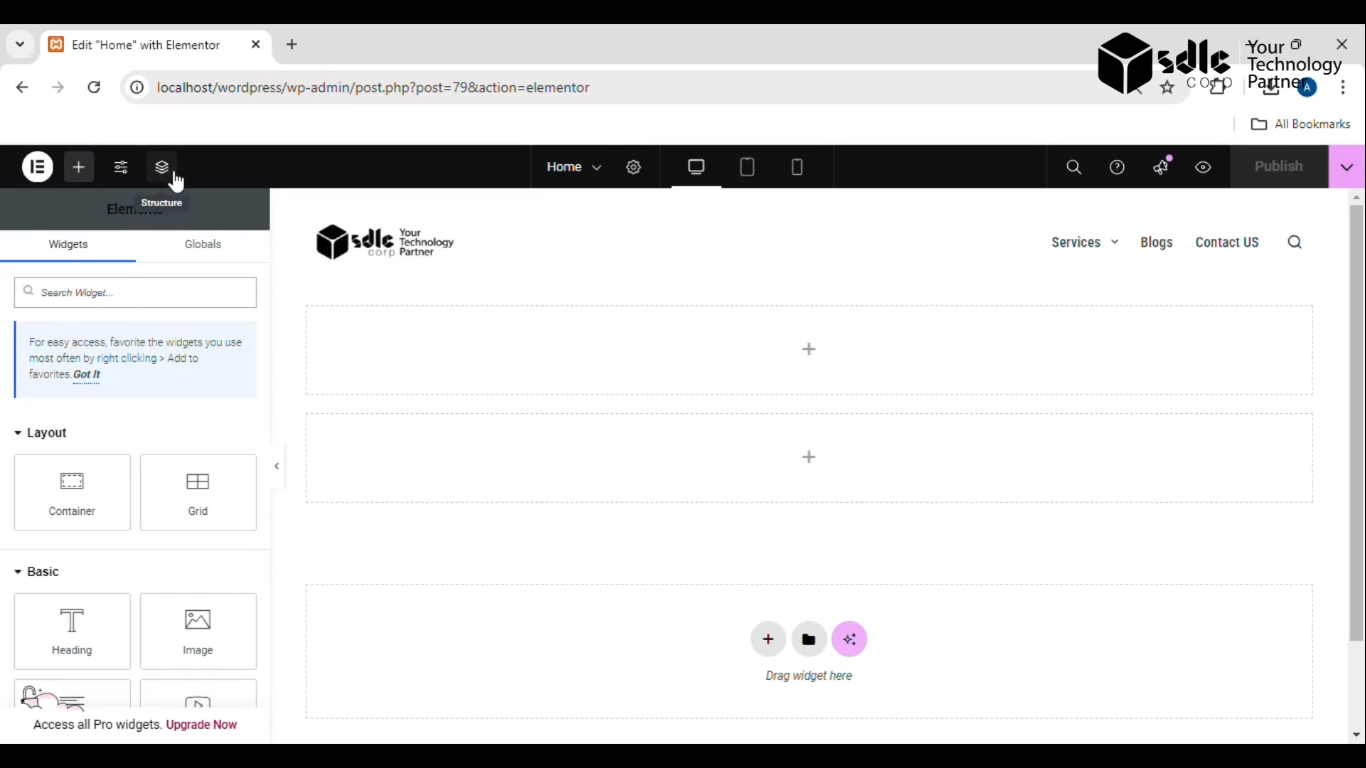
Locate the intended container in the Structure hierarchy.
2. Rename the correct container
Find the container in the hierarchy and check which part of the page it represents. Double-click its name and enter a descriptive label, such as Hero content or Customer logos. Keep sibling labels distinct so you can identify them later.
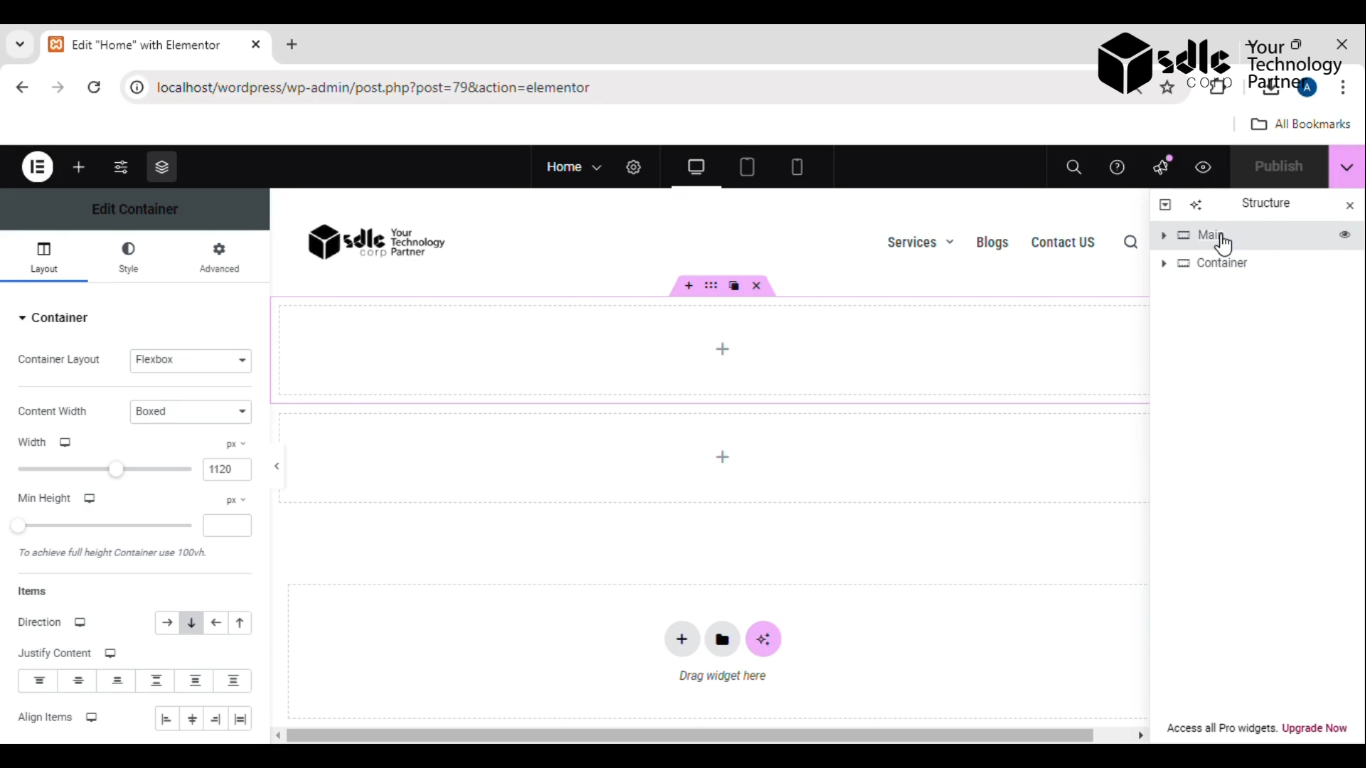
Give the container a label that describes its purpose.
3. Save and check the label
Use Update or Publish, according to the page’s current status. Reopen the Structure panel and confirm the label is saved. Check the public page to ensure you did not accidentally change its content or layout.
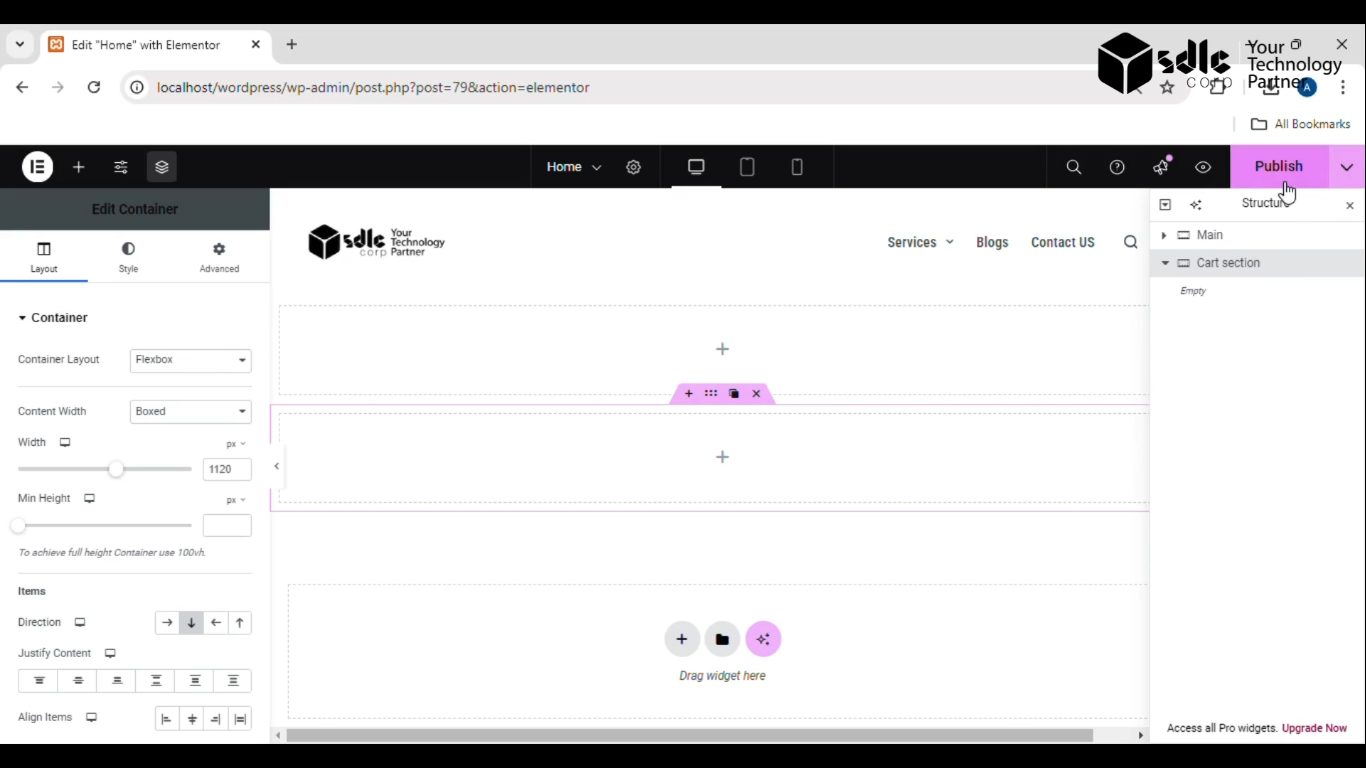
Save the page after renaming the container.
Container Labels, CSS IDs and Classes
A Structure label helps editors navigate the page. If your goal is to change an anchor link or a styling selector, review the relevant CSS ID or class separately. Avoid changing those values as part of a simple label cleanup.
Use a consistent naming pattern across your page, and preserve meaningful labels when duplicating sections. See Elementor’s Structure documentation for the panel controls.