Introduction
WordPress permalink settings control the URL format used for posts. This guide shows where to choose a structure, save it and check the result. Changing an existing site’s URL format can affect old links, so record the current setting and test the change on a staging copy first.
Expert WordPress Development Solutions
Elevate your website with our expertise.

Steps to Change the Permalink Structure in WordPress:
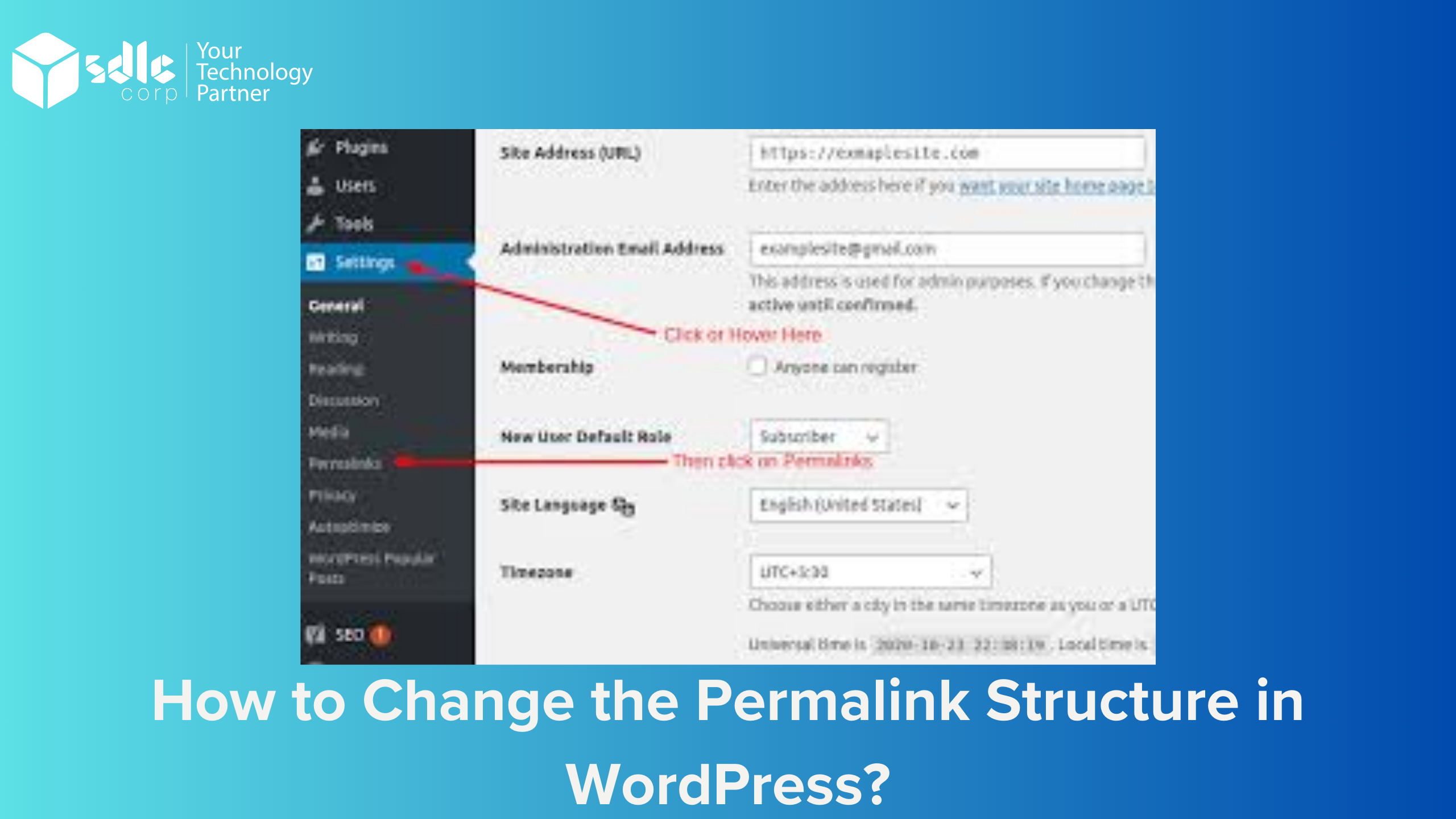
1. Open Settings > Permalinks
Sign in with an administrator account and go to Settings > Permalinks. Record the existing selection before making a change. If the site already has published content, prepare a list of old URLs to test afterwards.

The Permalinks screen shows the site’s current URL format.
2. Choose a permalink structure
Select a predefined option or use Custom Structure with supported structure tags. For example, /%postname%/ uses the post slug. Check the example URL shown on the settings screen and choose a format that fits your content.

Custom Structure lets you specify a format using supported tags.
3. Save and test your links
Click Save Changes, then open several posts and category pages in a private browser window. Check internal links and test the old URLs you recorded. Do not assume every previous URL will redirect correctly. If a URL returns a 404, investigate the permalink and server rewrite configuration before applying the change to a live site.

Save the setting, then verify both current and previous URLs.
Check Existing Links Before Changing a Live Site
Update internal links to the intended URLs and plan any necessary redirects separately. A clearer URL format does not guarantee higher rankings. If you only need to rename one post, edit that post’s slug rather than changing the site-wide permalink structure.
For the available settings and structure tags, see the official WordPress permalink documentation.