
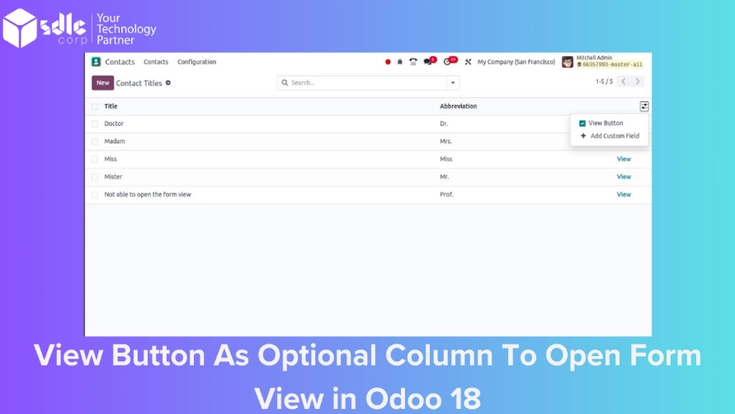
Introduction to Adding a View Button as an Optional Column to Open Form View in Odoo 18
Odoo 18 introduces an improved feature for viewing and managing records: the ability to add a “View” button as an optional column in list views. This feature allows users to open a detailed form view directly from the list view, making navigation more efficient. Here are the steps to add a View button as an optional column in Odoo 18, complete with screenshots from our YouTube tutorial for visual assistance.
Steps to Add a View Button as an Optional Column in Odoo 18
1. Navigate to the Module and List View Settings
Open the Odoo dashboard and go to the module where you want to add the View button, such as Sales, Inventory, or any custom module. Access the settings for the specific list view you’re working with, where you can modify columns and optional fields.
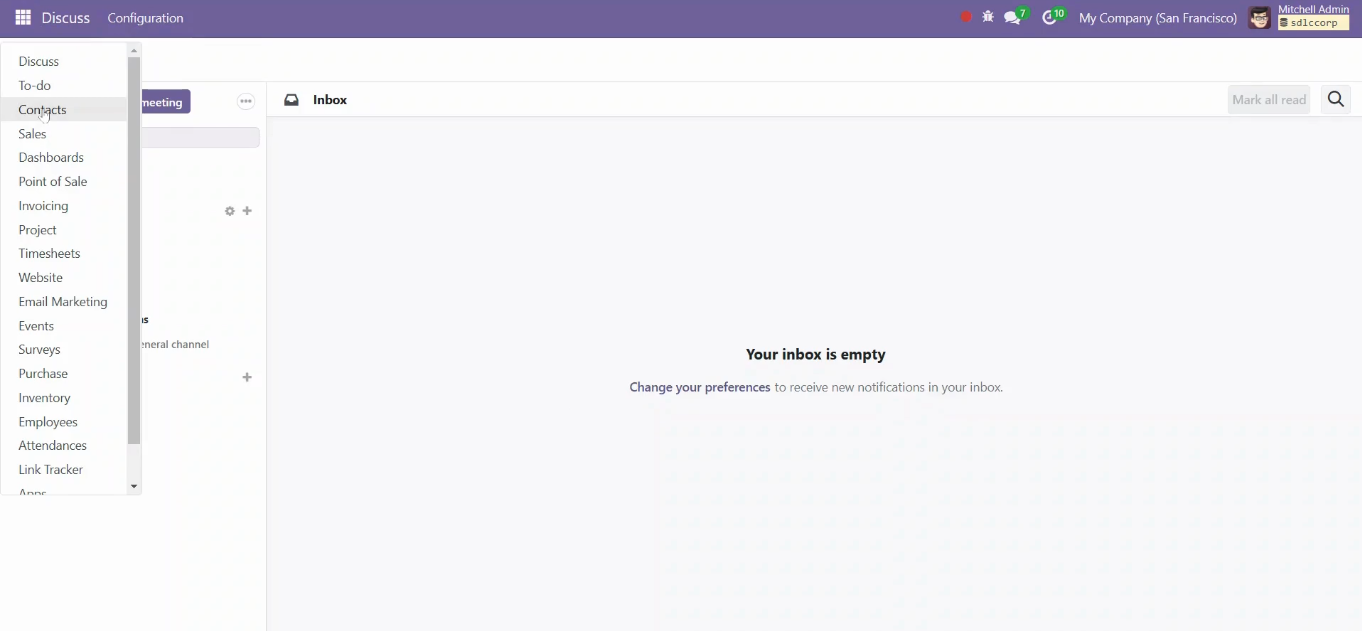
2. Enable the View Button Column
Within the list view settings, look for the Optional Columns or Advanced Options section, where you can customize additional columns. Here, you will find an option to add the View button as a column. Enable this option to make the View button available in the list view.
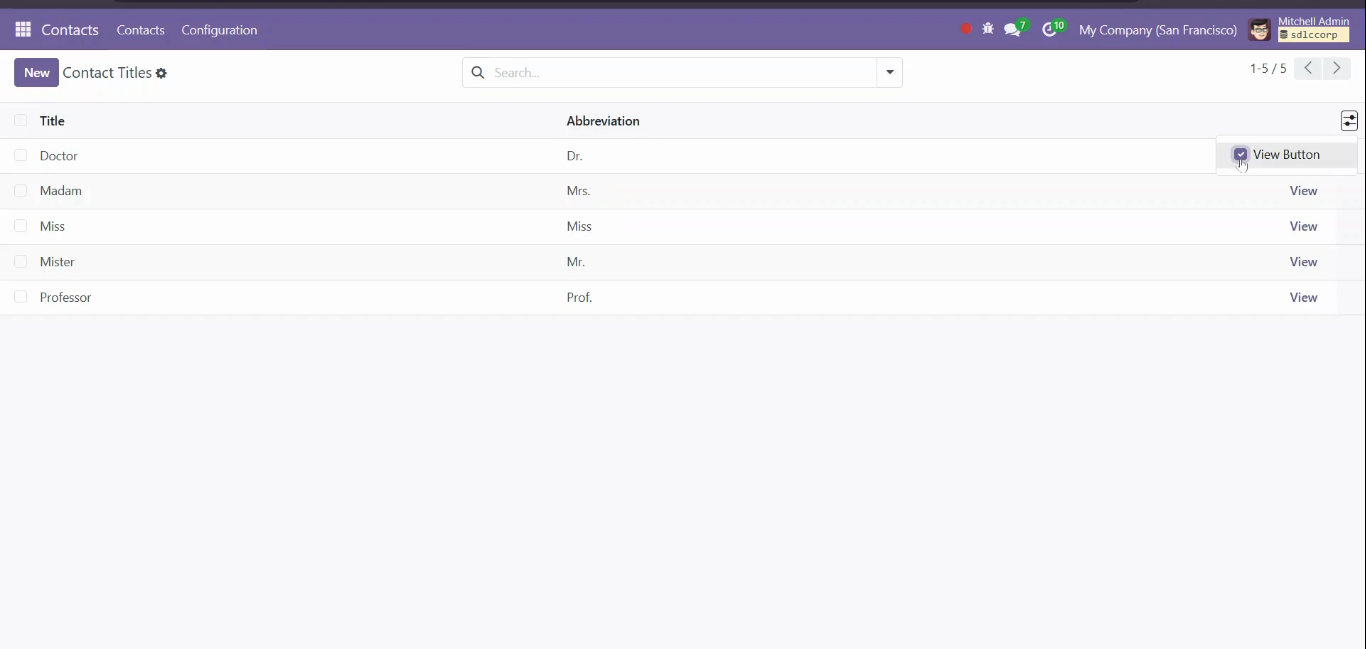
3. Save and Refresh the List View
After enabling the View button column, save your settings and refresh the list view. You should now see a new column with the View button for each record. This button will allow users to open the detailed form view of any specific record directly from the list view.
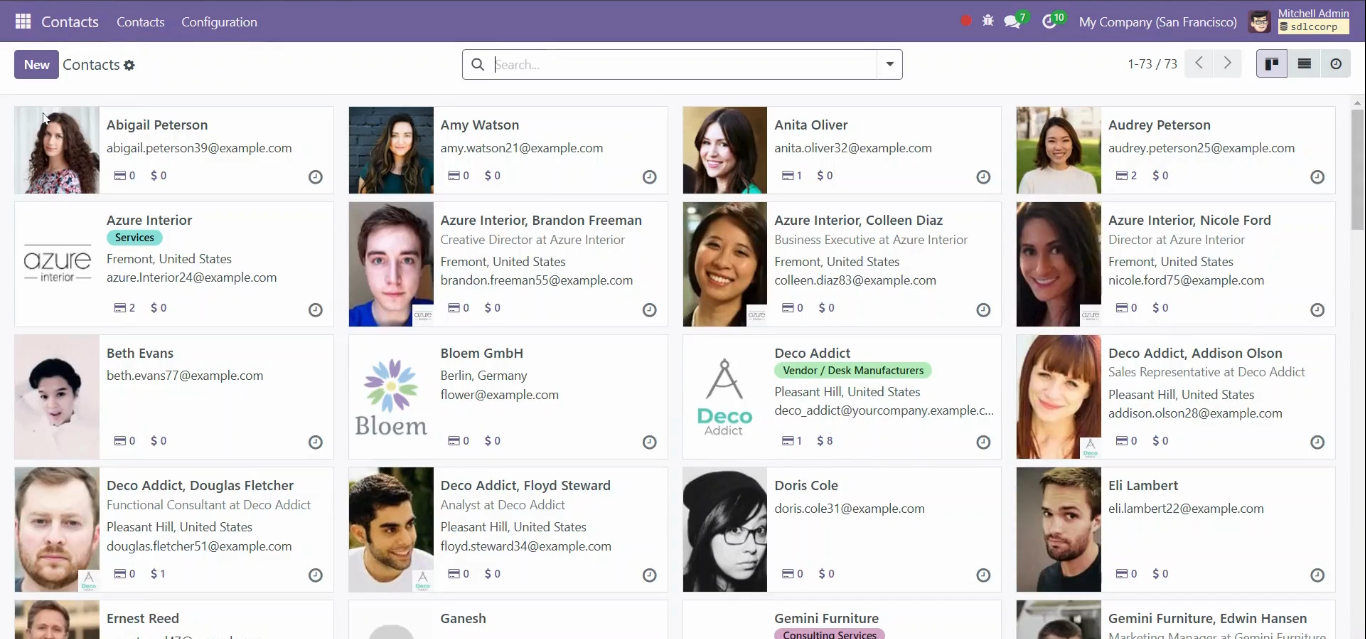
4. Use the View Button to Access the Form View
Now, you can use the View button to quickly access the form view for any record in the list. Click the View button in the relevant row to open the detailed form view of that record. This feature helps users save time by bypassing the need to open each record manually.
5. Customize Columns for Specific User Roles
Odoo 18 also allows you to configure optional columns like the View button for different user roles. By customizing columns based on user access levels, you can control which roles have direct access to detailed form views, enhancing security and usability.
Conclusion
Adding a View button as an optional column in Odoo 18 is a straightforward process that enhances navigation and improves productivity by allowing users to open form views directly from list views. By following these steps, you can enable this feature to make data management smoother and faster within your organization.
Expert Odoo ERP Solutions Tailored
Streamline Operations and Boost Growth with Odoo ERP Solutions

How SDLC Corp Can help to Using View Button As Optional Column To Open Form View in Odoo 18?
Want this feature configured for your process? Our Odoo customization team can set it up and adapt it to the way your team works.