A scanned PDF can look perfectly readable on screen and still be almost impossible for a screen reader to understand. The reason is simple: the page may contain only a picture of text, not text that assistive technology can access.
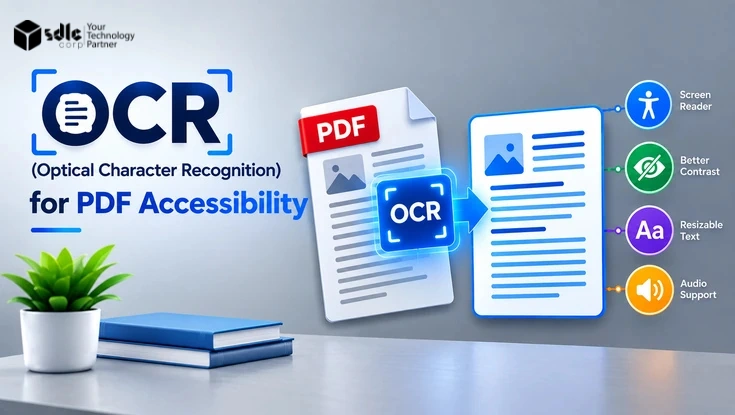
OCR for PDF accessibility solves the first part of this problem by converting text inside scanned page images into machine-readable text.
Everything else a screen reader user depends on comes from the structure added afterwards: a logical reading order, proper tags, headings, meaningful alternative text, accessible tables and forms, a defined document language, and final testing.
W3C identifies OCR as a technique for converting scanned PDF text into actual text, and recommends checking the result for accuracy and correct reading order.
Quick Answer: What Does OCR Solve, and What Doesn't It Solve?
- Converts images of text into machine-readable text
- Makes content searchable, selectable, and copyable
- Gives assistive technology actual text instead of an image
- Creates a foundation for remediation
- Heading structure and tags
- Logical reading order
- Reflow and navigation by headings
- Table relationships and form labels
- Alt text for charts and images
- Accuracy of the recognized text
- WCAG or PDF/UA conformance
In short: OCR produces actual text. Tags and structure determine reading order, reflow, navigation, and meaning. Conformance is confirmed only through validation and testing.
What Is OCR for PDF Accessibility?
OCR (Optical Character Recognition) analyzes an image of a document and identifies the characters and words in it. The output is a machine-readable text layer that users can search, select, and copy.
Imagine a scanned five-page policy document. Before OCR, each page is a picture, and a screen reader has no text to read.
After OCR, the PDF contains a real text layer, but that layer is still just text. It has no headings, no defined reading sequence, and no table or form semantics.
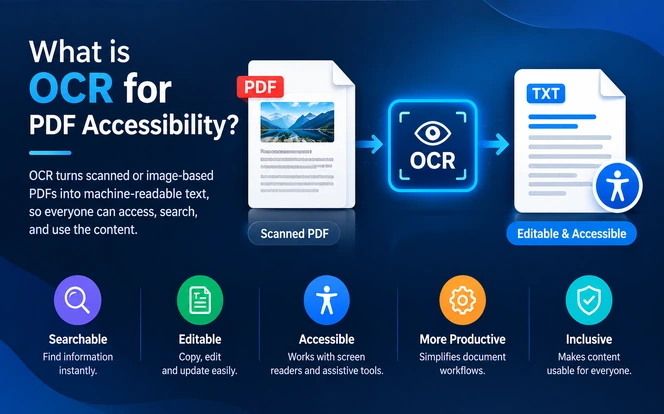
The difference becomes critical when a screen reader encounters columns, tables, headings, or form fields. Text alone does not tell assistive technology which line is a heading, which cell belongs to which column, or which label belongs to which field.
That information comes from tags added during remediation. Adobe explains that scanned images of text are inherently inaccessible because assistive software cannot read or extract the words, and recommends running OCR before applying other accessibility features.
This tagging work is the full subject of our guide to Document Accessibility Remediation.
Why OCR Matters for Accessible PDFs
Without OCR, a scanned PDF contains no machine-readable text at all. Screen readers have nothing to announce, and users cannot search, select, or copy content.
Section508.gov likewise explains that scanned PDFs without renderable text cannot be properly read or interacted with by assistive technology.
OCR removes this image-only barrier. Reflow, heading navigation, and a correct reading sequence are separate outcomes: they depend on the tag structure built during remediation, not on OCR itself.
OCR vs. Full PDF Accessibility
| OCR provides | Full accessibility requires |
|---|---|
| Machine-readable text | Machine-readable text plus tag structure |
| Searchable content | Correct reading order |
| Selectable and copyable text | Proper heading and paragraph tags |
| Basic text extraction | Accessible tables and lists |
| A foundation for remediation | Alt text for meaningful images |
| Text that assistive technology can detect | Correct language, links, forms, reflow, and navigation |
| OCR output that can be reviewed | Testing with checkers and assistive technology |
A PDF can therefore be OCRed and still be inaccessible. OCR may recognize every word on a two-column page, yet without correct tags the right column can be read before the left one.
The words exist; the reading experience is wrong. Adobe notes that structure tags are what help assistive technology determine reading order and interpret headings, paragraphs, and tables.
Where OCR Fits in PDF Accessibility Remediation
OCR is one early stage in a longer pipeline, not the pipeline itself:
- Scanned image
- OCR (text)
- Quality review
- Tagging and structure
- Validation
- Assistive technology testing
Everything after OCR depends on the quality of the text it produces. Poor OCR output multiplies remediation effort, which is why the decision about how to handle a PDF should come before any processing begins.
Choosing Between OCR, Remediation, and Rebuilding
Not every inaccessible PDF should go through OCR. Use the condition of the file to decide the next step.
| If your PDF... | Recommended next step |
|---|---|
| Contains only scanned images, and no source file exists | Run OCR, then full remediation |
| Has a text layer but no tags | Skip OCR; add tags and fix reading order |
| Is tagged but fails accessibility checks | Remediate structure; OCR is not needed |
| Mixes native text pages and scanned pages | OCR only the scanned pages, then remediate the whole file |
| Has an available Word, PowerPoint, or InDesign source | Fix accessibility in the source and re-export |
| Is a poor-quality scan (faded, skewed, low resolution) | Rescan at higher quality if possible, then OCR |
| Contains handwritten content | Check how accurately it was recognized; where recognition is unreliable and the content matters, add a reviewed transcription |
| Will be updated frequently | Rebuild from an accessible source |
Adobe recommends returning to the source application whenever possible, because fixing accessibility at the source prevents the same problems from reappearing in every future version.
Use OCR when the scanned PDF is the primary source and recreating it would be impractical.
A scanned document archive is exactly this scenario, and it is the subject of the decision matrix in our Automated vs Manual PDF Accessibility Remediation guide
It walks through when to automate that pipeline and when to keep a human in the loop.
Document Complexity Matrix
A 10-page text-only scan and a 200-page form-heavy archive should not enter the same remediation workflow. Classify documents first, then assign effort.
The matrix below also sets a minimum scan resolution for each tier and gives an indicative range for the character-level accuracy you can expect from a modern OCR engine when that resolution is met.
Use these figures to plan review time, not as a guarantee for any specific file.
| Complexity | Typical content | Minimum scan resolution | Indicative OCR accuracy | OCR | Human review | Structural remediation | Validation |
|---|---|---|---|---|---|---|---|
| Simple | Clean, single-column text scans | 300 dpi | 98 to 99%+ character accuracy on clean printed text | Automated | Spot-check critical values | Light: headings, paragraphs | Automated checker plus quick screen reader pass |
| Moderate | Multiple columns, images, basic tables | 300 dpi | 95 to 98% character accuracy; lower inside tables and captions | Automated | Full text review | Reading order, alt text, simple tables | Checker plus manual review |
| Complex | Complex tables, charts, fillable forms | 300 to 400 dpi | 90 to 95% character accuracy; table cells and small-print labels drop further | Automated with correction | Line-by-line review | Full retagging, table headers, form labels | Checker, manual review, and screen reader testing |
| High-risk | Legal, financial, medical, or public-notice content; poor scans; handwriting | 400 to 600 dpi (rescan if below 300 dpi) | Below 90% is common on faded or skewed pages; handwriting can fall below 70% and varies widely by engine | OCR, with transcription where recognition proves unreliable | Double review of all critical data | Full remediation or rebuild | Full manual audit and assistive technology testing |
Resolution figures are for bitonal or grayscale scans of standard body text. Small type (under 8 pt), light or colored ink, and thin fonts benefit from the higher end of each range.
Accuracy figures are character-level estimates; word-level accuracy is always lower because a single wrong character corrupts the whole word.
The practical implication: a 300 dpi scan is the usual floor for automated OCR, and anything scanned below it should be rescanned rather than corrected by hand.
A document that lands in a lower accuracy band moves up the review scale even if its layout is simple, because every unrecognized character becomes a manual correction.
A Practical OCR-to-Accessibility Workflow
Step 1: Inspect the PDF
Check whether text can be selected, searched, or copied. If a page behaves like a photograph, it needs OCR.
Our guide to mastering PDF text extraction explains the common reasons text cannot be copied from a PDF. Check every page, since a single file can contain both native text and scanned pages.
Step 2: Classify by Complexity
Place the document in the matrix above. This determines how much review and remediation the file needs, and confirms whether the scan resolution is high enough to run OCR at all.
Step 3: Run OCR
Process only the scanned pages. OCR quality depends heavily on the source.
Accuracy drops with blurry or skewed scans, low resolution, faded or damaged pages, unusual fonts, multi-column layouts, handwriting, and complex tables.
W3C notes that accuracy depends on factors such as resolution and text clarity, and its example workflow includes reviewing OCR suspects after recognition.
OCR is only the first stage of making scanned documents accessible. Our guide to Automated vs Manual PDF Accessibility Remediation explains how to combine automated processing with human review.
For the next stage, see our guide to Document Accessibility Remediation, which covers the structural work needed after text recognition.
Step 4: Review OCR Output with a QA Framework
A text layer confirms that characters were recognized, not that they were recognized correctly. OCR software is not perfect, and recognized text can differ from what appears on the visible page.
Prioritize review by risk:
| Priority | What to check | Why it matters |
|---|---|---|
| Critical | Names, numbers, dates, financial values, addresses, legal language, acronyms | A single error changes meaning or creates liability |
| Structural | Headings, column breaks, table cells, lists, headers and footers | Errors break navigation and reading order |
| Presentation | Punctuation, spacing, hyphenation, formatting | Errors reduce readability but rarely change meaning |
Step 5: Repair Reading Order
Confirm that assistive technology encounters content in the intended sequence: heading, introduction, left column, right column, figure, caption, footer.
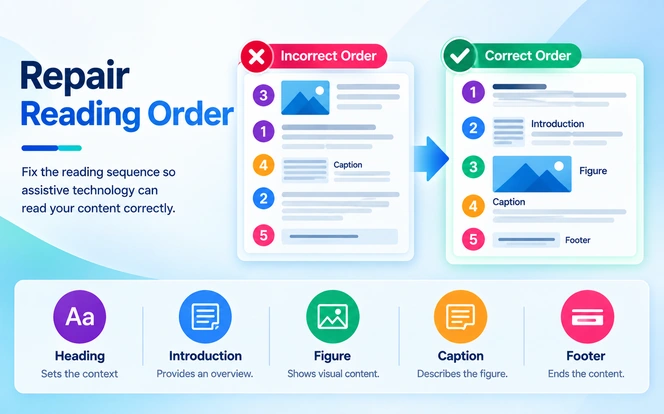
Adobe's Reading Order tool lets you inspect and repair this sequence, and WebAIM's guide to reviewing and repairing PDF accessibility in Acrobat walks through fixing both content order and tag order.
Step 6: Add and Correct Tags
Tags tell assistive technology what each piece of content is: H1 to H6 for headings, P for paragraphs, L for lists, Table, TR, TH, and TD for tables, Figure for meaningful images, Link for links, and form elements for fields.
The tag tree is also what makes reflow and heading navigation possible. W3C lists separate PDF techniques for headings, tables, reading order, alternative text, and links.
Step 7: Add Alt Text and Fix Tables and Forms
OCR recognizes text; it does not explain a chart, photograph, or diagram. Meaningful images need text alternatives that convey their purpose, and decorative elements should be marked as artifacts so they do not create noise.
Tables need header-to-cell relationships rebuilt, and every form field needs an accessible name; our dedicated guide to Accessible PDF Tables and Forms covers the tagging rules for both in detail.
Step 8: Validate
Validation happens after remediation, not immediately after OCR.
Check text accuracy, reading order, tag structure, heading hierarchy, alt text, tables, form fields, document language, links, keyboard navigation, and accessibility checker results.
Step 9: Test with Assistive Technology
Use a screen reader such as NVDA or JAWS, or another method that exposes the document's accessibility information, to confirm the document makes sense in practice.
W3C recommends this kind of check for complete text and correct reading order.
The meaningful completion point is validated accessibility, not the presence of an OCR text layer.
Before and After: Illustrative OCR Accessibility Errors
The following examples are illustrative. They represent common error patterns in scanned documents rather than specific documented cases.
1. Character Recognition Error
- Original: Contract period: 2026-2028
- OCR output: Contract period: 2026-202B
- Fix: Correct manually. Numbers and dates are always critical-priority review items.
2. Column-Order Error
- Visual layout: Left column "Eligibility," right column "How to Apply"
- Screen reader output: Reads line 1 of the left column, then line 1 of the right column, alternating across the page
- Fix: Rebuild the tag order so each column is read in full.
3. Table Relationship Error
| Department | Budget | Status |
|---|---|---|
| Finance | $50,000 | Approved |
| HR | $35,000 | Pending |
- OCR output: "Department Budget Status Finance $50,000 Approved HR $35,000 Pending" as one paragraph
- Result: A screen reader user hears "$35,000" with no indication it is HR's budget.
- Fix: Tag as a table with TH header cells so each value is announced with its header.
4. Heading Recognition Error
- Visual: Large bold "Section 3: Refund Policy"
- Tagged as: P (paragraph)
- Result: Screen reader users cannot jump to the section using heading navigation.
- Fix: Retag as H2 and check that the heading hierarchy is sequential.
5. Form Field Error
- Visual: "Date of Birth: ________"
- OCR output: The label becomes text, but the line is not a field.
- Result: Users cannot enter data, or a field exists with no accessible name and is announced only as "edit text."
- Fix: Create a form field and give it the accessible name "Date of Birth."
Automation vs. Human Review: Where Each Belongs
Automation handles volume. Humans handle meaning.
| Task | Automation can reasonably handle | Human judgment required |
|---|---|---|
| Detecting scanned pages | Yes | Rarely |
| Running OCR | Yes | For handwriting and poor scans |
| Verifying critical data | Flags low-confidence text | Confirms names, numbers, legal wording |
| Tagging | Draft auto-tagging | Correcting headings, lists, complex layouts |
| Reading order | Simple single-column pages | Multi-column pages, sidebars, callouts |
| Tables | Simple grids | Merged cells, multi-level headers |
| Alt text | Can flag missing alt text | Writing alt text that conveys meaning |
| Validation | Automated checkers | Screen reader testing, usability judgment |
Adobe's own accessibility guidance treats auto-tagging as a starting point that needs manual checking, not a finished result.
For large libraries, the goal is to automate the mechanical steps and focus human time on high-risk documents.
Common OCR Problems (Technical Failure Modes)
| OCR problem | Why it happens | Recommended action |
|---|---|---|
| Missing characters | Poor scan quality or unusual fonts | Improve source quality and rerun OCR |
| Wrong numbers | Blurry or damaged characters | Manually verify critical values |
| Incorrect column order | Complex page layout | Repair reading order and tags |
| Broken table content | OCR sees text but not relationships | Rebuild table structure |
| Headers repeated in body text | Page elements not identified correctly | Mark running headers and footers as artifacts |
| Handwriting recognized poorly or not at all | Recognition accuracy for handwriting varies widely by engine and writing quality | Review the output; where it is unreliable and the content matters, add a reviewed transcription |
| Decorative elements read aloud | Non-content elements are tagged | Mark them as artifacts |
| Large text blocks contain errors | Recognition failure | Correct the text or use the Actual Text property |
Common Mistakes to Avoid (Process and Decision Errors)
Treating OCR as the Finish Line
OCR produces text, not structure. Signing off at this stage leaves reading order, tables, and forms untouched.
Running OCR When the Source File Exists
Remediating a scan of a Word document that is still on someone's drive costs more than re-exporting it accessibly.
Reviewing All Text with Equal Effort
Without a priority framework, reviewers spend time on spacing while a wrong account number slips through.
Validating Only Visually
A PDF can look perfect while its tag tree is broken. Checkers and screen readers expose what the eye cannot.
Processing Every Document the Same Way
Skipping classification means simple files get over-processed and high-risk files get under-reviewed.
Labeling Documents "Accessible" Too Early
An accessibility claim without validation and testing creates compliance risk.
OCR, PDF/UA, and WCAG Compliance
OCR supports PDF accessibility, but it does not establish compliance. W3C lists OCR as PDF Technique PDF7, and techniques are ways to meet WCAG success criteria, not guarantees of conformance.
PDF/UA is the ISO standard for accessible PDF. PDF/UA-1 (ISO 14289-1) applies to PDF 1.7 files and remains widely referenced.
How these two standards divide the work between them, and where a document can pass one while failing the other, is covered in our PDF/UA vs WCAG 2.1 AA comparison.
PDF/UA-2 (ISO 14289-2:2024) extends these requirements to PDF 2.0.
Published on March 13, 2024, it works as a companion standard to PDF 2.0, provides a means of making PDF 2.0 files that conform to WCAG, and may be used alongside WCAG 2.x.
It also adds comprehensive provisions for annotations and structure element attributes, both of which were mostly absent in PDF/UA-1.
One detail matters directly for scanned documents: the standard explicitly does not specify processes for converting paper or electronic documents to the PDF/UA format.
PDF/UA defines what the finished file must contain, not how you get there. OCR is a production step; conformance is judged on the tagged, remediated result.
Conclusion
OCR is the essential first step when a PDF contains scanned images instead of real text. It creates the text layer every later step depends on, but accessibility is decided by what happens next.
A reliable path for any document collection follows five stages:
- Understand what OCR does and does not solve.
- Assess each document: scanned, tagged, or mixed, and how complex.
- Choose the remediation path: OCR and remediate, remediate only, or rebuild from source.
- Validate with automated checks, manual review, and assistive technology testing.
- Manage the backlog by prioritizing high-risk and high-traffic documents first.
If you are managing this process at scale, Limina, our document accessibility remediation software, discovers PDFs across your sites, remediates them, and validates the results at repository scale.
It also maps findings to WCAG, Section 508, and PDF/UA in a single compliance record.
FAQ
No. OCR creates machine-readable text from scanned content. The PDF still needs tags, correct reading order, alt text, accessible tables and forms, a document language, and validation.
A scanned page may contain only an image of text, which gives a screen reader nothing to announce. OCR creates actual text; tags and reading order then determine whether that text is presented in a usable way.
OCR can recognize the text inside tables, but it does not preserve relationships between headers and cells. Tables must be tagged during remediation.
No. W3C lists OCR as one technique, and PDF/UA judges the finished tagged file, not the conversion process. Compliance depends on the complete accessibility implementation.
Usually not. Creating an accessible PDF from the source file is typically faster and more reliable than repairing a scan.
Confirm the text can be selected and searched, review critical values first, inspect reading order and tags, run an accessibility checker, and test with a screen reader.