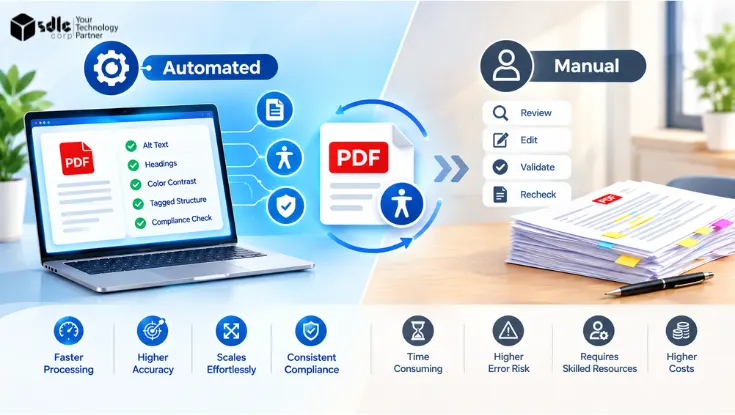
PDF accessibility remediation is not simply a choice between software and people. The right approach depends on document volume, complexity, repeatability, and risk.
A company processing thousands of similar PDFs may benefit from a highly automated workflow. A complex financial report, government form, or scanned archive may need automated assistance followed by detailed specialist review.
Between these extremes, a hybrid workflow can combine automated processing with targeted human checks.
The goal is not to automate everything. The goal is to decide how much automation each type of PDF can safely handle. Then each document gets the right level of human review and validation.
What Is PDF Accessibility Remediation?
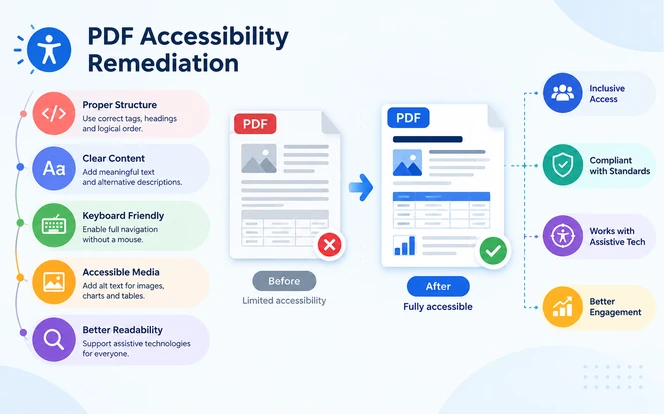
PDF accessibility remediation is the process of fixing a PDF's structure and content. It makes sure people using screen readers, keyboards, magnification tools, and other assistive technologies can access, navigate, and understand the file.
PDF remediation is one part of wider document accessibility remediation, which applies the same principles to Word files, presentations, spreadsheets, and other formats.
A PDF can look perfect and still fail accessibility. A screen reader may read a two-column page in the wrong order or miss a heading. It may also misread a table or give no useful information for an important image.
How content is stored inside a PDF often differs from how it appears on the page, as our guide to mastering PDF text extraction explains.
In practice, remediation starts with the structural layer. Specialists add or correct PDF tags and fix the heading hierarchy and lists. They also set a logical reading order so assistive technology presents content in the intended sequence.
Images need meaningful alternative text, while purely decorative images and page elements are marked as artifacts so screen readers skip them.
Tables need correct header relationships, forms need labelled fields and a sensible tab order, and document properties such as language and title must be set.
Links and bookmarks are then fixed to support navigation, and the finished file is checked and tested with assistive technology. For a practical walkthrough, see our guide on how to make PDFs and documents accessible.
PDF tags form the structural layer that helps assistive technology interpret headings, paragraphs, tables, figures, and other content. The U.S. government's Section508.gov guidance on creating accessible PDFs identifies tags and logical reading order as key parts of PDF accessibility.
For organizations managing large document libraries, remediation becomes an ongoing process rather than a one-time task. A structured workflow helps teams discover documents, classify their complexity, remediate them, and validate the results.
The Four Factors That Should Drive Your Remediation Strategy
Instead of starting with "Should we automate or remediate manually?", start with four questions.
1. Volume
How many PDFs need remediation? A few complex documents can justify detailed manual work. A large archive of similar files creates a different problem, one where automation can reduce repetitive effort.
2. Complexity
How complicated is the document structure? A simple text-based report is very different from a 200-page financial report containing nested tables, sidebars, footnotes, charts, columns, forms, and multiple reading paths.
The more complex the structure, the more important specialist review becomes.
3. Repeatability
Do the PDFs follow the same template? Recurring invoices, statements, reports, certificates, and standard forms are good candidates for template-based automation because the same patterns appear across many files.
4. Risk
What happens if an accessibility error reaches the user? Public-sector documents, legal notices, financial statements, application forms, education resources, and regulated-workflow files carry higher stakes. They may need stronger validation and documented evidence than a limited-distribution internal document.
Together, these four factors determine the level of automation, human review, and validation each group of documents needs.
Automated vs Manual PDF Remediation: Decision Matrix
Use this matrix as a starting point rather than treating every PDF the same way.
| PDF Situation | Automation | Human Review | Validation |
|---|---|---|---|
| High-volume, repetitive PDFs | High | Sample and exception review | Automated checks + sample QA |
| High-volume, mixed PDFs | Moderate | Targeted review | Automated + human validation |
| Simple text-based or standard reports | High | Limited or targeted review | Automated validation + sample QA |
| Complex financial reports | Supporting role | High | Detailed structural and assistive technology review |
| Complex interactive forms | Limited / supporting | High | Keyboard and assistive technology testing |
| Scanned document archive | OCR + automation | Required | OCR + structural review |
| Complex tables and multi-column layouts | Supporting role | High | Reading-order and table validation |
| High-risk public documents | Supporting role | High | Detailed validation and evidence |
Key takeaway: volume increases the value of automation, while complexity and risk increase the need for human review. Automation level should change with the document, not remain fixed across the entire PDF library.
Automated Checking Is Not the Same as Automated Remediation
These terms are often used as if they mean the same thing. They do not, and confusing them is one of the most common reasons organizations overestimate how accessible their PDFs really are.
Automated Accessibility Checking
An automated checker scans a PDF for potential accessibility problems. It can flag missing tags, absent language or title information, images without alternative text, and broken headings. It also catches malformed tables, unlabelled form fields, and other machine-testable conditions.
That makes checkers valuable for finding problems quickly, but a detected issue still needs to be interpreted in context. A checker can confirm that alternative text exists, for example, but not whether it actually describes the image.
Automated checking only covers conditions that software can measure.
The PDF Association's Matterhorn Protocol 1.1 puts a number on that limit. It breaks PDF/UA-1 conformance into 31 checkpoints made up of 136 failure conditions.
Of those 136 conditions, 87 can be determined by software alone, 47 usually require human judgment, and 2 have no specific test. More than a third of PDF/UA conformance cannot be confirmed by a checker on its own.
Automated Remediation
Automated remediation goes further by changing the PDF. Depending on the tool, software may repair tags, identify headings, detect tables, and set reading order. It can also apply template-based structure, run OCR on scans, and batch-process similar files.
Adobe's cloud-based auto-tagging feature, for example, can identify heading levels, tables, lists, and reading order for eligible PDFs. Automation reduces repetitive work, but it should not be treated as proof that every PDF is fully accessible.
Manual Remediation
Manual remediation places a specialist directly in control of the document structure. The specialist can inspect and correct tags, reading order, complex tables, image meaning, form behavior, heading hierarchy, nested content, language settings, and multi-column layouts.
Section 508's PDF remediation training module walks through these hands-on tasks in Adobe Acrobat.
Validation
Validation answers a different question: Does the remediated PDF meet the applicable requirements and work as intended for its users?
For most organizations, the applicable requirements map to the Web Content Accessibility Guidelines (WCAG) 2.2 along with PDF-specific standards such as PDF/UA. These standards address different aspects of accessibility. Our guide to PDF/UA vs WCAG explains how they differ and why both matter when validating accessible PDFs. Validation should include automated checks and appropriate human testing.
That is why a successful workflow separates three stages:
- CheckA checker finds problems.
- RemediateA remediation process fixes them.
- ValidateValidation determines whether the resulting document is actually ready.
When Automated PDF Remediation Makes Sense
Automation works best when the work is repetitive and the document structure is reasonably predictable. Large document libraries and archives, repetitive templates, standardized reports, recurring statements, and high-volume publishing workflows all fit this profile.
Automation also suits basic tagging corrections, OCR processing, and initial accessibility checks. It is useful for triage too, where the aim is to find which documents need specialist attention.
Imagine an organization producing 5,000 monthly statements from the same template. Manually opening and repairing every file would create a large, repetitive workload.
A better workflow automates the common structure, identifies exceptions, and routes unusual files to a specialist. The same principle drives other document automation programs, as shown in our AI intelligent document processing case studies.
Automation still has limits. Adobe's own documentation on creating accessible PDFs notes that automatic tagging handles most standard layouts. It cannot always interpret closely spaced columns, irregular text alignment, non-fillable form fields, or tables without borders.
That makes document classification important before large-scale automation.
For large document libraries, SDLC Corp's Limina ADA & WCAG document accessibility remediation software includes a dedicated document accessibility module. It covers discovery, scanning, complexity classification, automated or template-based remediation, human review, and validation at repository scale.
When Manual PDF Remediation Makes Sense
Manual remediation becomes more important when a PDF contains relationships that software cannot reliably interpret from structure alone.
This typically applies to complex financial reports, government and legal documents, interactive application forms, and research publications. Multi-column reports, scanned historical records, unusual layouts, and high-risk public documents fall into the same group.
Consider a 200-page annual financial report with nested tables, footnotes, charts, references, and sidebars. Automation may identify much of the structure, but a specialist still needs to confirm that the reading order follows the intended narrative.
The specialist also checks that table headers are associated with the right data cells, and that merged cells keep their relationships.
Charts need meaningful text alternatives that convey the insight, not just the chart type. Footnotes must also appear in a sequence that makes sense to someone listening rather than scanning the page.
Why Document Complexity Changes the Decision
The same automation tool can produce very different results on different PDFs.
Heading → Paragraph → List → Table → Paragraph
Heading → Two-column content → Sidebar → Figure → Footnote → Nested table → Cross-reference → Form field
The second document has far more relationships for the remediation process to understand. Every additional relationship is another place where automated tagging can guess wrong.
This does not mean automation has no role in complex PDFs. It means automation should be treated as supporting technology rather than the entire remediation process.
Real-World PDF Remediation Scenarios
Scenario 1: Large Archive of Recurring Reports
An organization has 20,000 PDFs generated from a small number of templates. The focus is repeatability and scale.
Automation → automated checking → exception detection → sample review → final validation.
Scenario 2: 200-Page Financial Report
A financial report contains nested tables, charts, footnotes, references, and multiple columns. Automation can help with basic processing, while specialists review structure, reading order, table relationships, and meaningful graphics.
Automation for supporting tasks → detailed human remediation → assistive technology testing → final validation.
Scenario 3: Scanned Document Archive
An organization has thousands of older scanned PDFs with no usable text layer. OCR can convert image-based content into machine-readable text, but recognition errors can affect structure and meaning, so the output still needs review.
Our guide to OCR for PDF accessibility explains why OCR creates a text layer but stops there. Remediation still has to add the tags, reading order, and structure.
Our comparison of OCR vs AI OCR explains why recognition accuracy varies with document quality and layout. Section 508 also offers a dedicated module on converting scanned documents into conformant PDFs.
OCR → automated processing → structural remediation → human review → validation.
Scenario 4: Government Application Form
A government application form may include fields, instructions, error messages, checkboxes, and a specific completion sequence. Form labels, descriptions, and tab order directly affect how users complete it.
A PDF can pass automated checks while still creating problems for someone using a keyboard or screen reader.
Limited automation → manual form remediation → keyboard testing → screen-reader testing → task-based validation.
Technical Validation vs Assistive Technology Validation
A PDF can have technically correct elements and still create a poor experience for someone using assistive technology. That is why technical validation and user-facing validation should be kept separate.
Technical Validation
Technical validation checks the document structure. It reviews the tags and heading hierarchy, reading order, table structure and headers, document language and title, links and bookmarks, alternative text, and form structure.
Automated tools are useful here because they can quickly identify many detectable issues across a single file or an entire batch.
Interaction Validation
Interaction validation asks whether real users can complete tasks with assistive technology. Testers work through the document with a keyboard to confirm focus and tab order. They also fill in forms to check field labels, instructions, and error handling.
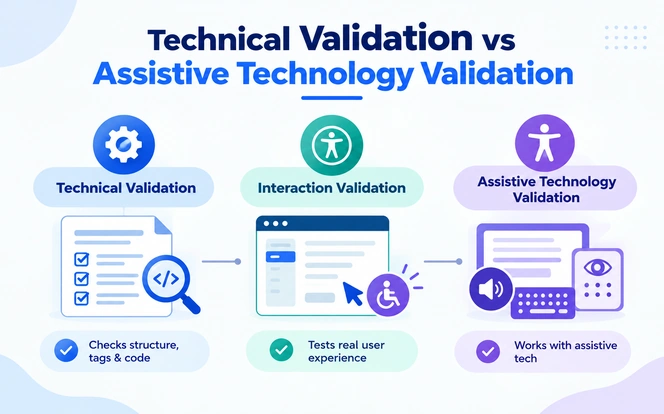
They listen with a screen reader to confirm the reading sequence makes sense. Headings should support navigation, and tables should make sense cell by cell. Where relevant, testers confirm the user can finish the task the document exists for.
WebAIM's PDF accessibility guide is a useful reference for what this kind of review should cover.
An automated report should be treated as evidence, not the entire accessibility review. For organizations that need broader testing support, SDLC Corp's software testing and QA services combine manual and automated testing capabilities, including accessibility checks.
Tools Used for PDF Accessibility Remediation
Organizations typically use several tool categories rather than one tool for every task.
The table below compares the main tool types, including what each one does well and where it stops.
| Tool | Type | What It Does | What It Can't Do |
|---|---|---|---|
| Adobe Acrobat Pro | Desktop remediation and checking | Auto-tags PDFs, runs a built-in accessibility check, and lets specialists edit tags, reading order, alt text, and form fields by hand | Its checker is not a full PDF/UA validation, and several checks, such as logical reading order, are left for manual review |
| Adobe PDF Accessibility Auto-Tag API | Cloud tagging API | Adds tags, headings, lists, tables, and reading order to large batches of PDFs programmatically | Does not write meaningful alt text and cannot guarantee correct structure for complex tables or unusual layouts |
| veraPDF | Open-source validator | Validates files against the machine-testable rules of PDF/UA and PDF/A, one file or in batches | Cannot fix anything, and cannot judge conditions that need human judgment, such as alt text quality |
| PAC (PDF Accessibility Checker) | Free desktop checker | Checks PDF/UA and WCAG conditions and offers a screen reader preview of the tag structure | Cannot fix issues, runs on Windows only, and a pass still needs human review |
| Screen readers (NVDA, JAWS) | Assistive technology testing | Show how a real user hears the document, including reading order, headings, tables, and form behavior | Cannot fix issues or produce a conformance report, and results depend on tester skill |
| Enterprise remediation platforms | Repository-scale workflow | Combine discovery, scanning, classification, automated remediation, review queues, and reporting across large libraries | Still route complex tables, forms, and high-risk files to specialists for review |
Adobe Acrobat Accessibility Tools
Adobe Acrobat includes automatic tagging, accessibility checking, reading-order tools, and other features for working with PDF structure. It is useful when specialists need direct control over individual PDFs.
Automated PDF Validators
Validators scan individual documents or large batches for machine-testable accessibility conditions.
Open-source options such as veraPDF, an industry-supported validator for PDF/UA and PDF/A, are useful for initial assessment and regression checking. They also support batch testing, spotting common failures, and tracking remediation progress.
Automated Tagging APIs and Remediation Platforms
API-based workflows and platforms help organizations process large PDF collections programmatically, often combining discovery, testing, remediation, prioritization, and reporting. The value is greatest when documents follow repeatable structures.
Teams building their own pipelines can start with our guide on how to work with PDF files in Python. It covers the basics of reading and processing PDFs in code.
Specialized Document Accessibility Solutions
Organizations with a large PDF backlog may need a solution that integrates with repositories, APIs, queues, or internal systems.
In these cases, document accessibility remediation software development services can build classification, automation, and review stages around existing tools.
The important procurement question is not simply "Does the tool support PDF accessibility?" Ask what it can actually detect, change, validate, and report.
What to Ask a PDF Remediation Provider
Before selecting a provider, start by asking which parts of the remediation process are automated and which issues receive human review. Their answers should be specific, not general reassurance.
Next, probe the difficult areas. Ask how they handle complex tables, how they verify reading order, and how they decide whether an image is meaningful or decorative. If you have scans, ask how OCR output is checked before remediation.
Then focus on validation. Find out which validation tools they use and whether keyboard and screen-reader testing are included as standard or charged as extras. Ask what remediation evidence or report you will receive for each document.
Finally, ask about the long term: how revised versions are handled, and how exceptions are identified and escalated in high-volume workflows.
The answers show whether a provider is simply running an automated checker or managing a complete remediation and validation process.
How to Build a Hybrid PDF Remediation Workflow
For many organizations, the strongest process is a controlled hybrid workflow.
- Step 1: InventoryIdentify the PDFs in scope and record ownership, document type, source format, size, age, publication status, and whether each file is scanned.
- Step 2: ClassifyGroup documents by volume, complexity, repeatability, and risk.
- Step 3: Automate the Repeatable WorkRun automated checks, then apply suitable automation for tagging, OCR, and batch processing where the document structure supports it.
- Step 4: Route ExceptionsSend complex tables, forms, poor scans, unusual layouts, reading-order issues, and high-risk documents to specialists.
- Step 5: Perform Human ReviewReview structure, reading order, content relationships, images, forms, and other areas where context matters.
- Step 6: ValidateCheck tags, structure, language, links, tables, and figures, then run appropriate keyboard and screen-reader testing.
- Step 7: Keep EvidenceMaintain before-and-after versions, validation results, reviewer notes, exceptions, and version information.
This workflow gives automation a clear role without treating it as a replacement for accessibility expertise. It also creates a repeatable process instead of treating each PDF as a separate project.
Common PDF Remediation Mistakes
Treating an Automated Check as Remediation or Proof of Accessibility
A checker can identify detectable issues, but it does not fix the underlying structure. Passing automated checks also does not show that every user interaction works correctly.
Treating Auto-Tagging as the Final Step
Automatic tagging is a useful starting point, but complex layouts may still need correction. Adobe explicitly notes limitations with certain complex structures.
Using the Same Process for Every PDF
A six-page routine statement and a 200-page financial report or complex government form should not automatically follow the same workflow.
Ignoring Reading Order
A PDF can look visually correct while its content is presented to assistive technology in the wrong sequence.
Underestimating Complex Tables
A table needs more than a visual grid. Header and data relationships must be represented in the document structure through table, row, header, and data-cell tags.
Tables with merged cells, nested structures, or multiple header levels need careful review. Our guide to accessible PDF tables explains how to structure table headers, preserve cell relationships, and make complex tables easier to navigate with screen readers.
Skipping Assistive Technology Testing
Technical validation should be combined with appropriate user-facing testing, particularly for forms and complex documents.
Failing to Recheck Revised PDFs
A revised PDF is a new version. Content, tags, reading order, or form behavior can change during revision, so the updated file should be validated again.
How to Choose the Right PDF Remediation Approach
Instead of asking "Should we automate or use manual remediation?", look at the documents themselves. Start with how many PDFs you have, how similar they are, how complex their structures are, and how often they change.
Then weigh the consequences. Consider what happens if an accessibility issue is missed and whether users need to complete forms or other tasks. Also check whether you need documented remediation evidence for compliance or procurement.
Those answers tell you which issues automation can safely handle, which documents need specialist review, and what level of assistive technology testing is required.
- High volume combined with high repeatability calls for more automation.
- High complexity combined with high risk calls for more specialist review.
- A mixed document library calls for a hybrid workflow.
The most useful decision rule is: Volume + Complexity + Repeatability + Risk → Automation Level + Human Review + Validation
Conclusion
Automated and manual PDF accessibility remediation are not competing solutions. They solve different parts of the remediation process.
Automation helps organizations process large volumes, identify common problems, and reduce repetitive work. Manual remediation provides the specialist control needed for complex structures, forms, tables, reading order, and context-dependent decisions.
The right question is not "Should we automate or work manually?" Instead, ask which parts of this PDF automation can handle reliably, which require specialist judgment, and how you will validate the result.
Start by classifying your PDFs by volume, complexity, repeatability, and risk, then assign the right level of automation, human review, and validation to each group.
The objective is not to maximize automation. It is to create a remediation process that produces accessible, testable, and maintainable PDFs at the scale your organization requires.
Related PDF Accessibility Guides
Explore these related guides for practical information on accessibility standards, document structure, and PDF remediation.
Understand the differences between PDF accessibility standards and how to apply them during document validation.
Learn how to structure table headers, correct cell relationships, and improve screen-reader navigation in complex PDF tables.
Follow practical steps to improve document structure, reading order, alternative text, and accessibility.
Explore how accessibility remediation applies to PDFs, Word documents, presentations, and other digital files.
Frequently Asked Questions
Automated remediation uses software to detect and, where supported, change PDF structures. Manual remediation requires a specialist to inspect and correct the document directly. Validation is a separate step used to assess the resulting PDF.
Not for every document. Automation can handle many repeatable tasks and identify detectable issues. Complex layouts, tables, forms, and reading order may still require specialist review and assistive technology testing.
Not necessarily. Manual work provides detailed control, but using it for thousands of repetitive PDFs creates unnecessary effort. The right approach depends on volume, complexity, repeatability, and risk.
A hybrid approach suits organizations with large PDF libraries that contain both repetitive documents and complex or high-risk files. Automation handles suitable bulk work while specialists review exceptions.
Scanned PDFs usually need OCR before accessibility structure can be addressed. OCR output should then be reviewed and validated, because recognition and structural errors can affect accessibility.
No. Under the Matterhorn Protocol, 87 of the 136 PDF/UA failure conditions can be checked by software alone, while 47 usually require human judgment. A pass only covers machine-testable conditions, so human inspection and assistive technology testing are still needed.
For documents where user interaction and complex structure matter, screen-reader testing provides important validation beyond automated checks. Forms, complex reports, and high-risk public documents benefit most.
Ask how the provider handles automation, human review, complex tables, reading order, forms, images, scanned PDFs, validation, screen-reader testing, remediation evidence, and revised document versions.
Start with classification. High-volume, repetitive PDFs can usually support more automation, while complex or high-risk documents should receive more human review and detailed validation.