A PDF can look perfect on screen and still lock out many of its readers. An accessible PDF is built so people using screen readers, magnifiers, voice control, or only a keyboard can read it and act on it.
Most organizations publish PDFs every week, from annual reports to application forms and course packs. Yet few of those files are made with assistive technology in mind, so the gaps go unnoticed until a reader gets stuck on a form.
This guide covers the basics first, then the questions teams ask once the work gets real. It explains how a document accessibility workflow fits together, how SDLC Corp runs it, how to plan a project, and what drives cost.
What Is an Accessible PDF?
An accessible PDF contains real, selectable text and correct tags for headings, lists, tables, and figures. It also has a logical reading order, alt text for meaningful images, a set title and language, and labelled form fields.
On screen, an accessible PDF and an inaccessible one can look identical. All the difference sits underneath the visible page, in a structure layer that tells software what each element is and in which order it should be read.
The Standards Behind It
Two families of standards do most of the work. WCAG, published by the W3C, describes what an accessible experience has to achieve. PDF/UA, published by ISO, describes how a PDF file must be built internally to support that experience.
There are two versions of PDF/UA. PDF/UA-1 (ISO 14289-1) is based on PDF 1.7 and remains the version most tools and policies reference. PDF/UA-2 (ISO 14289-2:2024) is built on PDF 2.0, so check which one your contract or policy names.
What an Accessible PDF Is Not
It is not a PDF with bigger fonts, and it is not a file that passed one automated check. A scanned page with no text layer also fails, because a screen reader finds only a picture.

Who Benefits From Accessible PDFs
The World Health Organization estimates that about 1.3 billion people, roughly one in six worldwide, live with significant disability. Many of them deal with PDFs every day at work, in education, and when using public services.
Accessible PDFs make a real difference for these groups of readers:
- Blind and low-vision readers who use screen readers such as NVDA, JAWS, or VoiceOver, or who rely on screen magnification.
- People who cannot use a mouse and instead move through documents with a keyboard, switch device, or voice control.
- Readers with dyslexia or cognitive disabilities, who benefit from clear headings and a predictable layout.
- People who are deaf or hard of hearing, whenever a PDF links to video or audio that needs captions or a transcript.
- Mobile readers, since a well-tagged file gives reflow and reading modes better structure to work with, although results still depend on the viewer app.
There can be side benefits too. Real text and a meaningful document title make a file easier for search tools to read. Still, the reason for the work should be your readers, not search rankings.
The Legal and Standards Picture in 2026
There is no single legal baseline that applies to every organization. The standard you must meet depends on your jurisdiction, the type of entity you are, the documents involved, and sometimes the contract you signed.
ADA Title II for US State and Local Governments
In 2024, the US Department of Justice adopted WCAG 2.1 Level AA as the technical standard for web content and mobile apps from state and local governments. That definition of web content covers documents such as PDFs, with specific exceptions.
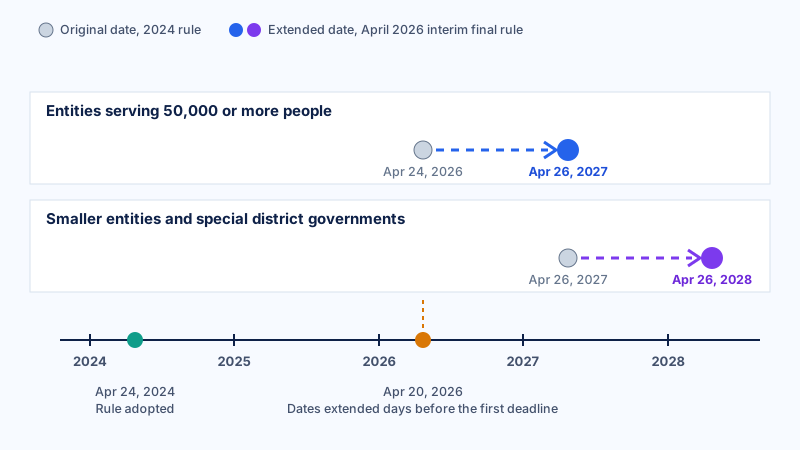
In April 2026, the DOJ published an interim final rule extending the compliance dates. Entities serving 50,000 or more people now have until April 26, 2027, while smaller entities and special district governments have until April 26, 2028.
Section 508 for US Federal Agencies
Federal agencies follow the Revised 508 Standards. These incorporate WCAG 2.0 Level A and AA by reference and apply them to electronic content, including non-web documents, with a few specific exceptions. Section508.gov publishes the official guidance.
The European Accessibility Act
Directive (EU) 2019/882, better known as the European Accessibility Act, has applied since 28 June 2025 through national laws in each member state. It covers specific products and services, such as e-commerce, consumer banking, and e-books.
Not every PDF in Europe has to be accessible, though. Instead, document accessibility becomes a requirement when a document forms part of a covered product or service, and the details depend on national implementation.
Quick Reference Table for Accessible PDF Rules
The table below summarizes how each framework touches PDFs. Scroll sideways on smaller screens to see every column.
| Framework | Who it applies to | What it means for PDFs |
|---|---|---|
| ADA Title II (US) | State and local governments | WCAG 2.1 AA for covered web content, including documents, by April 2027 or April 2028 |
| Section 508 (US) | Federal agencies | Electronic content, including documents, must meet WCAG 2.0 A and AA, with specific exceptions |
| European Accessibility Act (EU) | Providers of covered products and services | Documents that form part of a covered service can fall in scope, depending on national law |
| PDF/UA-1 and PDF/UA-2 (ISO 14289) | Referenced by many policies and contracts | Define the tagged structure a conforming PDF must have |
| WCAG 2.2 (W3C) | Global benchmark | The latest W3C Recommendation, with criteria that apply to documents as well as web pages |
Even where no law applies to you directly, customers, funders, and public-sector buyers may still request accessible PDF files during procurement.
Most of these frameworks point to WCAG, while many contracts add PDF/UA on top. Our comparison of PDF/UA vs WCAG 2.1 AA explains where the two standards overlap and where a file can pass one yet fail the other.
The Core Building Blocks of an Accessible PDF
Every accessible PDF rests on the same foundations. Once you understand them, checker reports stop reading like a foreign language.
Tags and Document Structure
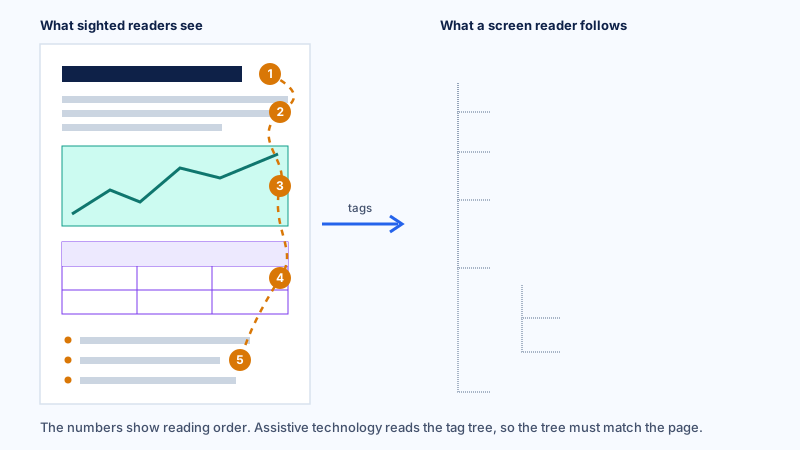
Each element gets a tag marking it as a heading, paragraph, list, table, figure, or link, much like HTML on a web page. Without tags, a screen reader gets one long stream of text and no way to jump around.
The diagram below shows how a visible page maps to the hidden tag tree, and how the numbered reading order has to follow that tree.
Logical Reading Order
Reading order is the sequence in which assistive technology reads content aloud. Two-column layouts, sidebars, and floating text boxes often scramble it, so a sentence can jump from the left column into a photo caption mid-thought.
A simple test helps here. If the tags were read aloud from top to bottom, would the document still make sense? When the answer is no, the order needs fixing.
Alternative Text for Images
Alt text tells a reader who cannot see an image what that image means, so describe its purpose rather than its pixels. For example, a sales chart's alt text should state the trend instead of reading out every bar.
Purely decorative images, such as background shapes or divider lines, should be marked as artifacts. That way, screen readers skip them entirely and keep the listener focused on content.
Headings, Lists, and Tables
Every heading needs to be a real heading tag in a sensible hierarchy, not just large bold text. Screen reader users jump from heading to heading to skim, in the same way sighted readers scan a page.
Lists should be tagged as lists, and data tables need their header cells defined. In practice, tables and forms cause more trouble than any other element, because merged cells, nested headers, and unlabelled fields all need manual attention.
Title, Language, and Bookmarks
Set the document title in the file properties and choose to display it instead of the file name. Choose the document language too, or a screen reader may pronounce English text with the wrong voice and rules.
Anything longer than a few pages should also include bookmarks generated from its headings. As a result, readers can move straight to the section they need instead of paging through the whole file.
Contrast and Color
WCAG Level AA asks for a contrast ratio of at least 4.5:1 for normal text and 3:1 for large text. Color also cannot carry meaning on its own, so a red "overdue" cell needs a word or symbol as well.
Real Text, Not Scanned Images
Scanned pages need optical character recognition (OCR) to turn images of text into real text. After that, the recognized text still has to be checked for errors, tagged, and placed in the right reading order.
OCR quality depends heavily on the scan and the tool. Our guide to Mastering PDF Text Extraction: Tips and Tools explains how text gets pulled out of different kinds of PDFs.
How an Accessible PDF Workflow Is Structured
Making one accessible PDF is a task. Keeping hundreds or thousands of them accessible month after month needs a system. It helps to think of that system as a set of layers, each with a clear job.
Most mature accessible PDF programs settle into six layers. That holds true whether an organization publishes fifty PDFs a year or fifty thousand.
The Six Layers
- Authoring and intake: documents are created from accessible templates, or collected from departments, vendors, and archives into one queue.
- Analysis: each file is checked for scanned pages, existing tags, page count, and complexity, so it goes down the right path.
- Remediation: tags, reading order, alt text, table headers, and form labels are added or corrected by software, by people, or both.
- Human review: a trained reviewer confirms that alt text makes sense, headings match the content, and tables read correctly.
- Validation: the file is tested against PDF/UA and WCAG with a checker, then spot-checked with a screen reader.
- Publishing and monitoring: approved files go live, new uploads are checked, and reports track progress for audits.
Where Software Helps and Where People Are Still Needed
| Layer | Where software does well | What still needs a person |
|---|---|---|
| Intake | Collecting files, removing duplicates, counting pages | Deciding which documents are still needed |
| Analysis | Detecting scans, missing tags, and complexity | Judging legal or business priority |
| Remediation | Auto-tagging, OCR, first-draft alt text | Complex tables, forms, charts, and meaning |
| Review and validation | Machine-checkable PDF/UA and WCAG rules | Whether the content makes sense when heard |
| Monitoring | Scanning new uploads, producing reports | Fixing root causes in templates |
Where to draw that line for your own library depends on volume, complexity, and risk. Automated vs Manual PDF Remediation compares both approaches in depth and shows when a hybrid split pays off.
If you plan to build parts of this pipeline yourself, OCR is usually the first piece. Our tutorial on How to Use Pytesseract and OpenCV for OCR in Python is a practical place to start.
How SDLC Corp Creates Accessible PDFs
The six layers above describe what any sound accessible PDF workflow needs. This section explains how our team at SDLC Corp puts them into practice, and what the technology does at each stage of a real project.
The work runs on Limina, our digital accessibility and compliance platform. Its document engine ships as Perceva, which is also sold on its own for organizations whose accessibility exposure sits mostly in PDFs.
Step 1: Crawl and Discover Every Document
Most organizations underestimate how many PDFs they publish, because nobody has ever counted them. Limina finds linked documents in the same crawl it runs on your web pages. As a result, both pictures come from one source.
Files that are not public can come in by bulk upload or through an API. Everything then lands in one inventory, logged with its owner, file size, page count, and publication date.
Step 2: Scan and Classify
Each file is scanned for its accessibility and PDF/UA status. It is then classified by risk, complexity, and remediation priority. That way, a long budget report and a short permit form never share a pile.
This is also where the Remediate, Recreate, Convert, or Retire decision happens. For instance, an outdated vendor brochure can be flagged for archiving before anyone spends a minute fixing it.
Step 3: Route Each File to the Right Queue
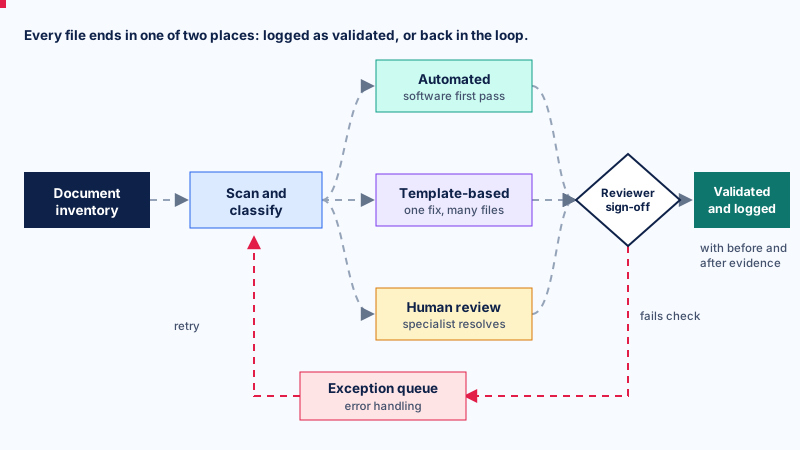
Files go to one of three queues: automated remediation, template-based remediation, or human review. Template-based remediation suits repeated output such as statements, invoices, and recurring reports, where one proven fix applies to many files.
Failed files move to an exception queue with error handling and retries. Consequently, a problem file stays visible to the team instead of quietly disappearing from the batch.
Step 4: Remediate the Structure
Remediation covers tags and structure, reading order across multi-column layouts, and table headers, including merged and multi-level ones. It also handles form labels and tab order, OCR for scans, and document properties such as title, language, and bookmarks.
Alt text can be drafted with help from the platform, but a reviewer must approve it before it is accepted. That keeps descriptions accurate for charts and images where the meaning matters.
Step 5: Human Review of Uncertain Items
Anything the system is unsure about goes to a person rather than passing through. Complex tables, poor scans, and unlabelled forms are the usual exceptions. They stay in the queue until a specialist resolves them.
The work is also split by role. Document remediators handle the PDF queue and its exceptions, while a separate reviewer validates each fix before the item can be closed.
Step 6: Validate and Record Evidence
Automated testing alone cannot prove full WCAG conformance. So we combine automated results with guided manual checks, including screen reader and zoom tests, and record each verdict against the relevant success criterion.
Both the original and the remediated version of every file are kept, with before and after evidence. One set of test results can then be reported against WCAG, ADA, Section 508, EN 301 549, PDF/UA, and the European Accessibility Act.
Step 7: Monitor New and Changed Documents
Once the backlog is cleared, monitoring takes over to keep each accessible PDF that way. Newly published and changed documents appear in the same change report as website issues. So a fresh inaccessible upload is caught on the next scan.
When the same problem keeps coming back, the team traces it to its source. That source is usually a template or an export habit, and the fix happens there. This is how a backlog stops growing again.
The Process at a Glance
| Stage | Platform role | Specialist role | Your deliverable |
|---|---|---|---|
| Discover | Crawls sites for linked PDFs, accepts uploads and API ingest | Confirm scope and document owners | One complete document inventory |
| Scan and classify | Checks accessibility and PDF/UA status, rates risk and complexity | Set priorities and flag files to retire or convert | A ranked work plan |
| Route | Sends files to automated, template-based, or human review queues | Handle exceptions and failed files | No file lost between batches |
| Remediate | Tags, reading order, table headers, form labels, OCR, properties | Approve alt text and fix complex content | Remediated files ready for review |
| Validate | Runs automated tests and records verdicts per criterion | Complete guided manual and screen reader checks | Before and after evidence for every file |
| Monitor | Flags new and changed documents on each scan | Trace repeat issues back to templates | Ongoing, audit-ready compliance records |
What This Means for Your Team
Your staff do not need to become remediation experts overnight. They keep ownership of priorities and approvals. Meanwhile, the platform and our specialists handle the technical work and build the evidence your compliance team will need.
Planning an Accessible PDF Project
Large remediation projects often stall when teams start without a full document inventory or a clear order of priority. A plan turns thousands of files into a sequence of decisions, each one moving you closer to an accessible PDF library.
Build a Complete Document Inventory
Export a list of every PDF on your website and portals, with page counts, upload dates, owners, and traffic. A spreadsheet is enough to start, because the point is to see the full picture before committing any budget.
If your files already live in a document management system, start the export there. Our roundup of Top 10 Document Management Software Options covers the systems teams use most often.
Rank Documents by Priority
Put the documents people need to use a service at the top: application forms, fee schedules, meeting agendas, policies, and files linked from busy pages. Old newsletters that nobody opens can wait, or be removed altogether.
Agree on a Standard and Fix Your Templates
Write down the accessible PDF target you will test against, for example WCAG 2.1 AA together with PDF/UA-1. Then fix the Word and InDesign templates your teams use every day, so new documents stop adding to the backlog.
Assign Owners and Define the Evidence You Need
Every document group needs an owner, even a part-time one. Decide early what proof counts as done: a checker report, a screen reader test note, reviewer sign-off, or all three. Auditors and procurement teams will ask for it.
A Sample 90-Day Rollout
Execution works best in phases, with a visible result at the end of each one. The timeline below suits a mid-sized organization, although yours will depend on document volume and staffing.
| Phase | Timeframe | Key activities | Outcome |
|---|---|---|---|
| Audit | Weeks 1 to 2 | Inventory, sample testing, priority tiers | A ranked document list and a baseline report |
| Clean up | Weeks 3 to 4 | Outdated files retired, suitable content moved to HTML | A smaller, current library |
| Fix the source | Weeks 3 to 6 | Accessible templates and staff training | New documents created accessibly |
| Remediate | Weeks 5 to 10 | Priority documents fixed in batches | High-priority files meeting the standard |
| Validate | Weeks 5 to 12 | Checker and screen reader testing on every batch | Evidence that the fixes work |
| Monitor | Week 12 onward | New uploads checked, monthly reporting | An ongoing process, not a one-off project |
Two habits keep a project moving. First, work in small batches so problems surface early. Second, share a short monthly progress report so leadership can see the backlog shrinking.
Remediate, Recreate, Convert, or Retire?
Not every PDF deserves the same treatment. Before any file goes into a remediation queue, it should pass through one simple decision, and that decision often saves more money than any tool.
The order of the questions matters. Starting with value, rather than with the fix, keeps effort away from files nobody needs.
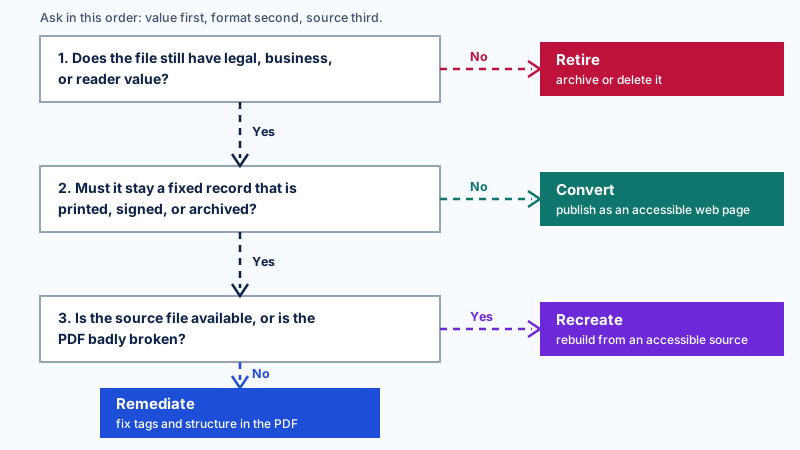
| Option | When it makes sense | Typical example |
|---|---|---|
| Remediate | The PDF must stay a PDF and the source file is lost or locked | A signed agreement or published annual report |
| Recreate | The source file exists, or the PDF is so broken that fixing it takes longer than rebuilding | A brochure exported from an old template |
| Convert | People mostly read the content on screen and it changes often | Guidance pages, FAQs, service information |
| Retire | The file has no legal, business, or reader value | An event flyer from 2019 |
Keep the PDF format for documents meant to be printed, signed, archived, or shared as a fixed record. Put your accessible PDF budget there, and move routine reading content to accessible web pages.
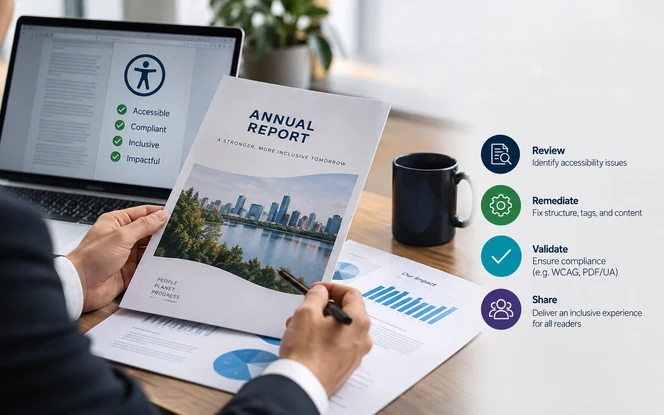
A Worked Example: Remediating a 20-Page Annual Report
The walkthrough below shows how a typical report became an accessible PDF. It follows one file from first check to final evidence, without any confidential client detail.
Before: What the Audit Found
The report was exported from a design tool with no tags at all. It had a two-column layout, six data tables, eight charts, a cover photo, and a document title that showed only the file name.
Remediation: What Was Fixed
The file was auto-tagged as a first draft, and heading levels were then corrected by hand. Reading order was reset so each column finished before the next began. Sidebars were also moved to sensible points in the flow.
All six tables received defined header cells. Each chart got alt text stating its main finding, with the full figures placed in a linked data table. Meanwhile, the cover photo and decorative lines were marked as artifacts.
Testing: How the Accessible PDF Was Checked
The file went through an automated PDF/UA and WCAG check, followed by a second validator. A reviewer then listened to the whole report with a screen reader, jumping by headings and reading every table cell by cell.
That listening pass surfaced two chart descriptions that still needed rewriting, which is exactly the kind of issue a checker cannot judge on its own.
Evidence: What Was Delivered
The final package included the finished accessible PDF, both checker reports, a short screen reader test note, and a list of template changes. Those template fixes meant next year's report would need far less work.
What Does PDF Accessibility Remediation Cost?
There is no single price for an accessible PDF, because a two-page memo and a 60-page financial report with nested tables are completely different jobs. In short, cost follows complexity far more than page count.
How Document Complexity Changes the Effort
The per-file ranges below come from the effort tiers in our Document Accessibility Remediation guide. They describe typical specialist time, so use them to plan a budget rather than as a quote.
| Document type | Why effort changes | Relative effort | Typical effort per file |
|---|---|---|---|
| Simple text document | Mostly headings and paragraphs, easy to tag | Low | Often under an hour |
| Structured report | Lists, links, bookmarks, and a few images | Moderate | A few hours |
| Scanned document | OCR is needed before any tagging can start, as OCR for PDF Accessibility explains | Moderate to high | A few hours to several days, depending on length and scan quality |
| Complex tables | Header cells, spans, and nested structures need manual work | High | One to several days |
| Interactive forms | Each field needs a label, tooltip, and tab order | Very high | One to several days |
| Chart-heavy report | Every chart needs meaningful alt text or a data table | High | One to several days |
Other factors add to the bill as well: document volume, whether source files exist, turnaround time, and how much quality checking you want included in the price.
At enterprise scale, the per-file view stops being useful. Thousands of mixed files across many sites become a structured program run over months, with sampled checks, an audit trail, and ongoing monitoring.
Published Vendor Pricing Examples
The figures below are examples of published 2026 pricing, not standard industry rates. Pricing varies widely between vendors, and none of these numbers should be read as a quote.
- One 2026 pricing guide puts manual remediation from specialist firms at around $5 to $25 per page on average.
- An automated provider publishes tiered rates of $0.30, $1.80, and $12 per page, depending on document complexity.
- Manual remediation of complex fillable forms can exceed $100 per page, because every field needs individual attention.
- Desktop remediation tools are usually licensed per seat, often at a few thousand dollars per year.
Always test a sample batch before agreeing to a price. Then compare the output with a checker and a screen reader, not just the invoice.
A Simple Budget Example
Suppose a city department needs 2,000 pages of priority files turned into accessible PDF documents. At $5 to $25 per page, fully manual remediation would cost between $10,000 and $50,000.
If an automated service quoted $1 to $5 per page, the same work would cost $2,000 to $10,000, plus staff time to review complex pages. That gap is why many large projects end up using a hybrid approach.
The Cost of Doing Nothing
Inaccessible documents cost money too, just less visibly. Complaints, demand letters, staff hours spent on alternative formats, and people abandoning a service all add up. Fixing a template once is almost always cheaper than repairing every file it produces.
Key Decisions to Make Before You Start
A handful of early decisions shape the whole accessible PDF project. Getting them right saves money and rework later on.
In-House, Outsourced, or Both?
An in-house team builds knowledge and handles new documents quickly, but training takes time. Outsourcing, by contrast, clears a backlog fast. Many organizations combine the two: outside help for the backlog and internal skills for everything new.
Manual, Automated, or Hybrid Remediation?
Doing the work by hand gives the most control over complex files but scales slowly. Automation can speed up repetitive remediation; however, complex tables, charts, forms, and judgments about meaning still require human review.
For many large, fairly standardized libraries, automation followed by expert review offers a practical balance between speed and quality.
Build Your Own Tooling or Buy a Platform?
Building makes sense when your own systems generate documents at high volume, such as statements or automated reports. For most organizations, though, subscribing to an existing platform is faster to start and cheaper to maintain.
The trade-offs are the same as with any other software decision. Our article Build vs Buy Software: When Custom Beats SaaS walks through how to weigh them.
Which Standard Will You Test Against?
The right standard depends on your jurisdiction and the documents involved. For covered US state and local government content, the current Title II rule requires WCAG 2.1 AA. Other frameworks may name different versions or add PDF/UA.
A sensible working target for many teams is WCAG 2.1 AA plus PDF/UA-1. It also helps to check against WCAG 2.2 where possible, so you are ready for future updates.
How to Evaluate a PDF Remediation Service
If you bring in outside help to produce each accessible PDF, ask these questions before signing anything. The answers will tell you far more than a price list does.
- Will they remediate a sample from your real documents first?
- Which standard and version do they test against, such as WCAG 2.1 AA, PDF/UA-1, or PDF/UA-2?
- What automated tools do they use, and which checkers validate the output?
- Is manual quality review included, and who performs it?
- Do they test with a screen reader, and do you receive notes from that test?
- What conformance evidence comes with each delivery?
- How do they handle source files, confidential data, and file security?
- What turnaround do they commit to, and how are rush jobs handled?
- Do they offer ongoing monitoring for new uploads?
- Will they fix rejected files at no extra cost, and for how long?
Treat remediation like any other deliverable that needs quality assurance. The discipline our Software Testing team applies to software, meaning clear criteria, repeatable tests, and recorded results, is what you should expect from a document vendor.
How to Use the Main Accessible PDF Tools
You do not need an expensive toolkit to create an accessible PDF. Most beginners can do solid work with the tools below, used roughly in this order.
Microsoft Word: Build Accessibility Into the Source
Word is where many PDFs begin, and fixing the source costs less than repairing the output. Before exporting, work through these basics:
- Use built-in heading styles (Heading 1, Heading 2, and so on) instead of enlarging text by hand.
- Add alt text from the picture's right-click menu, and mark purely decorative images as decorative.
- Create lists with the list buttons, not typed dashes or numbers.
- Build tables with a repeating header row, and avoid merged or split cells.
- Write link text that says where it goes, such as "Download the 2026 annual report," not "click here."
- Run the Accessibility Checker under Review, then Check Accessibility, and fix what it finds.
The same ideas apply in Google Docs, PowerPoint, and InDesign. Only the menu locations change from one application to the next.
Exporting an Accessible PDF Without Losing Structure
Avoid Print to PDF when you need to keep the document structure, because many print workflows produce untagged files. Instead, use File, then Save As or Export, choose PDF, and turn on the option for document structure tags.
On a Mac, choose the export option labelled for electronic distribution and accessibility where it is available. After exporting, open the tags panel to confirm the structure actually came through.
Adobe Acrobat Pro: Check and Repair
Acrobat Pro gives you precise manual control, including a Reading Order tool, tag editing, auto-tagging, and a built-in accessibility checker.
A simple routine works well. Run the full check, fix the title and language, and auto-tag untagged files. Then correct reading order and alt text by hand, treating auto-tagging as a first draft rather than the final word.
PAC and veraPDF: Independent Validation
The free PDF Accessibility Checker (PAC), made by axes4, runs on Windows. It checks PDF/UA and the machine-testable WCAG checkpoints, and its screen reader preview shows how the structure will be read.
PAC 2026 also adds AI-assisted checks for semantic items such as headings and tables. The open-source veraPDF validator makes a good second opinion. Still, these tools can confirm that alt text exists, but not whether it is any good.
Quick Accessible PDF Checks Anyone Can Run
- Try to select and copy text. If you cannot, the page is probably a scanned image.
- Open the document properties and confirm that the title and language are set.
- Press Tab through the file and check that links and form fields receive focus in a sensible order.
- Zoom to 200 percent and see whether everything stays readable.
- Open the tags panel in Acrobat Pro and confirm that headings, lists, and figures are tagged properly.
NVDA and VoiceOver: Hear What Users Hear
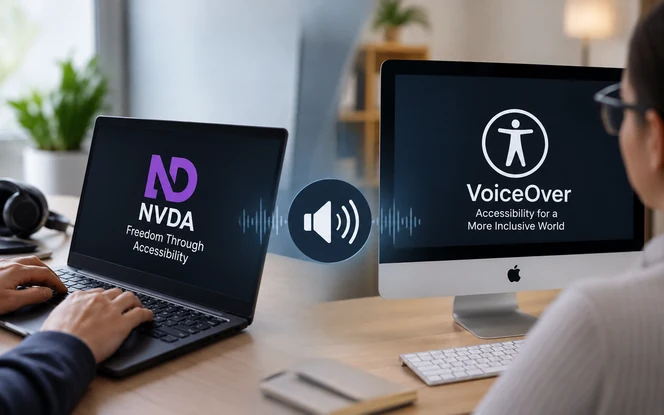
A screen reader test reveals problems that automated checkers cannot evaluate, including confusing reading order and unclear alt text. NVDA is free for Windows, and VoiceOver is built into Macs, iPhones, and iPads.
Read the first few pages, jump between headings, and step through a table. If something sounds confusing, out of order, or silent, a real user will hit the same wall.
Common Accessible PDF Mistakes
Most accessibility failures come from a small set of repeated habits. Here is what they look like, why they cause trouble, and how to fix each one.
| Mistake | Why it causes problems | How to fix it |
|---|---|---|
| Using a print workflow that drops tags | Structure is often lost in the output | Export with accessibility tags turned on, then check the tags panel |
| Using bold, enlarged text as headings | Screen readers cannot find the sections | Apply real heading styles in the source file |
| Writing "image" or a file name as alt text | Readers learn nothing about the content | Describe the image's purpose in a sentence or two |
| Leaving the document title blank | The file name is read out instead | Set the title and display it in the title bar |
| Publishing scans without OCR | There is no readable text at all | Run OCR, then check tags and reading order |
| Relying on an automated checker alone | Many problems need human judgment | Add manual checks and a screen reader test |
| Using color alone to show status | People with color vision deficiency and screen reader users miss it | Add labels, symbols, or patterns |
| Merging table cells and leaving form fields unlabelled | Header links break and fields are announced with no name | Define header cells, then give every field a label and a set tab order |
Where Accessible PDF Standards Are Heading
Work on accessible PDFs is changing in three areas at once: automated remediation, evolving standards, and continuous compliance monitoring. Each one affects how teams should plan their next budget.
AI can already draft alt text, detect headings, and suggest reading order. Yet meaning still needs a human check, especially for charts and legal text. For a wider view, see our AI Intelligent Document Processing Case Studies.
On standards, PDF/UA-2 is gaining tool support alongside PDF 2.0. The W3C published an updated WCAG 3 working draft in March 2026, but it remains a draft and is not yet a legal requirement anywhere.
With Title II deadlines in 2027 and 2028 and the European Accessibility Act already in force, one-off clean-ups are giving way to ongoing monitoring, regular reporting, and accessible templates that stop problems at the source.
A Beginner's Accessible PDF Checklist
Before any PDF goes live, work through this list. If a single item fails, fix it at the source where possible, then export and test again.
- Text is real and selectable, not a scanned image.
- The file is tagged, and the tags match what you see on the page.
- Headings follow a logical order with no skipped levels.
- The reading order makes sense when read aloud.
- Every meaningful image has alt text, and decorative images are marked as artifacts.
- Data tables have header cells defined.
- Links describe where they go.
- The document title and language are set.
- Longer documents include bookmarks.
- Text contrast meets 4.5:1, and color is never the only cue.
- Form fields have labels and a sensible tab order.
- The file passes an automated check and a short screen reader test.
Making Accessible PDFs the Default
Accessible PDFs come down to habits more than software. Real text, correct tags, a sensible reading order, useful alt text, and proper document settings cover most of what readers need.
Plan before you fix, start with the documents people rely on most, and repair the templates behind them. Then budget for a mix of software and human review, and keep checking, because new PDFs arrive every week.
Frequently Asked Questions About Accessible PDFs
A PDF is accessible when it contains real text and correct tags. It also needs a logical reading order, alt text for meaningful images, a set title and language, and labelled form fields, so assistive technology can navigate it.
No. Tags are required, but they also have to be correct. Wrong tag types, a broken reading order, or poor alt text can leave a tagged PDF difficult or even impossible to use.
Our Limina platform finds every linked PDF on your sites, then scans, classifies, and routes each file to automated, template-based, or human review queues. Specialists resolve uncertain items and approve alt text, and every file keeps before and after evidence.
Yes. Files can arrive through crawl discovery, bulk upload, or API, and they are processed in batches, from a single upload to a full enterprise backlog on a scheduled plan. Monitoring then catches new and changed documents on each scan.
It depends mainly on complexity. A simple file often takes under an hour, while complex tables or forms can take days. Published 2026 prices range from under a dollar to over $100 per page, so test a sample first.
Not on its own. AI can tag documents, suggest reading order, and draft alt text quickly. However, a trained person still needs to confirm that the result makes sense to someone using a screen reader.
Run the free PAC checker on Windows, or veraPDF on any system, and then listen to the document with NVDA or VoiceOver. Use both approaches, because automated tools cannot judge whether content makes sense.
Yes. Run OCR to convert the page images into text, and then check the recognized text for errors. After that, add or correct tags, set the reading order, and add alt text where needed.
It depends on your jurisdiction and context. Covered US state and local government content must meet WCAG 2.1 AA under Title II. Many teams also target PDF/UA for file structure and check against WCAG 2.2 where they can.
Under the April 2026 interim final rule, state and local governments serving 50,000 or more people must comply by April 26, 2027. Smaller entities and special district governments must comply by April 26, 2028.
Generally, PDFs that people use to access information or services should be accessible. Some rules include narrow exceptions for archived or preexisting documents, so check the specific regulation that applies to you.