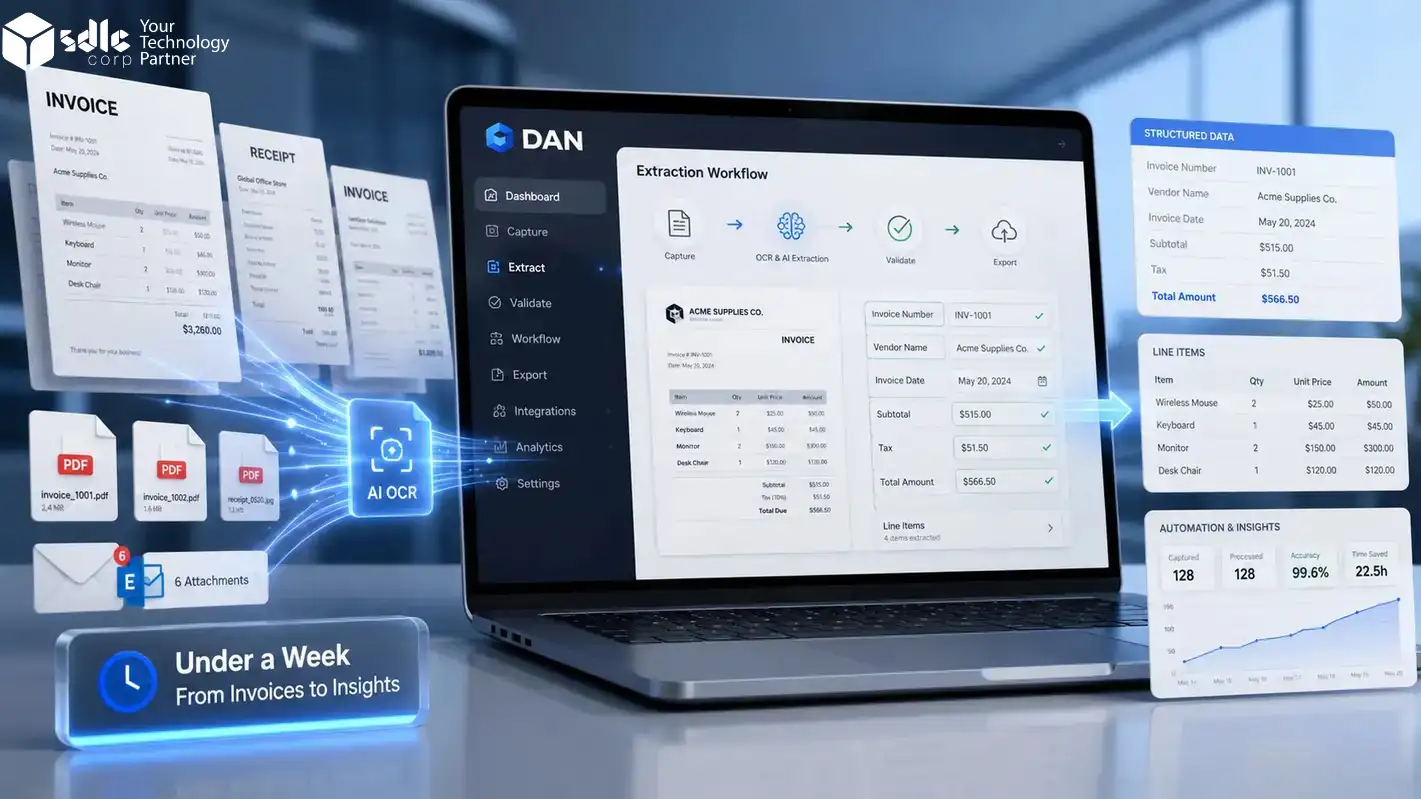
Invoice work becomes slow when every file needs the same manual checks. As a result, emails, PDFs, scans, and Gmail attachments quickly pile up. Finance teams then spend too much time copying invoice details instead of reviewing them.
This guide shows how DAN helps automate invoice data extraction in under a week. You can collect invoices, capture key fields, check errors, review exceptions, and export verified data to Excel, JSON, API, webhooks, or ERP.
What Is Invoice Data Extraction?
Invoice data extraction is the process of pulling useful information from invoices and turning it into structured data.
To understand the full process, read our detailed guide on invoice data extraction with AI OCR.
Instead of reading each invoice by hand, an AI OCR system reads the document and captures fields such as:
- Vendor name
- Invoice number
- Invoice date
- Due date
- Purchase order number
- Tax amount
- Subtotal
- Total amount
- Currency
- Line items
- Payment terms
- Billing details
The output can move into Excel, JSON, API, webhooks, accounting software, ERP, or a review dashboard.
This helps finance teams reduce manual typing, avoid missing fields, and process invoices with a clear workflow.
Invoice AI tools can extract key fields and line items from invoice documents, as shown in Microsoft Azure AI Document Intelligence documentation.
Why Manual Invoice Extraction Fails as Volume Grows
Manual invoice entry works only when the number of invoices is small and formats are simple. However, once invoice volume grows, problems start to appear.
Invoices arrive from different vendors. For example, some are clean PDFs, while others are scanned copies or email attachments. In many cases, they also include long line-item tables, different tax formats, currencies, and payment terms.
For teams that need custom AI workflows beyond standard OCR tools, SDLC Corp’s AI as a Service can help build invoice extraction, validation, and automation flows around real business rules.
This creates five common problems.
Data Entry Takes Too Much Time
Finance teams spend hours reading invoices and copying details into Excel or ERP. That time is better used for checks, approvals, and vendor follow-ups.
Mistakes Are Easy to Miss
One wrong number can lead to duplicate payments, tax issues, or wrong reports. Repetitive work makes these mistakes easier.
Invoice Formats Keep Changing
Some invoices are PDFs. Some are scans. Some have long tables. Fixed templates often fail when the layout changes.
Approval Gets Delayed
When invoice data is not ready, managers wait. Finance waits. Vendors wait for payment.
Data Stays Scattered
Invoices get stuck in Gmail, shared folders, uploads, and ERP attachments. Without one flow, it is hard to see what is still pending.
Manual Entry vs Traditional OCR vs DAN with AI OCR
Traditional OCR can read text from invoices. But invoice automation needs more than text reading.
It needs field extraction, table capture, validation, review, and clean export.
NIST has long-running OCR research around document image understanding and character recognition, which supports the need for better OCR evaluation.
| Area | Manual Entry | Traditional OCR | DAN with AI OCR |
|---|---|---|---|
| Reads invoice fields | Done by user | Reads text only | Extracts field-level data |
| Handles layouts | Slow for each format | Limited with varied layouts | Understands different invoice structures |
| Line items | Entered by hand | Often weak | Extracts structured rows |
| Validation | Manual checks | Not usually built in | Uses rules and review flow |
| Error handling | User finds mistakes | Errors may pass through | Flags missing or unclear fields |
| Output | Manual spreadsheet or ERP entry | Text output | Excel, JSON, API, webhook |
| Best use | Very low invoice volume | Simple documents | Repeated invoice workflows |
How DAN Helps Automate Invoice Data Extraction
DAN helps teams turn invoice documents into structured, review-ready data.
It can support invoices, PDFs, receipts, scans, and Gmail attachments. After extraction, teams can review exceptions and export verified data in formats such as Excel, JSON, API, or webhooks.
Google Cloud Document AI is another example of how document AI can help process business documents and convert them into structured data.
Because of this, DAN is useful for both finance users and technical teams.
Finance teams
Get clean invoice data in Excel for faster checks and approvals.
Developers
Send structured JSON, API, or webhook data into ERP, accounting, or internal systems.
The workflow stays practical because users can review weak fields before the data moves forward.
Can You Really Automate Invoice Data Extraction in Under a Week?
Yes, but the scope must be clear.
You can usually launch a working invoice extraction flow in under a week if you already have:
Levvel’s AP research explains that invoice receipt is a key first step in AP automation and that OCR and machine learning help reduce manual invoice entry.
- Sample invoices from main vendors
- Clear fields to extract
- A review owner from finance
- Output format requirements
- Export rules for Excel, JSON, API, webhook, or ERP
- A small test batch for validation
Use the first week as a pilot. First, test one inbox, one team, and one clear flow. After the results look right, bring in more vendors, approval rules, and ERP connections.
One Week Plan to Automate Invoice Data Extraction Using DAN
Use this simple plan to start with real invoices, test extraction quality, add review rules, and launch a small invoice workflow. This keeps the setup light and practical.
Collect Invoices in One Intake Flow
Choose where invoices will enter the workflow. Then, start with one clean source instead of many inboxes and folders.
- Gmail attachments
- Vendor emails
- PDF uploads
- Scanned copies
- Shared folders
- Manual uploads
- 20 to 50 sample invoices
- Main vendor formats
- Invoice source
- Required field list
- Export format
- Review owner
Define the Invoice Fields You Want to Extract
Do not extract every value. Instead, focus on the fields your finance team uses for approval, payment, reporting, or ERP entry.
Run AI OCR Extraction on Real Invoices
Upload or connect your invoice samples to DAN. Next, check how extraction works across different vendor layouts, scans, PDFs, and email attachments.
- Vendor names
- Invoice numbers
- Dates
- Totals and taxes
- Line items
- Scanned files
- Unclear fields
- Low-confidence marks
Add Validation Rules
Extraction should not move forward without basic checks. Therefore, add rules that catch missing, wrong, or risky invoice data before export.
Set Up Human Review for Exceptions
Keep finance users in control. For example, clean invoices can move ahead, while weak or risky fields go to review.
Export after validation unless the invoice is high value.
Send to quick review so the user checks weak fields.
Hold for manual review or ask for a clearer file.
Export Clean Invoice Data
After extraction and review, send verified data to the format your team already uses.
For accounting workflows, verified invoice data can also connect with tools such as the QuickBooks Online Accounting API.
Best for finance review, reports, and simple uploads.
Best for developers and direct system connection.
Best for workflow triggers and ERP-ready invoice data.
Test, Approve, and Go Live
Run one small live batch. Then, ask finance users to check the output before adding more vendors or integrations.
Invoice Data Extraction Workflow Example
Here is a simple invoice automation workflow using DAN.
- Vendor sends invoice to Gmail
- DAN reads the attachment
- AI OCR extracts invoice fields
- Validation checks totals, dates, vendor, and invoice number
- Low-confidence fields move to human review
- Approved data exports as JSON, Excel, API, or webhook
- Finance team uses the clean data for approval, reporting, or ERP entry
This flow removes repeated typing and gives the team a clear process for exceptions.
What Invoice Fields Should You Automate First?
Start with fields that save the most time and reduce payment risk.
Basic Invoice Fields
These fields are needed in almost every invoice workflow:
- Vendor name
- Invoice number
- Invoice date
- Due date
- Total amount
- Tax amount
- Currency
Approval Fields
These fields help with checking and approval:
- PO number
- Department
- Cost center
- Payment terms
- Vendor GST, VAT, or tax ID
- Billing address
Line-Item Fields
These fields help when teams need item-level checks:
- Item name
- Description
- Quantity
- Unit price
- Discount
- Tax
- Line total
Start Small
Do not start with too many fields. Build the first setup around the fields your team checks every day.
Invoice Data Extraction vs Invoice Processing Automation
These two terms are related, but they are not the same.
Invoice data extraction captures key details from each invoice and converts them into usable fields for review, approval, or export.
However, invoice processing automation includes the larger workflow around that data.
It may include:
- Invoice intake
- AI OCR extraction
- Validation
- Duplicate checks
- Human review
- Approval routing
- ERP export
- Payment readiness
- Audit trail
DAN helps with the document extraction and data workflow side. As a result, teams get clean invoice data that can move into the next finance process.
A full invoice workflow should cover more than extraction. Systems such as the Invoice Processing Platform show how invoice submission, review, and payment tracking can be managed in one process.
EDI 810 is an electronic invoice transaction format used to exchange invoice details such as invoice number, date, payment terms, item data, discounts, and totals.
Common Invoice Data Extraction Mistakes to Avoid
A one-week setup can work well. However, the team must avoid common mistakes.
Starting With Too Many Vendors
Begin with a few regular vendors. Test the flow, fix issues, and add more vendors later.
Skipping Validation
Do not send raw extracted data forward. Check totals, missing fields, duplicate invoices, and unclear values before export.
Ignoring Human Review
Full automation sounds good, but exceptions still need review. Use human review for unclear fields and risky invoices.
Testing Only Clean PDFs
Use real invoices. Add scans, mixed layouts, long tables, and low-quality files to see how the setup works in daily use.
Choosing the Wrong Output Format
Choose the output based on where the data goes next. Finance may need Excel, while developers may need JSON, API, or webhooks.
How to Measure Invoice Data Extraction Success
After launch, track simple numbers.
Do not only ask, “Is the tool working?”
Ask better questions:
- How many invoices were processed?
- How many needed human review?
- Which fields had the most corrections?
- What amount of manual typing was reduced?
- Were duplicate invoices flagged correctly?
- How fast did approved data reach the next system?
- Which vendor formats caused issues?
Together, these answers help improve the workflow over time.
Who Should Use Invoice Data Extraction Automation?
Invoice extraction automation is useful for teams that handle repeated invoice work.
It is a good fit for:
- Finance teams
- Accounts payable teams
- Procurement teams
- Shared service teams
- ERP support teams
- BPO teams
- Operations teams
- Businesses with many vendor invoices
It is especially useful when invoices arrive in mixed formats and manual entry takes too much time.
When Invoice Data Extraction May Take More Than a Week
Some teams may need more than one week.
This can happen when:
- Invoice formats are highly complex
- ERP integration needs custom work
- Approval rules are not clear
- Vendor data is not clean
- The company needs strict security review
- Many teams must approve the workflow
- Historical invoice migration is required
In that case, use the first week for a pilot.
The pilot can prove the workflow before a larger rollout.
Final Checklist Before Using Invoice Data Extraction
Use this checklist before you launch the first workflow.
- Invoice source is selected
- Sample invoices are tested
- Required fields are finalized
- Validation rules are added
- Human review flow is ready
- Export format is selected
- Finance users checked the output
- Low-confidence fields are flagged
- Duplicate checks are active
- First live batch is approved
Once this checklist is complete, your team can start using invoice data extraction in daily work.
Conclusion
Invoice data extraction does not need a long setup. With real invoice samples, clear fields, and review rules, your team can start a small pilot in under a week.
DAN helps capture invoice data from PDFs, scans, receipts, and Gmail attachments. To begin, start with one source, test real files, review errors, and then grow the process safely.
Ready to Automate Invoice Data Extraction?
Use DAN to extract invoice data from PDFs, scans, receipts, and Gmail attachments. Then, review exceptions, validate key fields, and export clean data to Excel, JSON, API, or webhooks.
Start Invoice Extraction with DANFAQs
Invoice data extraction captures key invoice details and turns them into structured data. For example, it can include vendor name, invoice number, date, total, tax, PO number, and line items.
Yes. AI OCR tools can read invoices, extract fields, validate data, and send clean output to Excel, JSON, API, webhooks, ERP, or accounting systems.
A focused pilot can be set up in under a week if sample invoices, required fields, review rules, and output formats are ready. Larger ERP workflows may take longer.
Normal OCR reads text. However, AI OCR understands invoice structure, field labels, tables, totals, and layout differences. This helps with invoices from different vendors.
Yes, AI OCR can work with scanned invoices. However, poor scan quality, blur, handwriting, or missing fields may need human review.
DAN can help extract fields such as vendor details, invoice number, dates, totals, tax, currency, PO number, and line items, depending on the invoice format and workflow setup.
Yes. DAN can support Excel output for finance users who need clean invoice data in spreadsheet format.
You can stop manual data entry by using DAN for invoice data extraction. It reads invoice details like vendor name, invoice number, date, tax, and total amount, then sends the data into your spreadsheet or system.
Yes, AI can read invoices and extract important details automatically. DAN uses AI OCR to understand scanned invoices, PDFs, and invoice images, so your team does not need to copy data by hand.
The fastest way is to upload scanned invoices into DAN and let AI extract the data automatically. It helps reduce manual work, saves time, and makes invoice processing faster within a few days.